Please use the left navigation bar to browse through this support. Let s go !
Installation
Before install, please make sure you have the components bellow enable on your server
				PHP 5.2 or greater
	               MySQL (4.1+) MySQL (4.1+), MySQLi,
Installation Woocommerce Ultimate Auction
Installation
- 1. Download Woocommerce Ultimate Auction plugin from our websites .
- 2. If downloaded as a zip archive, Than keep zip file to your desktop.
- 3. Go to Plugins screen in site admin panel and select Add New.
- 4. Click on upload plugin and Browse plugin zip File from desktop.
- 5. Install the plugin
- 6. Click Activate Plugin to activate it.
- 7. after activate plugin go to for WooCommerce Ultimate Auction setting tab and fill requirement according to instruction below.
The WooCommerce Ultimate Auction Introductions
WooCommerce Ultimate Auction allows you to provide easy and quick way to add your products as auctions on your site. Simple and flexible, Lots of features, very configurable. Easy to setup. Great support.
There is two type of auctions :
-
Normal
A regular auction Bidding Low To Higher Like: 101 --- 110 ---- 150 ...... Etc..
-
Reverse
A reverse auction is the opposite of a regular auction Bidding Higher to low Like: 150 --- 110 ---- 101 ...... Etc..
Structure of work
Product auction is very easy with Ultimate Auctions
Admin can add a product as a auction product and Set the start and end date,
bid limit, the maximum quantity of product, bid amount, and more.
User can Bid on product and after login there are see and get all notification of all activity of product by email.
Why Use WooCommerce Ultimate Auction
It enables bidding auction feature on product bidding price on any products with the incremental and reverse auction.
So this plugin provides one of the advanced features for all store owners to draw attention towards customers and sell any product on auction.
To make the auction product, Go to Admin → Woocommerce → Product Fill all the required fields. After publish the product it's ready to bid. It's easy to store adminsitration.
The Featured List :
- Buy Now option
- Show auctions in your timezone
- Set Reserve price for your product
- Set Bid incremental value for auctions
- Ability to edit, delete & end live auctions
- Re-activate Expired auctions
- Email notifications to bidders for placing bids
- Email notification to Admin for all activity
- Email Sent for Payment Alerts
- Outbid Email sent to all bidders who has been outbid.
- Count Down Timer for auctions.
- Ability to Cancel last bid.
- Registered User can place bids.
- Admin panel for better management.
- Add standard auctions for bidding
- Custom Emails
- Maximum and minimum quality
- User can see win Bid product
- Product condition option (old/new)
Easy Admin setting :
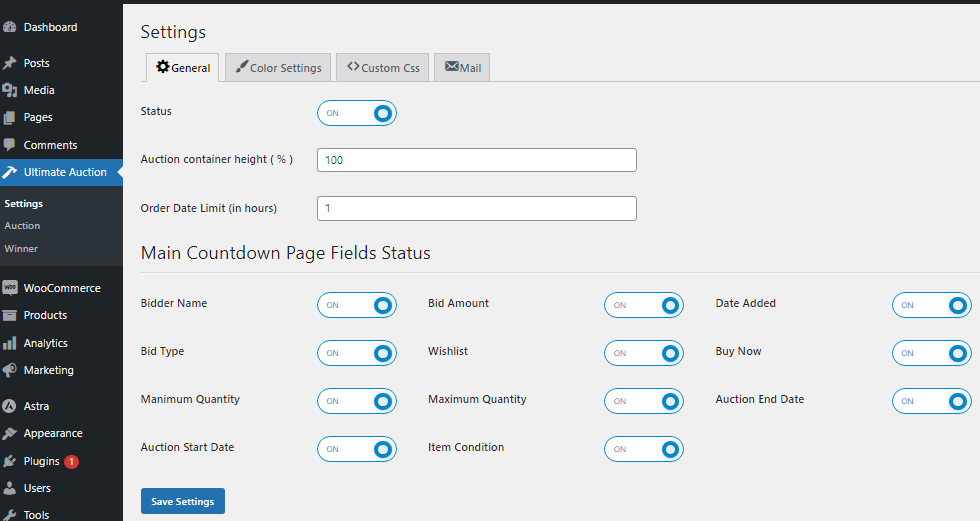
- Enable plugin status to use the features of this plugin
- Hour limit for user buy product after winning bid.
- Main Countdown Page Fields Status Setting
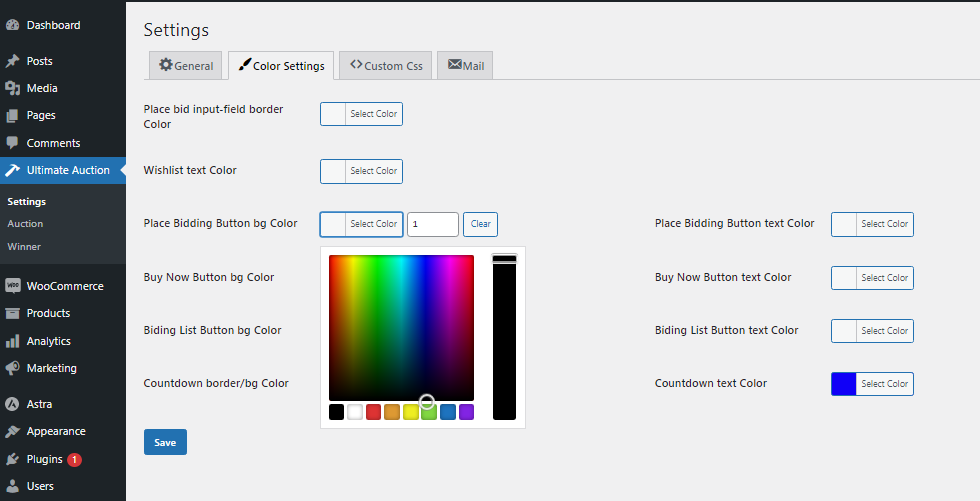
- Color setting
- Custom css
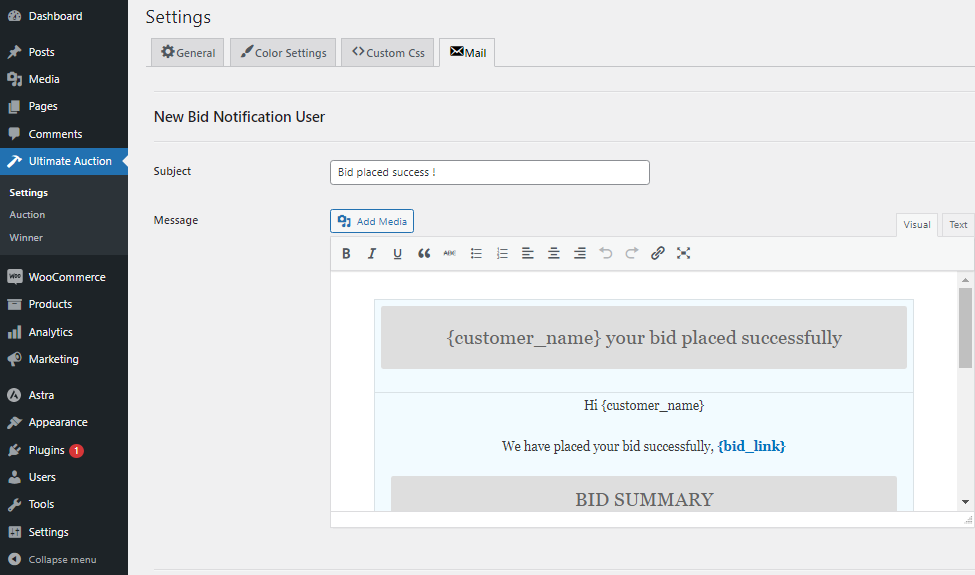
- Mail template setting
Email Template :
Email Template is used to send notification to the auction Plugin sends an email to the winner and all bidder automatically.
It takes an email template from the Plugin. Different email template to every activity of bidder.
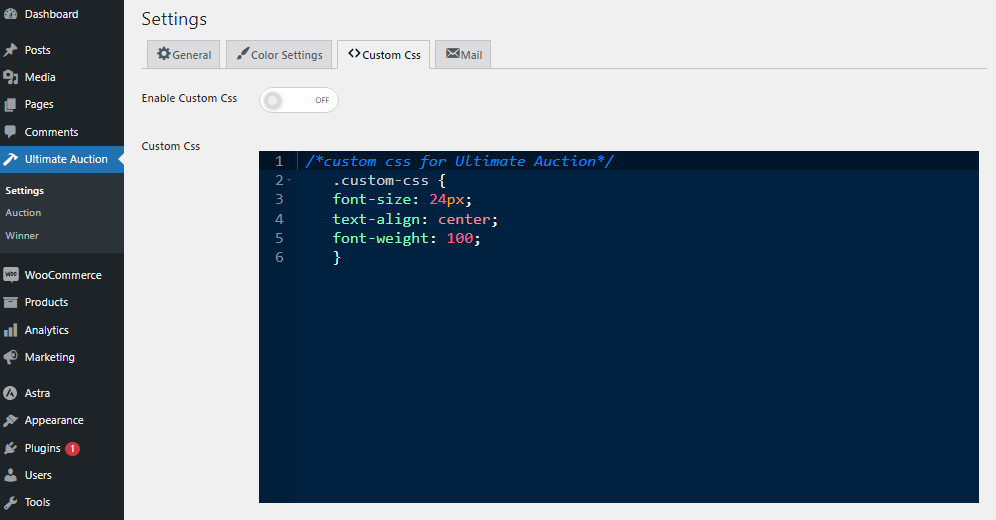
Custom Css :
Enable the Custom Css to Change the layout according to the need. You Can write you custom css in custom css box. And you can see the change on the user Side.
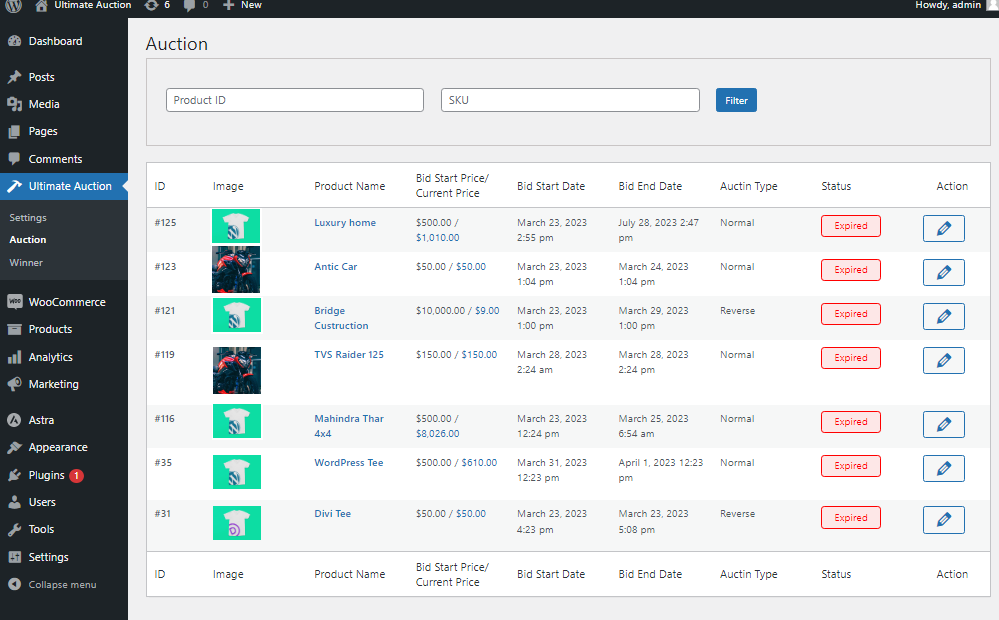
Auction List :
Admin can see all The Auction List on this page. Admin can filter Auction List from filter section. Admin can Modify auction and edit auction from here.
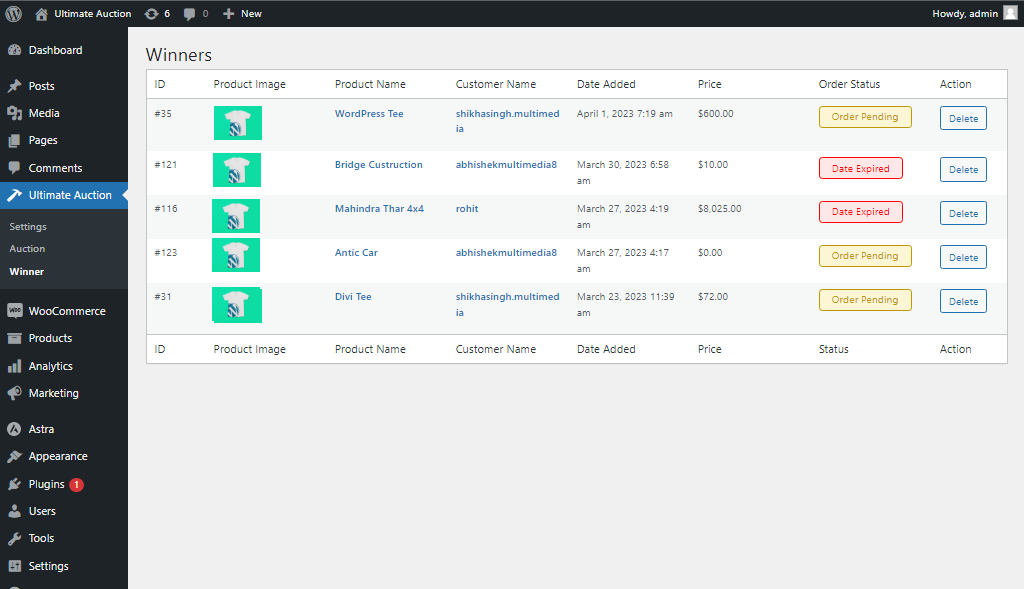
Winner List :
Admin can see all The Auction Winner List and see the order status from here.
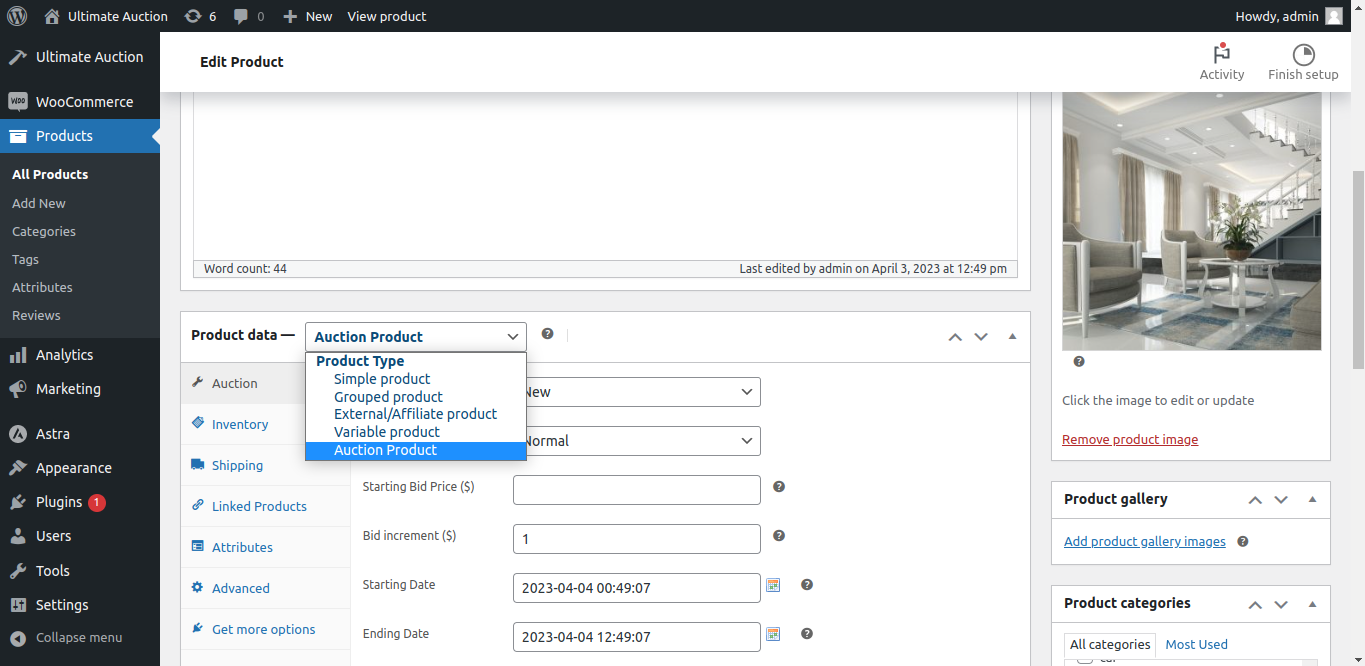
Create Auction Product :
To create a Auction product follow the steps given below.
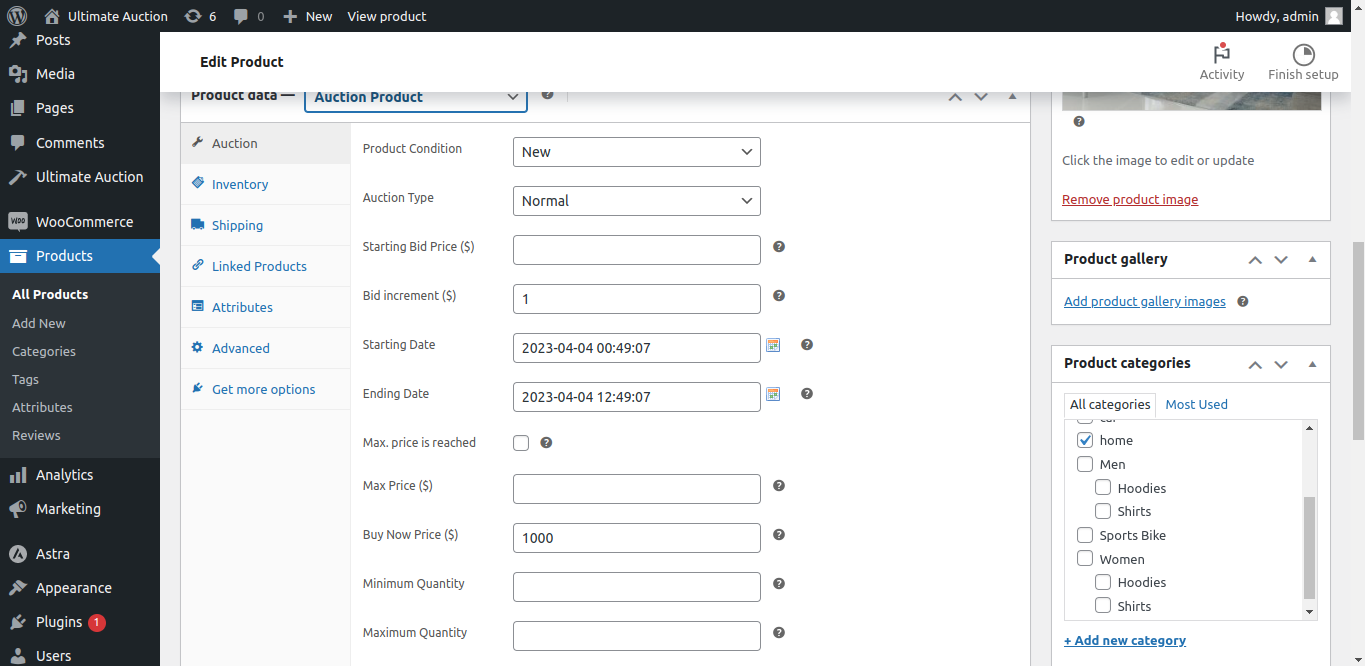
- Click on "add new" from Woocommerce product menu option.
- From Product Data meta tab, Select Product type auction.
- Now, click on auction tab and fill all the required data like auction type, Item Condition, Auction Strat date, Auction End date etc.
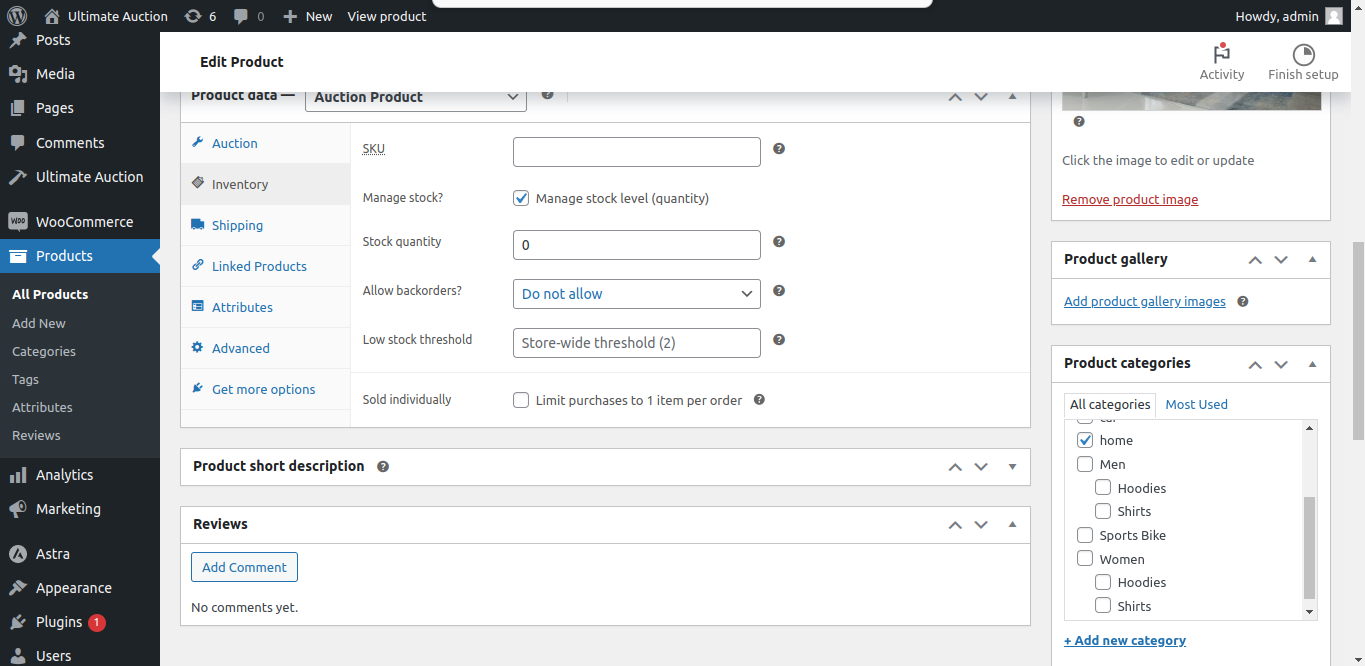
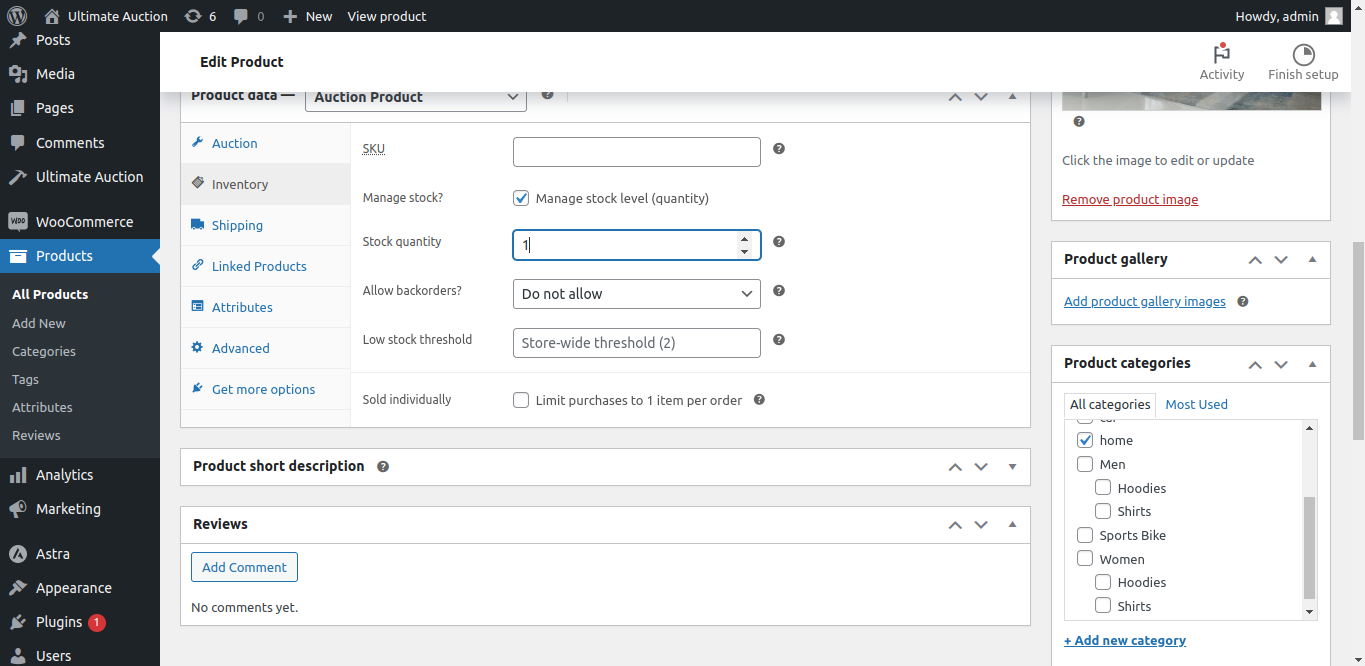
- After that, click on inventoty tab to fill product stock.
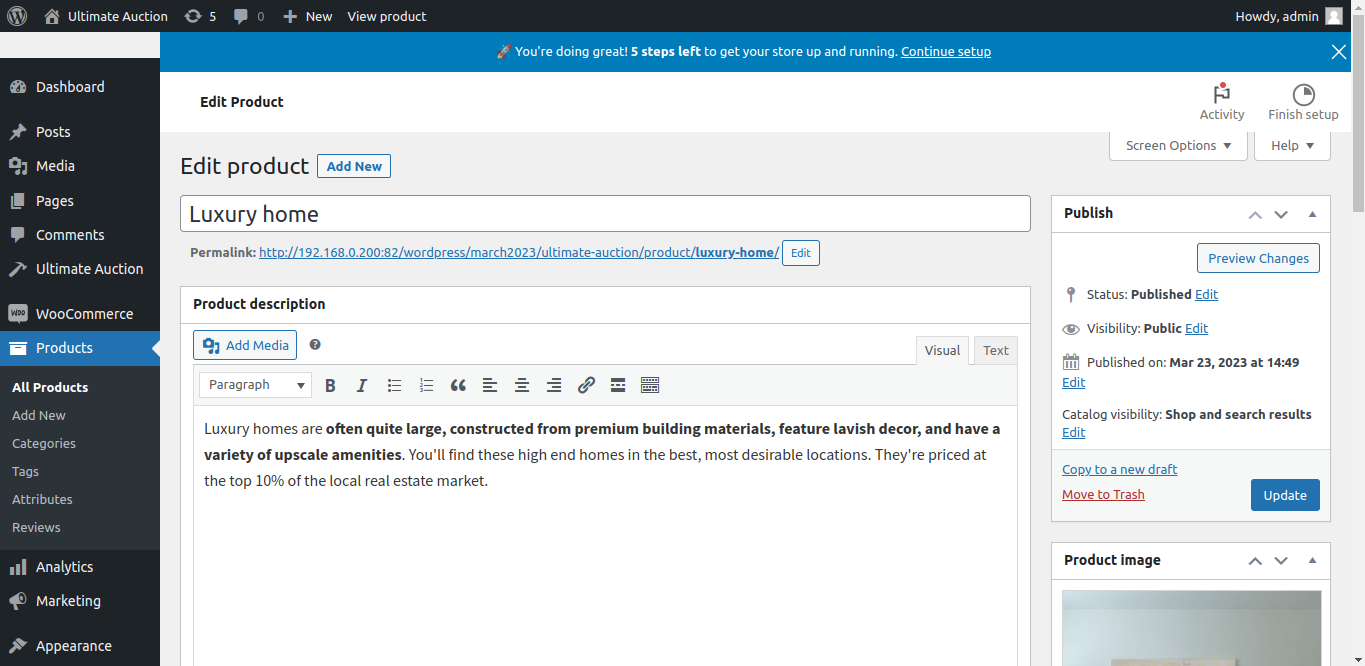
- After filling all the required data. click on update button to publish the product
- now, click on product link to view this auction product.
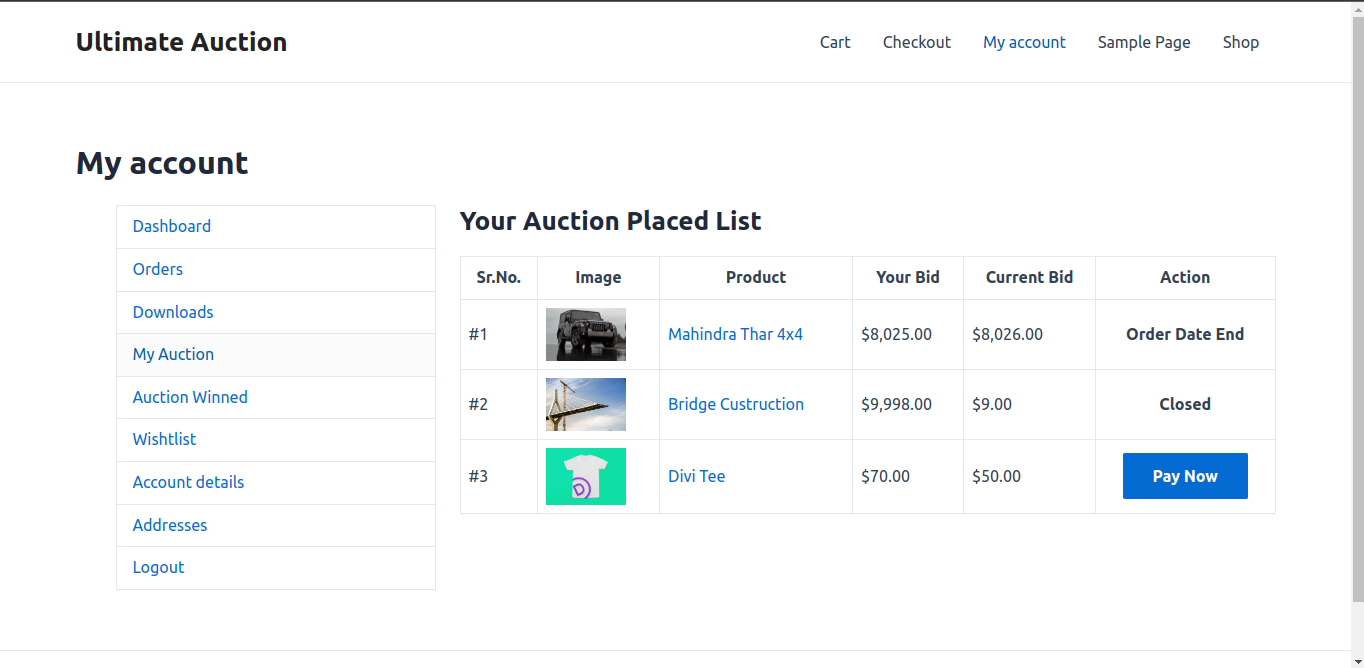
My Auction :
User can see auction products on those product user palced his bid.
To see placed auction proucts. Click on my account menu and click on "My Auction" tab from my account page.
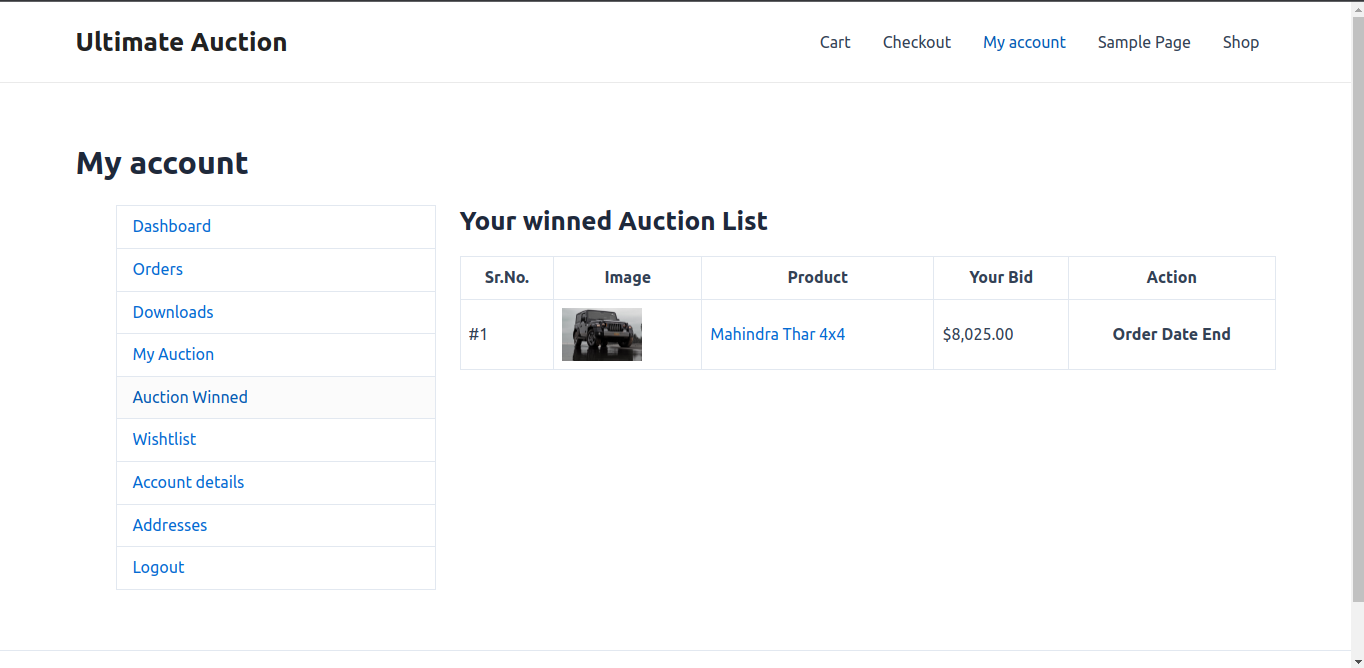
Auction Winned :
User can see all auction winned product here. and also place the order by clicking on pay now button.
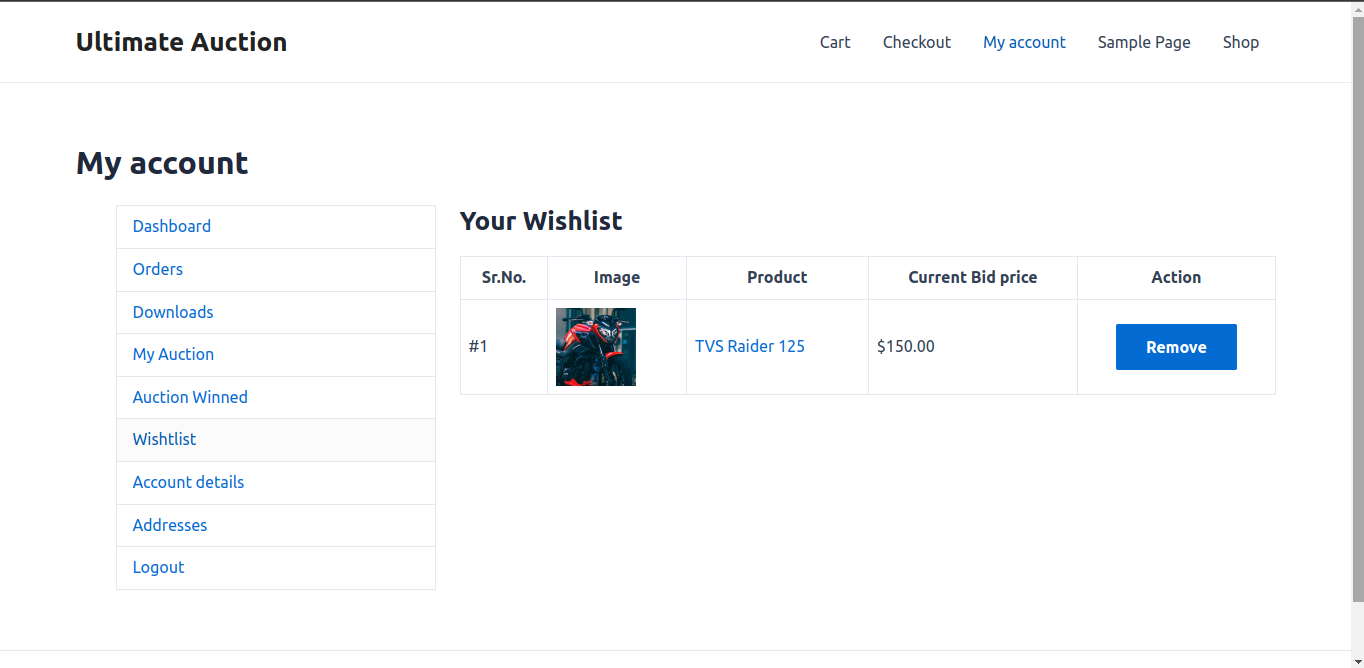
Wishlist :
User can also add auction product to the wishlist. User can see all there favourite product in wishlist tab. he can also remove the product prom the wishlist.
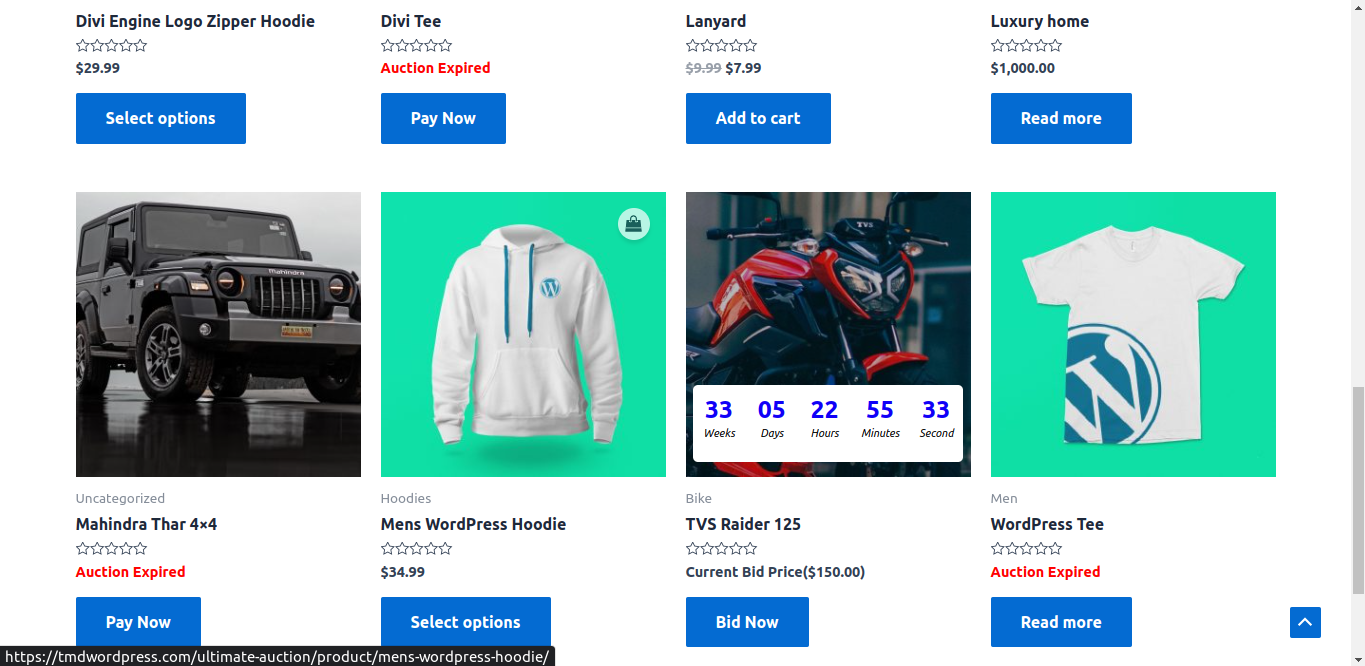
Product Page :
User can see auction product on Woocommerce shop page. user can also see auction expire time and auction expired product.
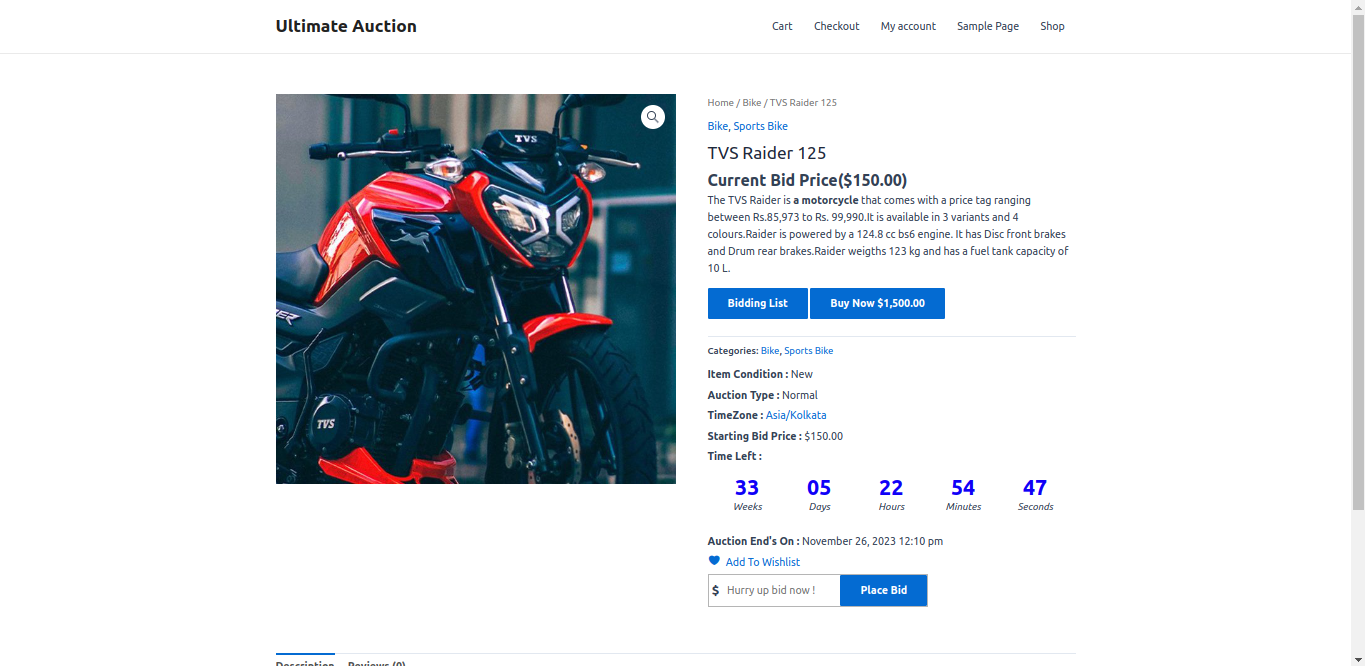
Single Product Page :
User can also see auction product on Woocommerce Single Product page.
user can see all the details of auction product on this page.
user can also place the bid on this product.
user can add this product to the wishlist by clicking add to wishlist button.