Please use the left navigation bar to browse through this support. Let s go !
Installation
Before install, please make sure you have the components bellow enable on your server
                        PHP 7.2 or greater
                        MySQL (4.1+) MySQL (4.1+), MySQLi,
Installation WooCommerce Booking
Installation
- Download Vacation- WooCommerce Booking & Rental Plugin plugin from our websites .
- If downloaded as a zip archive, Than keep zip file to your desktop.
- Go to Plugins screen in site admin panel and select Add New.
- Click on upload plugin and Browse plugin zip File from desktop.
- Install the plugin
- Click Activate Plugin to activate it.
- after activate plugin go to for Vacation- WooCommerce Booking & Rental Plugin setting tab and fill requirement according to instruction below.
Introduction
The Vacation- WooCommerce Booking & Rental Plugin Introductions
Vacation- WooCommerce Booking & Rental Plugin help you to build your booking business, it’s super easy to install and setup. You will able to booking tour package and rent like cars, bike, dress, tools gadgets, etc.
This allows you to add unlimited rental products, gives you the option to set your own pricing along with maintaining. It brings so many features This Plugin is fully compatible with latest WooCommerce and WordPress version.
A lot of options/settings are provided in the back-end for example: block rental days and hours, set minimum & maximum booking days, single day booking, daily basis opening & closing time and many more....
Structure of work
Vacation- WooCommerce Booking & Rental Plugin Plugin is very easy to use with
WooCommerce
Admin can add a product as a Booking product and Set the start and end
date,
Put information , the maximum quantity of product, amount, and more.
Why Use Vacation- WooCommerce Booking & Rental Plugin
WooCommerce Booking Plugin is very easy to use with WooCommerce.
WooCommerce Booking Plugin help you to build your booking business, it’s super easy to install and setup. You will able to booking tour package and rent like Offce, Hotel, Cars, Bike, Dress, Tools, gadgets, etc.
A lot of options/settings are provided in the back-end for example: block rental days and hours, set minimum & maximum booking days, single day booking, daily basis opening & closing time and many more....
Features List
- Admin can set start date end date of the booking.
- Customer can see the booking details in the product page.
- Admin can use plugin with different types of booking as per need like rental booking hotel booking Appointment booking event booking etc.
- Easy add iframe google map to the Location.
- Easy add video YouTube to the booking instruction.
- Powerful admin setting and email notification.
- Template archive page and single tour beautiful.
- Add price per adults, per children, per infant.
- Limited number of booking days.
- Easy to change color in tour.
- You can use any of the payments configured in WooCommerce.
- You can use functions of WooCommerce: payment, discount cart, ...
- You can add field name by number adults, children, Infant
Admin Panel
Easy Admin setting :
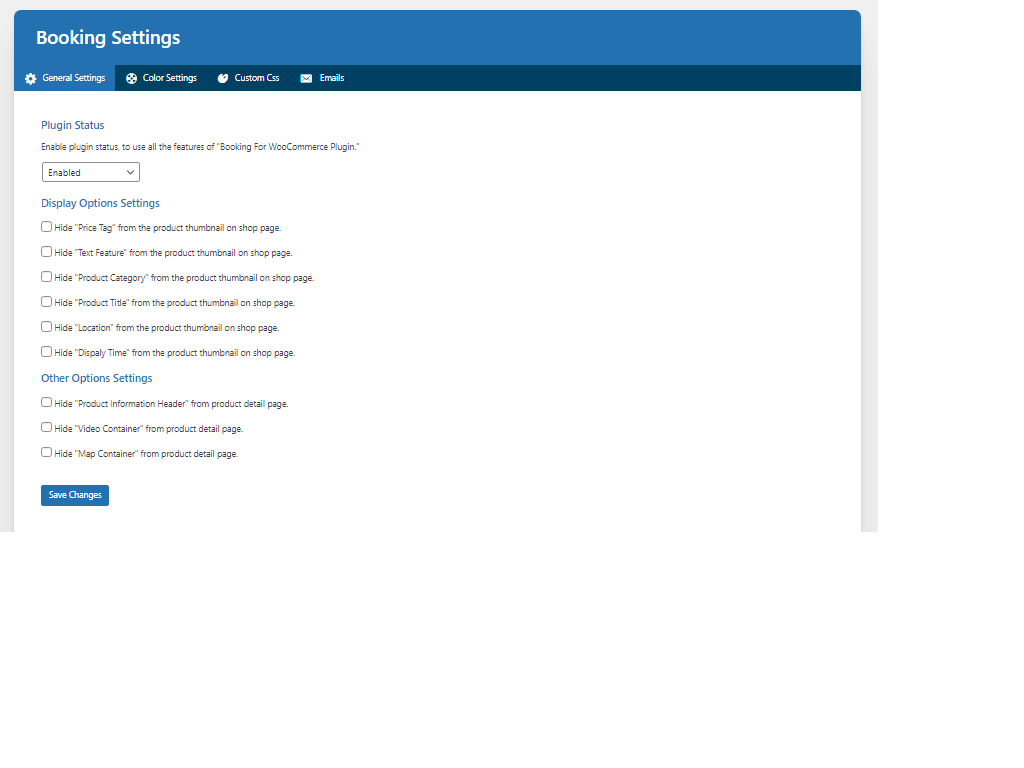
- Enable plugin status to use the features of this plugin
- Main booking page setting in General Setting
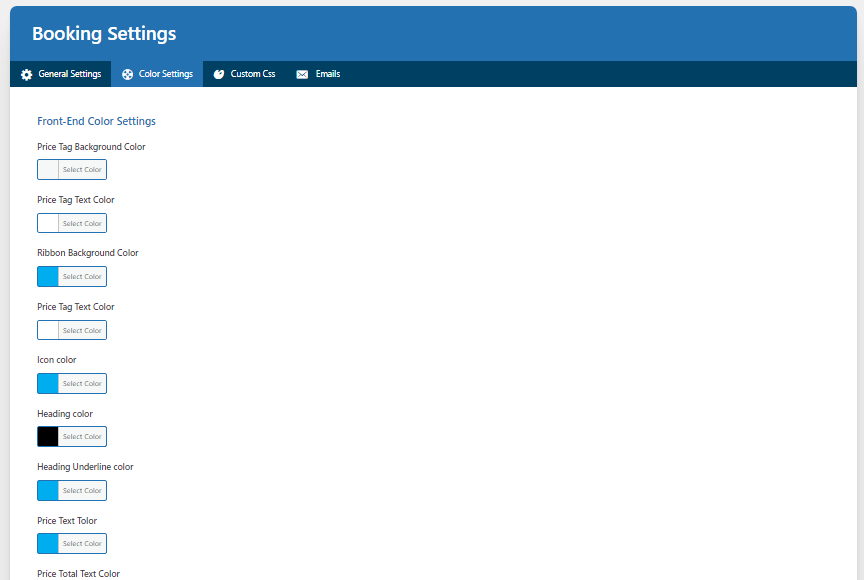
- Color setting
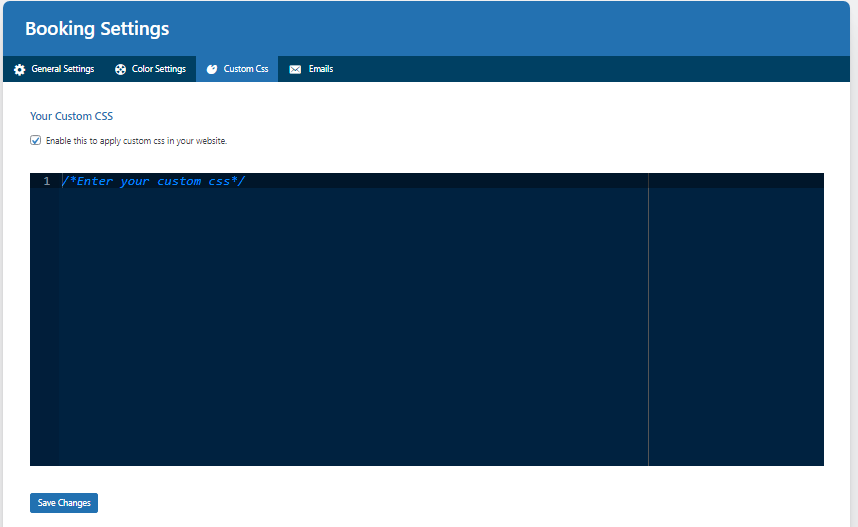
- Custom CSS
- Mail Template Setting
General Settings:
Admin can Easily customize the display setting and plugin status through the General Setting tab.
Color Settings:
Admin can Easily customize the display colors Like Price Tag Background Color, Ribbon Background Color, Heading color, Book Now Button Background Color and Book Now Button Text Color ect.
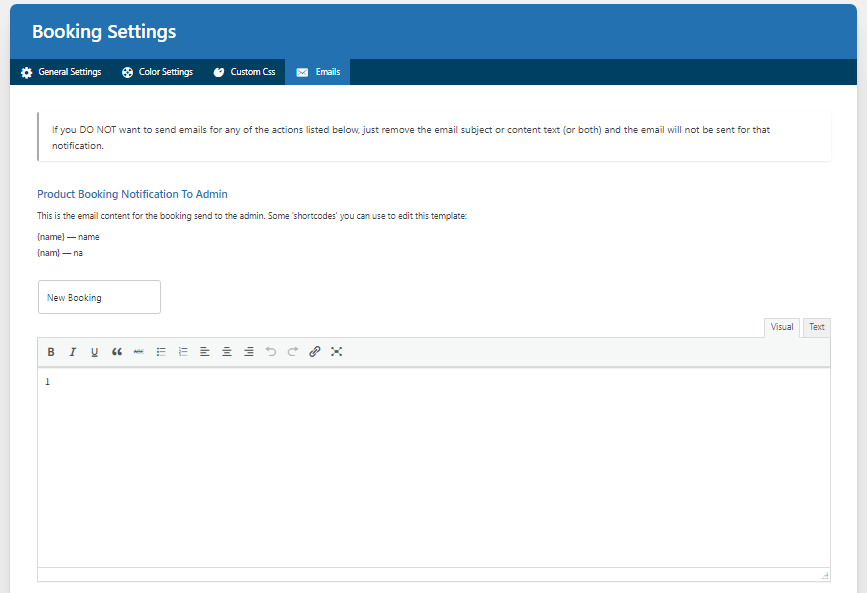
Email Template :
Email Template is used to send notification to the Booking Plugin sends an email to the Customer automatically.
Custom CSS :
Enable the Custom CSS to Change the layout according to the need. You Can write you custom CSS in Custom CSS box. And you can see the change on the user Side.
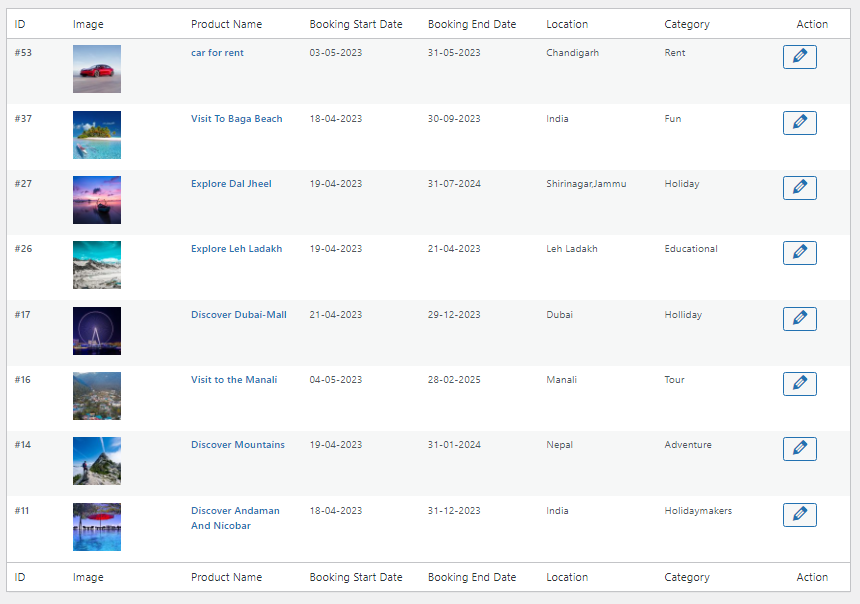
Booking Products List
Admin can see all The Booking Products List on this page. Admin can filter Product from filter section by product id and SKU. Admin can Modify product list and edit product from here.
Create Booking Product
To create a booking Product follow the steps given below.
- Select 'Booking Product' option from product data option
- Now, Booking product Tab will be shown.
- Click on Booking product tab to fill all required details.
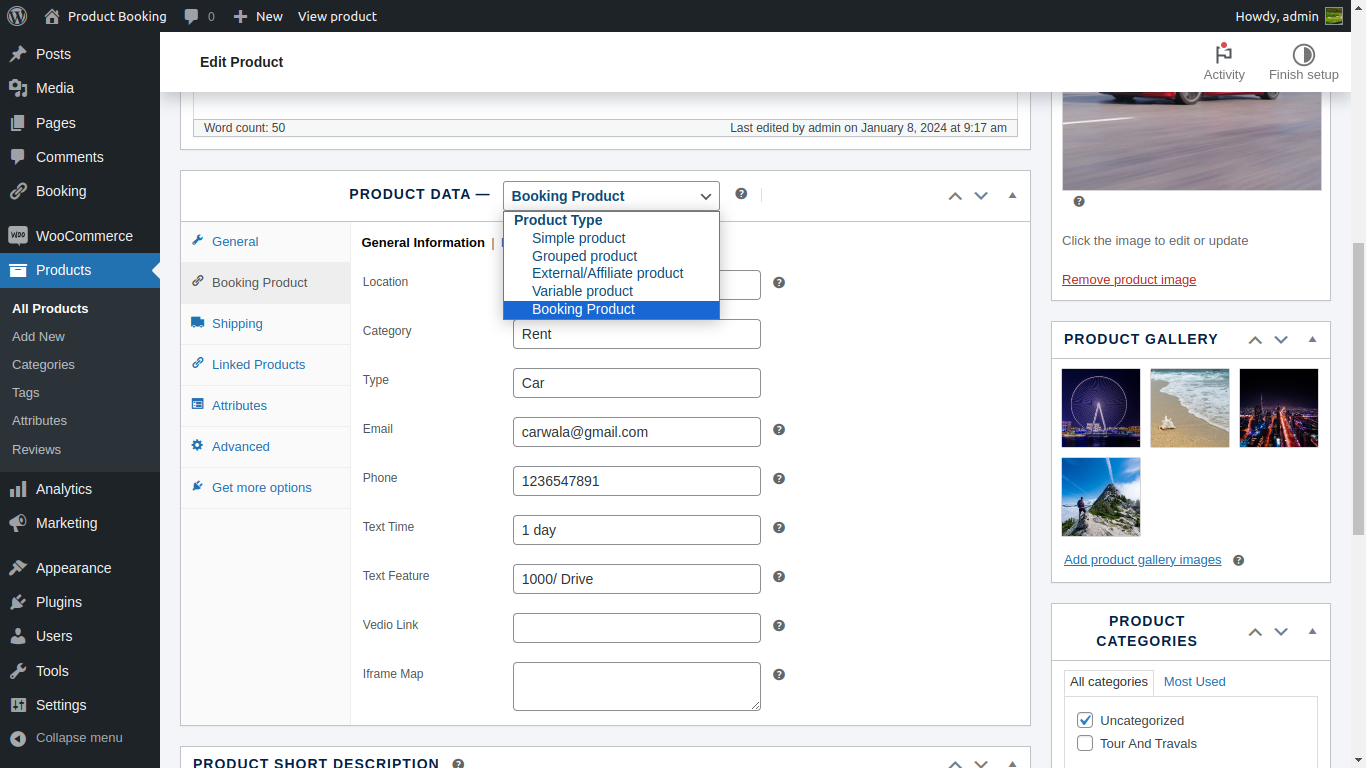
- Now, fill all general information like Location, Category, Type, Text Time, Video Link and I frame Map.
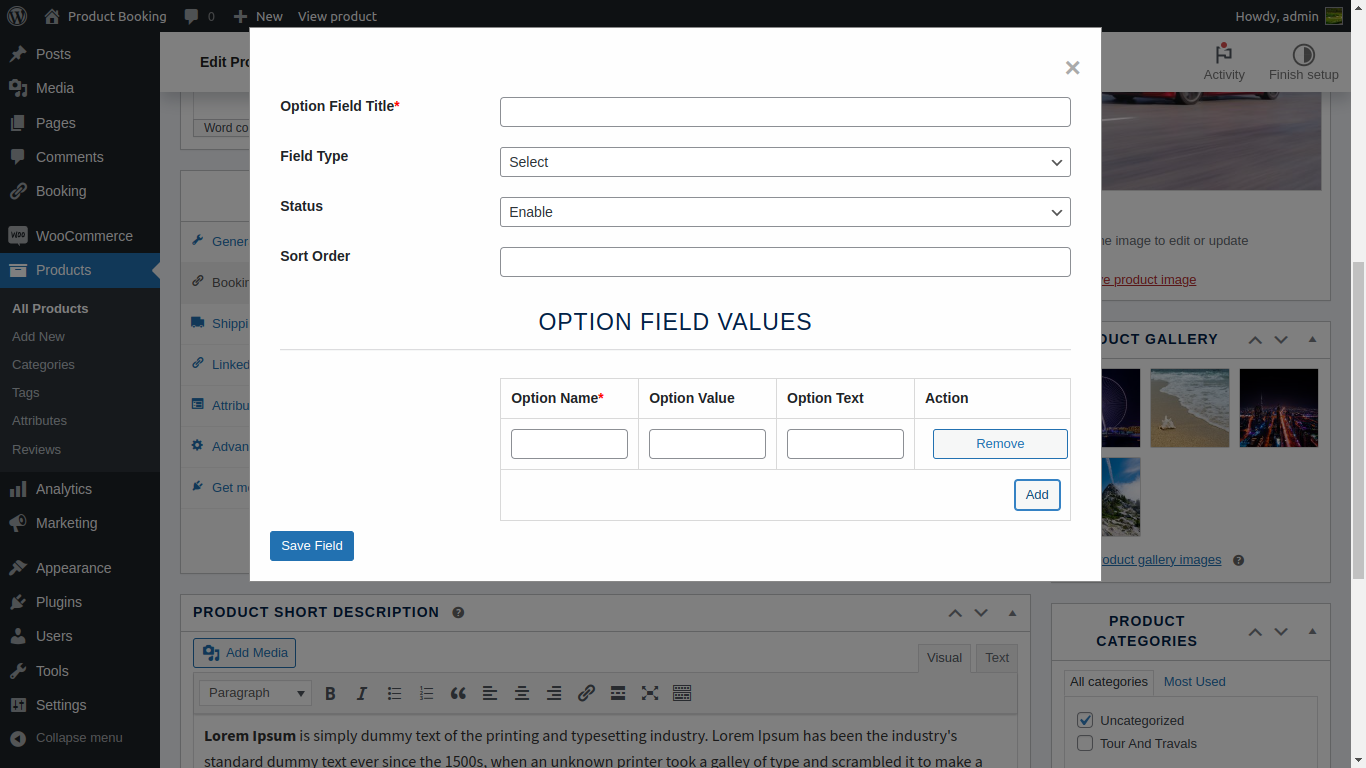
- Than click on Booking Fields tab to create booking other details.
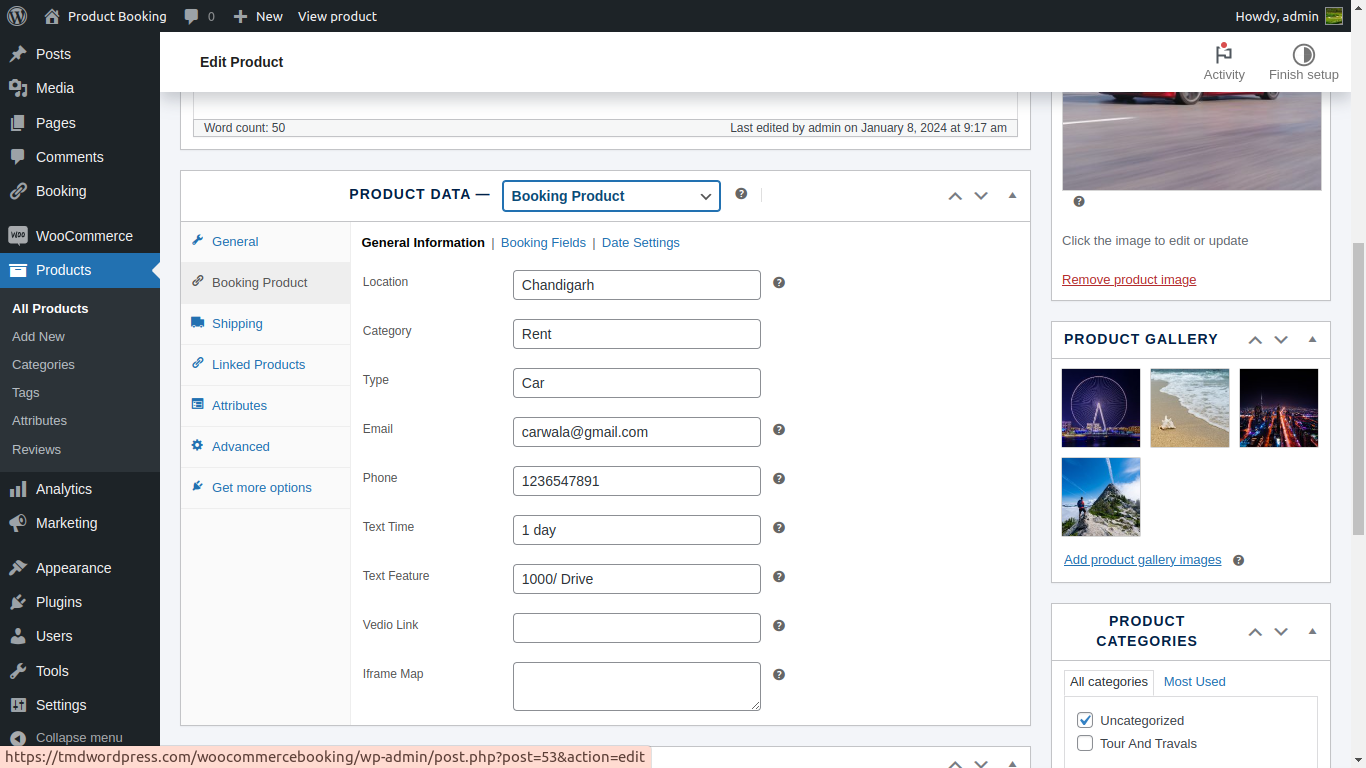
- Click on Add Field Button to add multipal booking fields.
- Booking Field modal will appear.
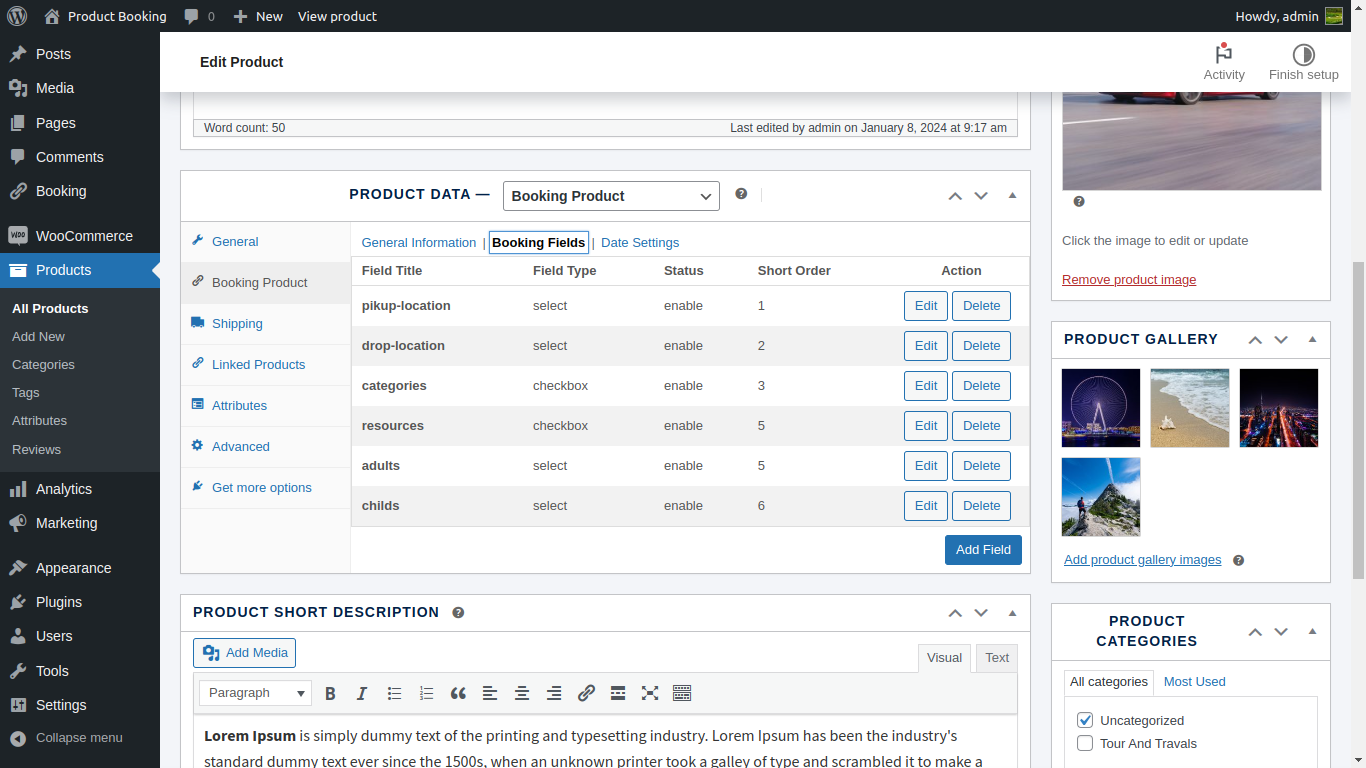
- In the Option Field Title Enter The title of the this options.
- Now Select option field type, like checkbox, radio, and select option.
- You can also set field status like enable or disable.
- In the Option Field values, Enter option name, option value, option text.
- Click on 'add' button to add more multipal fields.
- After filling all the required details. Click on save button to save your field.
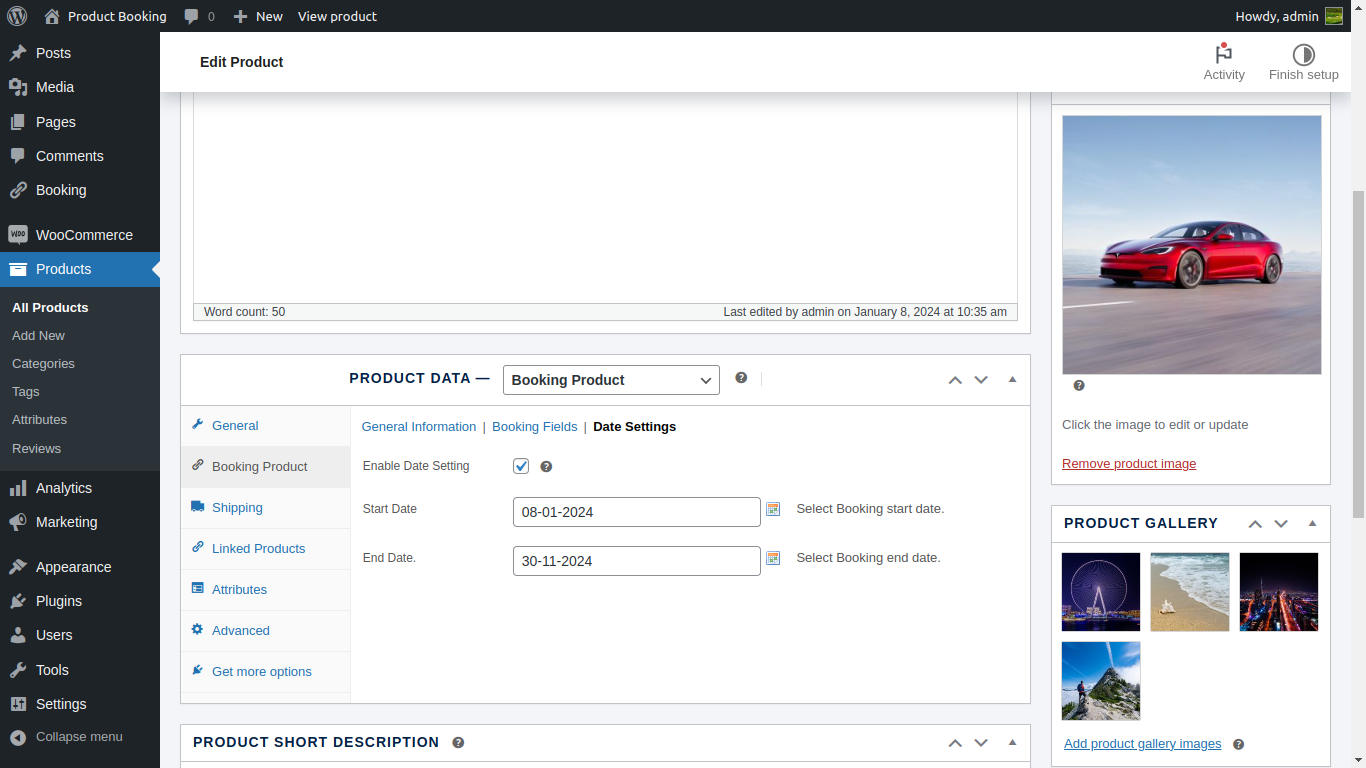
If you want to add date Field in your booking product.
- Click On Date Settings tab.
- Now Enable date Setting. and select Start Date and End Date.
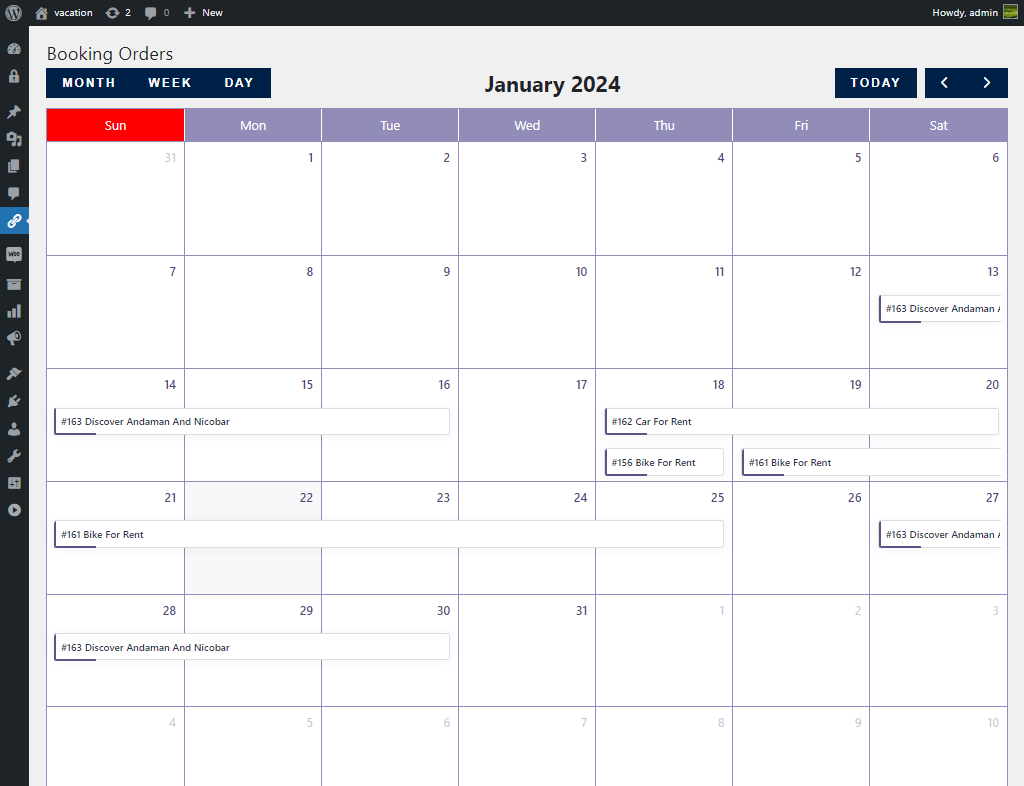
Note: If you Enable date Field For Booking Product The booking product order Will be displayed in the calender. you can easily track your order from this calender.
Front Side
Admin can see all The Booking Products List on this page. Admin can filter Product from filter section by product id and SKU. Admin can Modify product list and edit product from here.
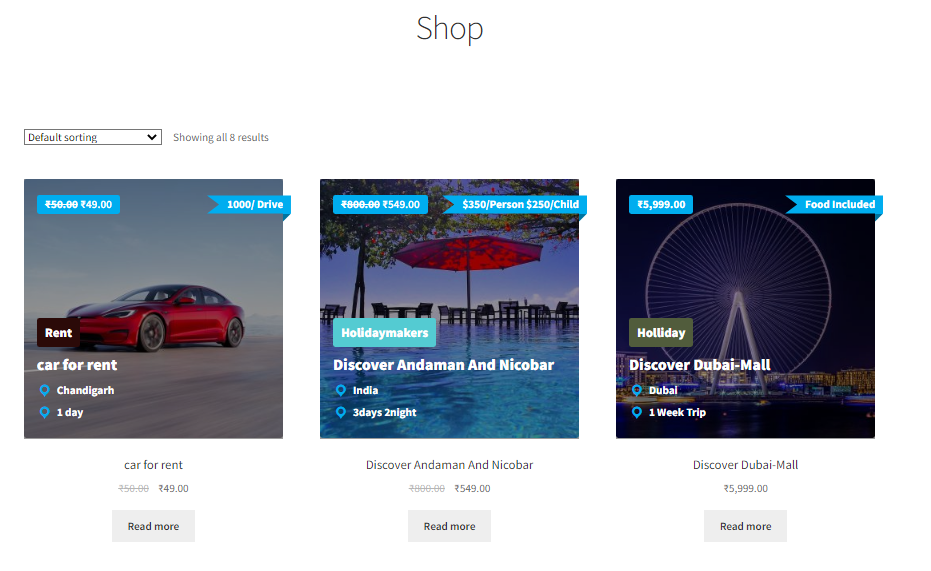
Shop Loop Page :
The General Information of the booking tab is shown on the shop loop page. admin can easily manage the layout color and content of the shop loop page.
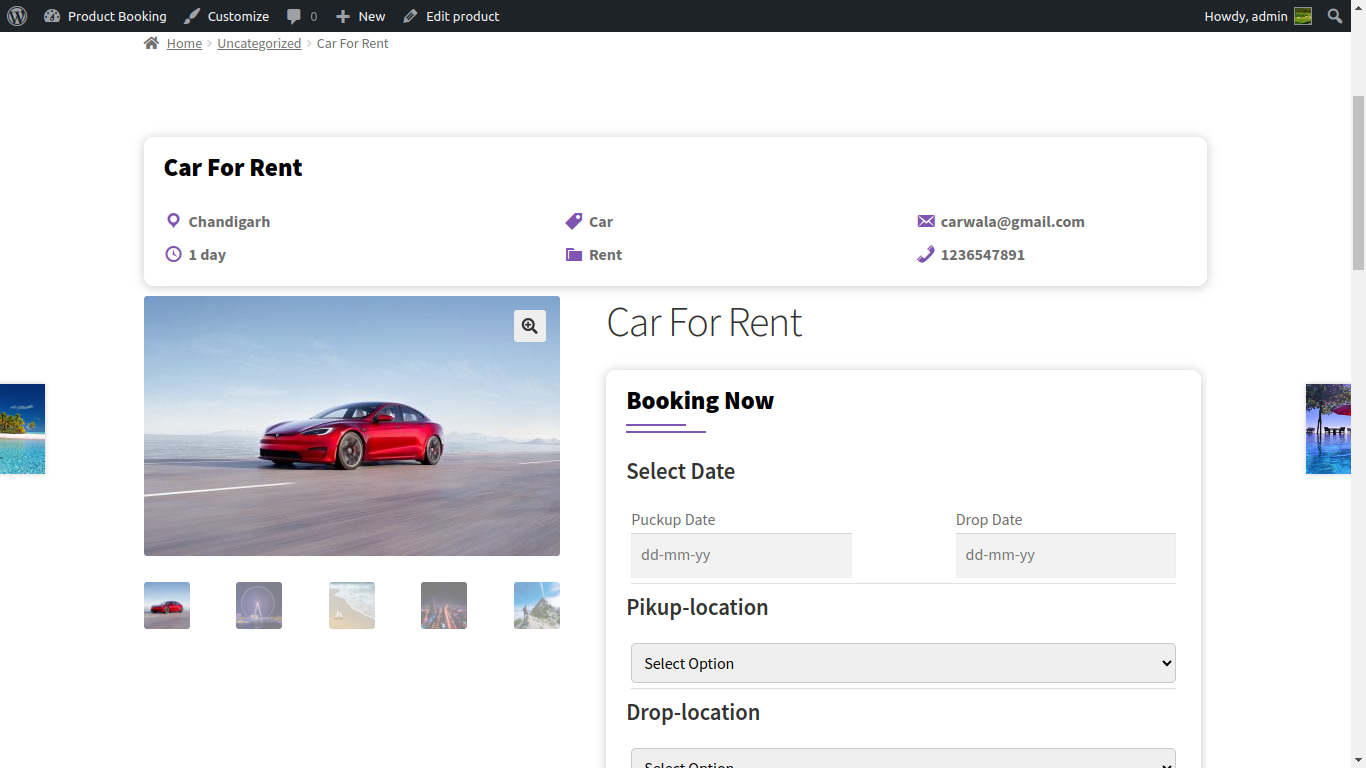
Single Product Page :
On the Single product page the all detail of the product can be displayed on the single product page. user can easily select the required option and click on the BookNow Button to create booking. The layout, color, and the content is also mange by the admin.
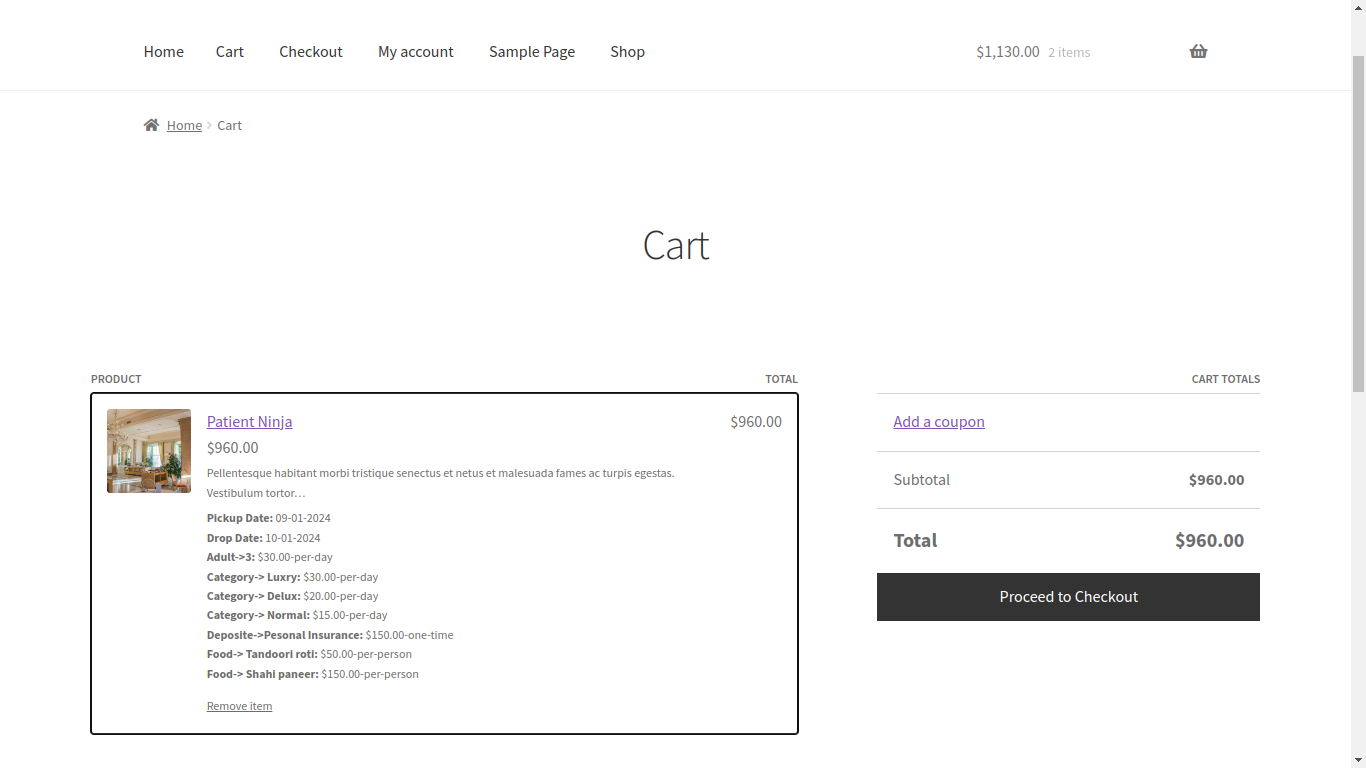
Cart Page :
After selecting the booking product, the product will be added in the cart. and select options are also. displayed on the cart page.
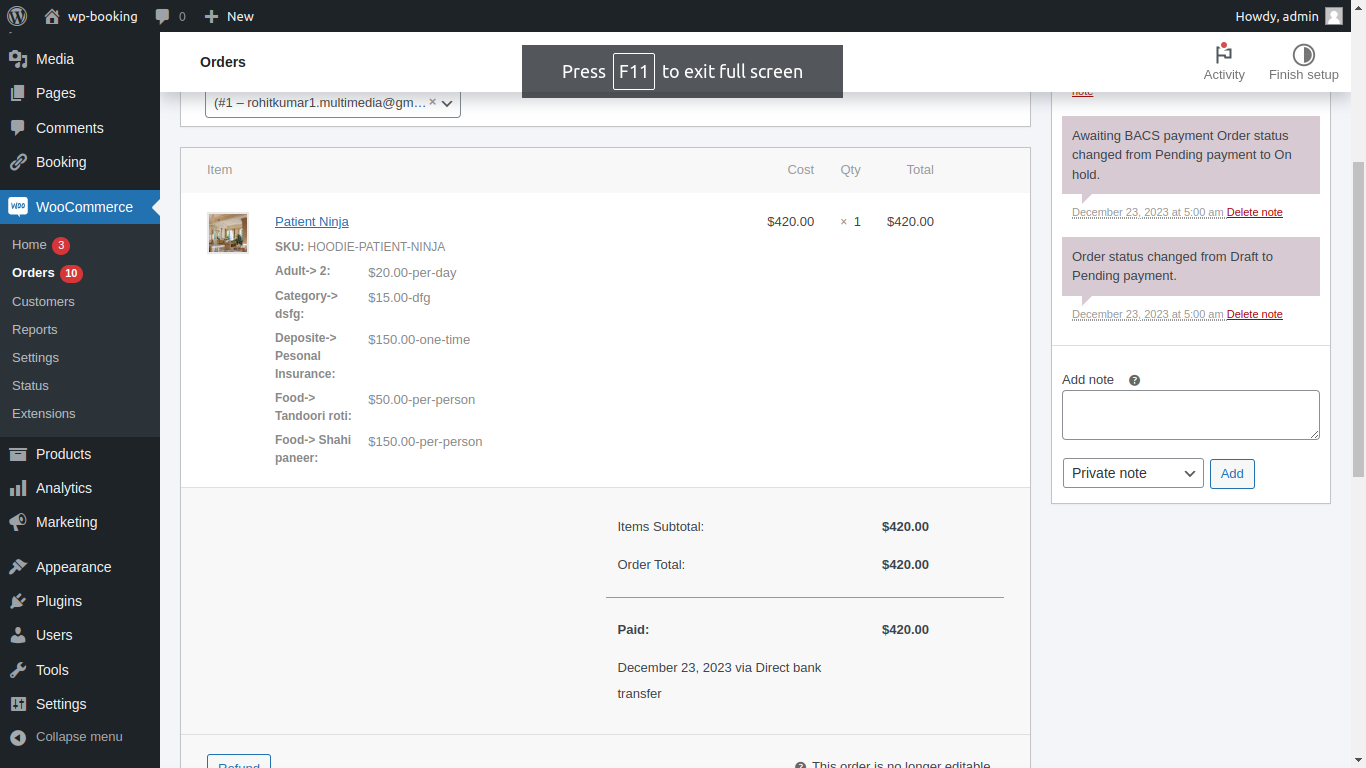
Admin Order Detail Page
On the admin order detail page the selected options for booking will displayed.
Booking Order Calender
On the Booking Order Calender page you can see all order on the calender and you can easily manage your order.