Please use the left navigation bar to browse through this support. Let’s go !
Installation
Before install, please make sure you have the components bellow enable on your server
						PHP 7.3 or greater
						               MySQL (4.1+) MySQL (4.1+), MySQLi,
1.1 Installation information
- 1. Go to ThemeForest.net website and Login into your account.
- 2. Go to your Dashboad page.
- 3. Here you will see Download link , you have to click on Download link.
- 4. Now you are on download page. Here you will see list of theme that you have purchased so far.
- 5. Find Real Estate Theme and click on download button, file called “Real_Estate_package.zip” will download, save it into computer.
- 5. Extract file “Real Estate_package.zip” using Extract software (winrar, 7zip or other software) you will get these folder - PSD, Real Estate.zip, documentation, screenshot.
1.2 Theme Installation
1.2 Installing Theme From ADMIN
- 1. Login into your Website Admin panel (i.e. http://www.yourwebsitename.com/wp-admin)
- 2. Go to Appearance Menu > then click on Themes
- 3. Click on “Add New” Button - present on Top left
- 4. Click on “Upload Theme” button - present on Top left
- 5. Select Real Estate.zip Theme file and upload it and click on “Install Now” button
1.3 Installing Theme From FTP
Before starting upload Real Estate theme file into FTP, you need to extract Real Estate.zip. and upload the Folder that created after extract called “RealEstate”.
- 1. Start FTP or filezila software or other software that you using to upload file onto website
- 2. open your website – and go to themes folder (example www/public_html/wp-content/themes/ or public_html/wp-content/themes/ or follow your file structure )
- 3. Upload Real Estate fodder into “themes” folder
- 4. Wait until upload completed 1170
Activating Theme From ADMIN
You need to activate Real Estate Theme from website Admin. To activate theme from admin follow these steps.
- 1. Login to your Website admin panel (i.e. http://www.yourwebsitename.com/wp-admin)
- 2. Go to Appearance > Themes
- 3. You will see Real Estate Theme present along with other themes
- 4. Mouse hover on Real Estate Themes “Activate” button will appear, click on Activate button
- 8. Real Estate Theme is Activated now
2 Installing Necessary Plugins
Before doing anything after theme activate. You need to install necessary plugin. These plugin(s) are necessary for smooth usage of theme. Without these plugin(s) theme will not perform proper functionality. layerslider, realestate-theme-addons, its provided by theme
- layerslider
- realestate-theme-addons
- elementor
- mailchimp-for-wp
Theme Options
General Settings
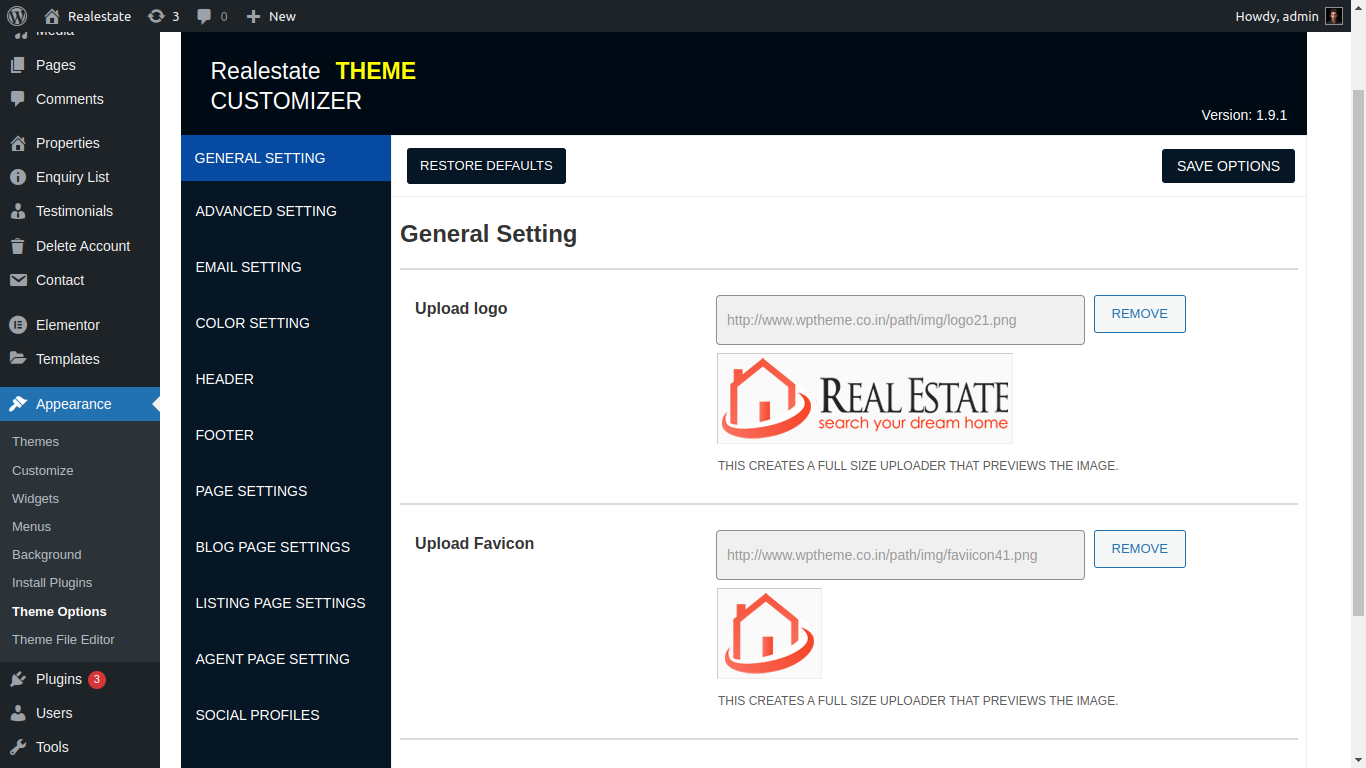
Most important part of website is Logo. That’s why we made a custom image uploader to upload logo. Appearance > Theme Option > General Setting
- Upload logo
- Upload Favicon
Advance Settings
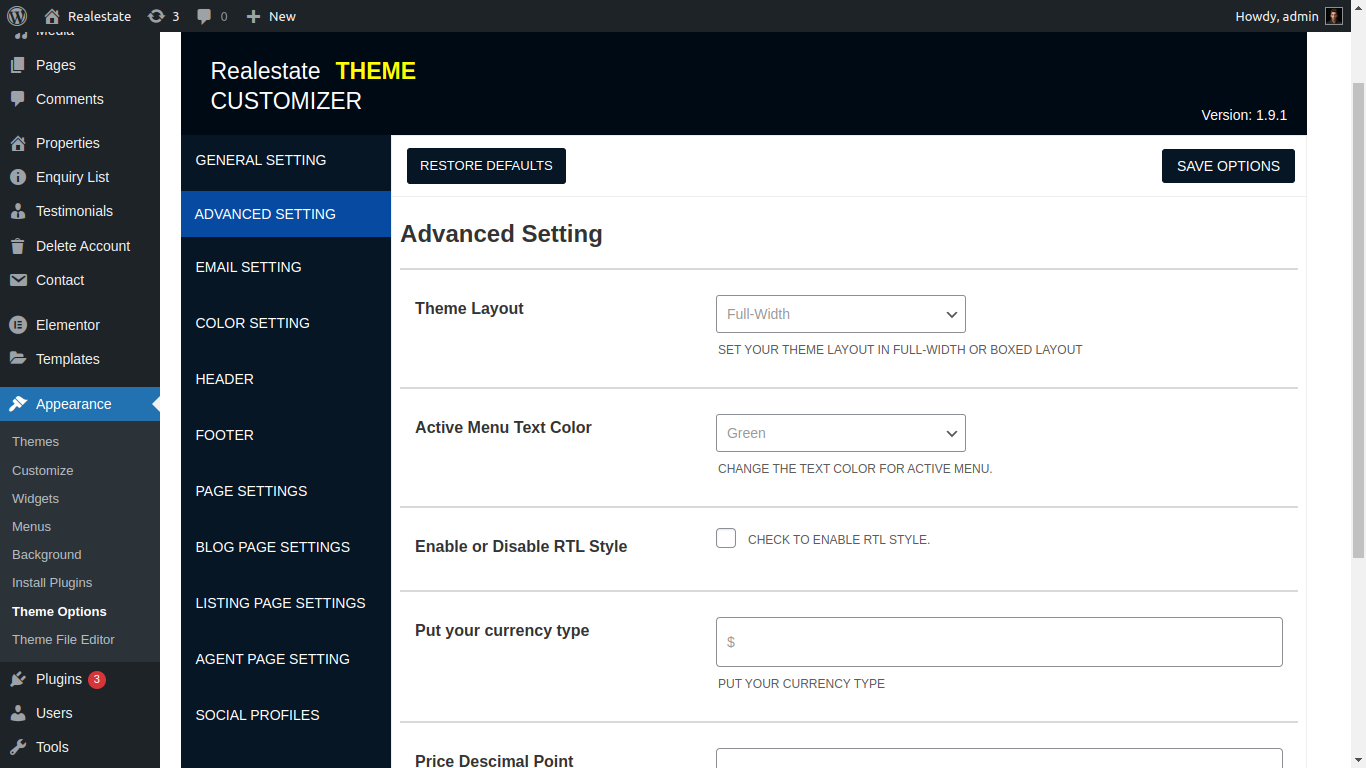
We bring other styling of website that you can directly edit from admin. Hence less work on theme styling and layout of pages. this option present here
Email Settings
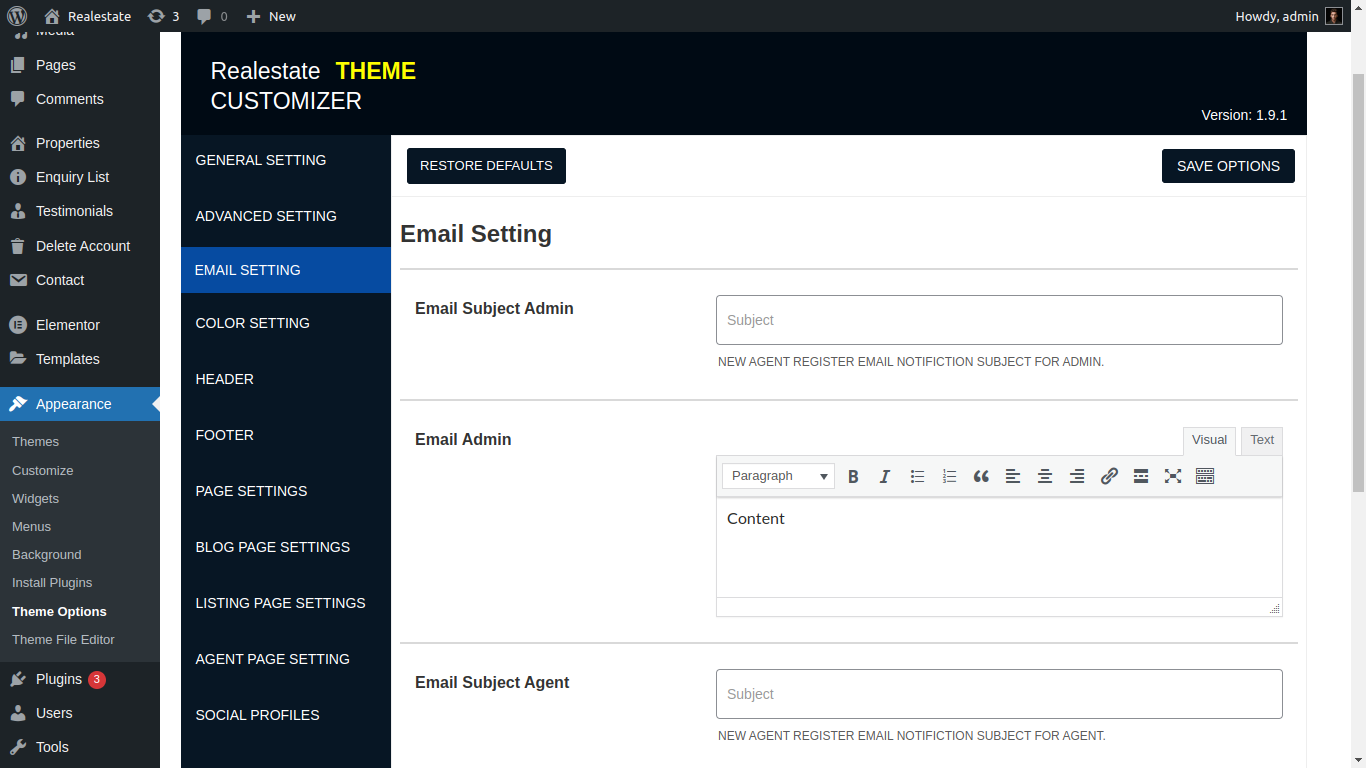
Email for the agent here you keep content for send mail to the agent
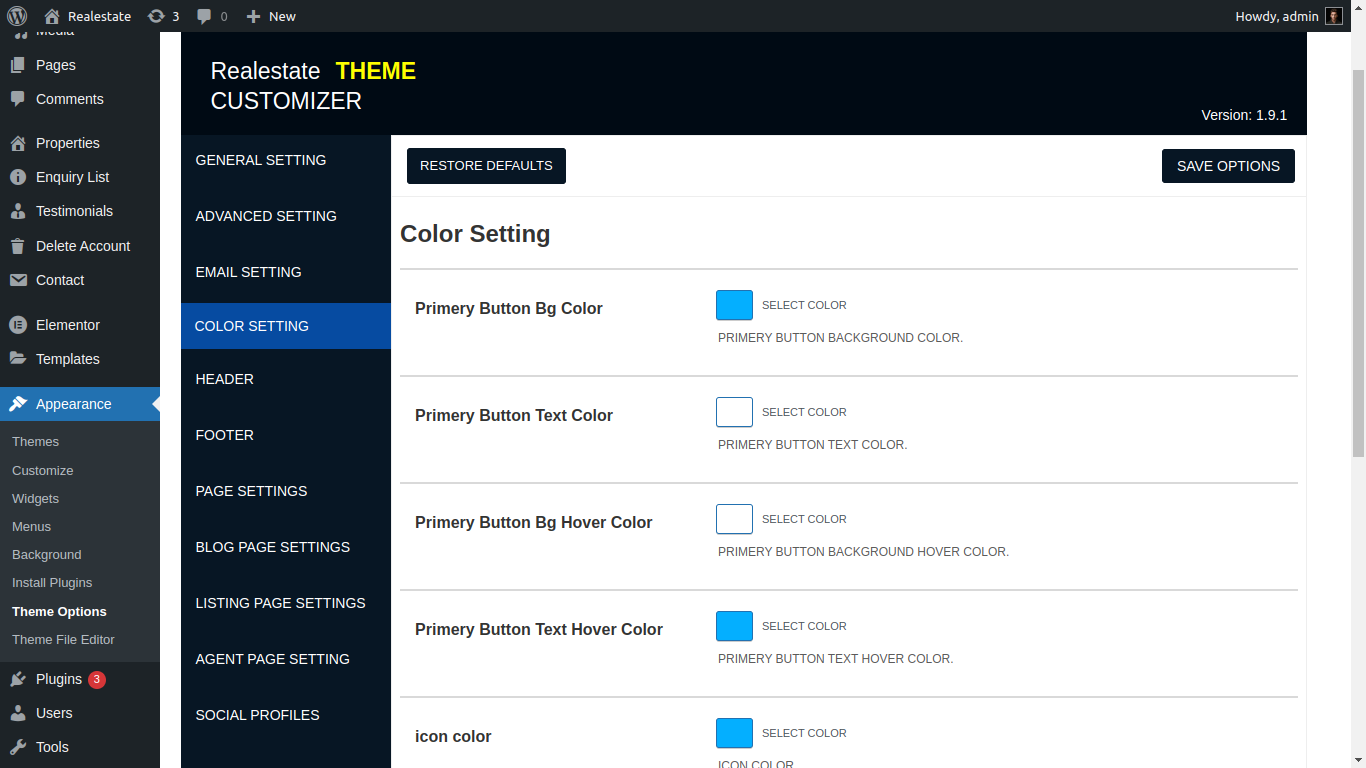
Color Settings
. button color and button background color text color and hover color And hover border color and much more you can change here
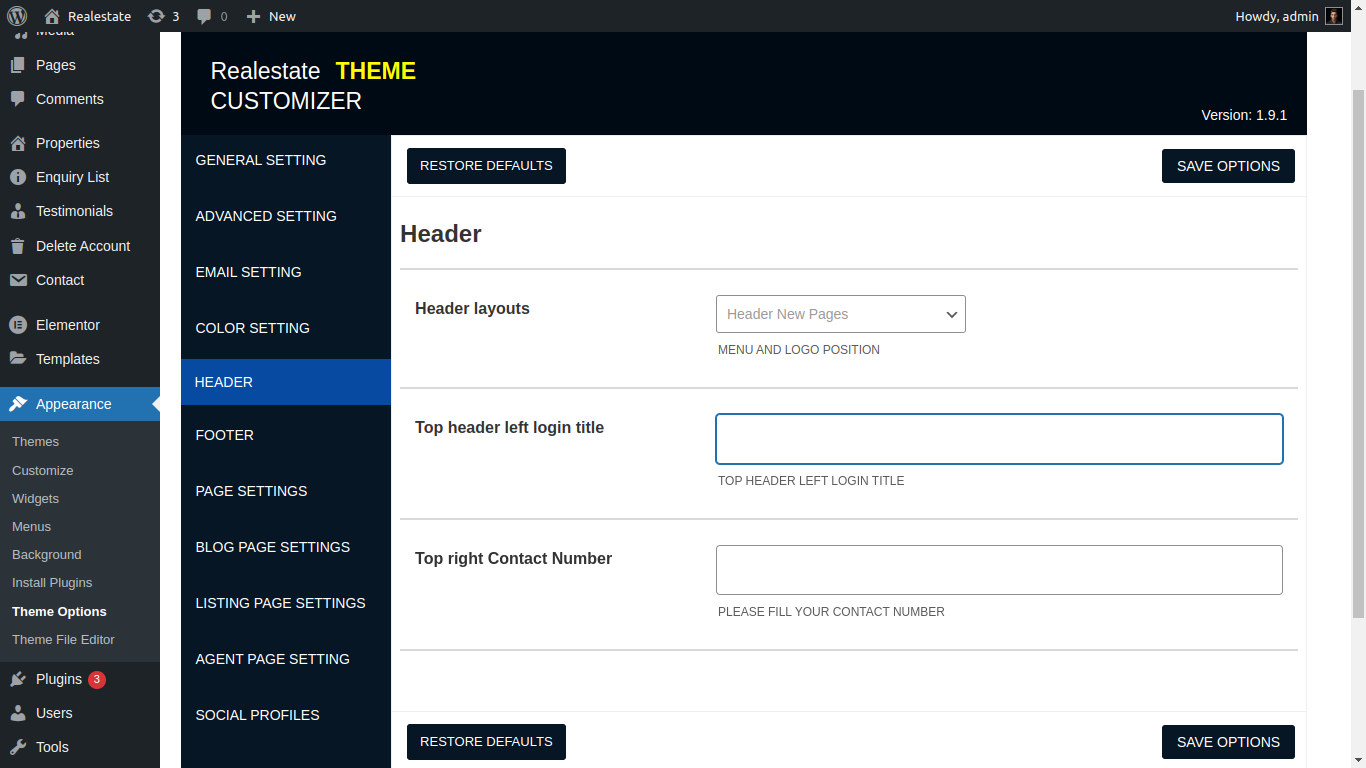
Header Seetings
Here are many layout of header present you can change your header layout
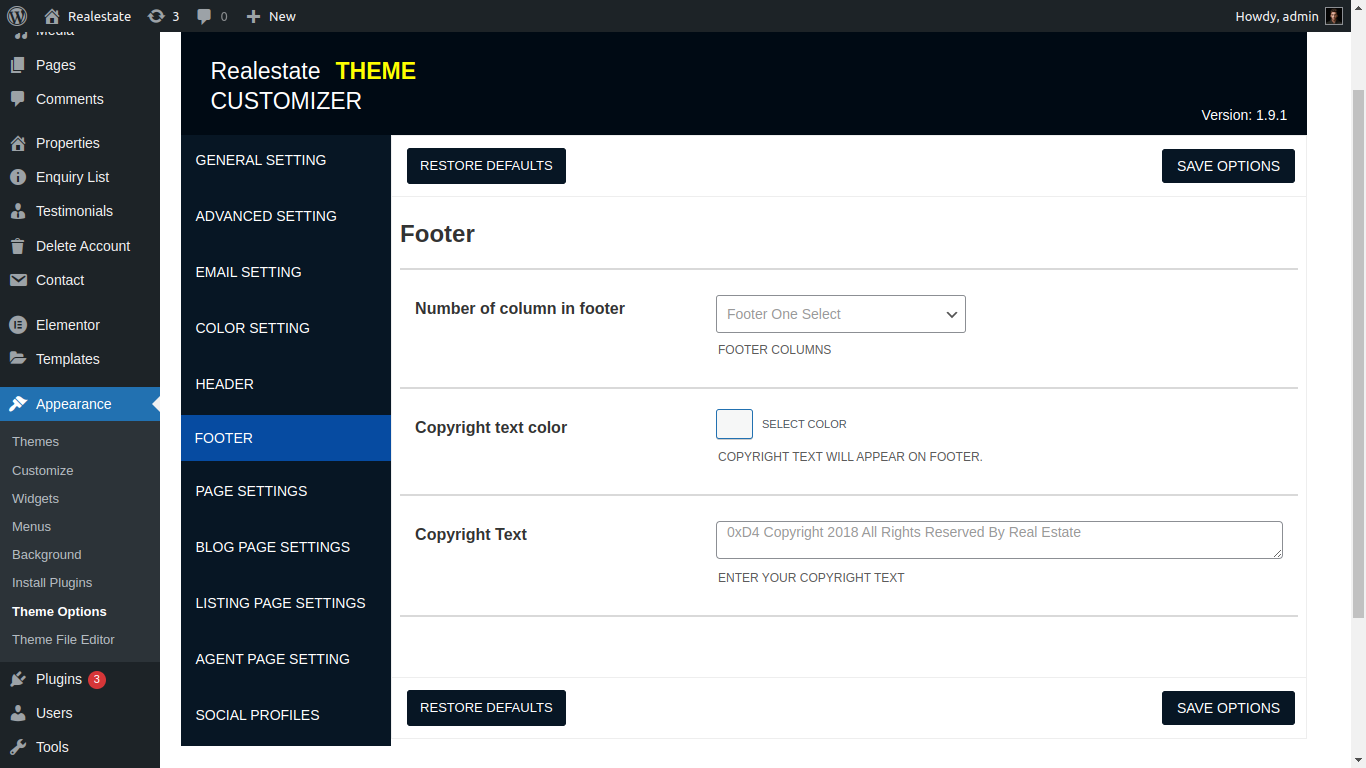
Footer Seetings
Here are many layout of Footer present you can change your Footer layout
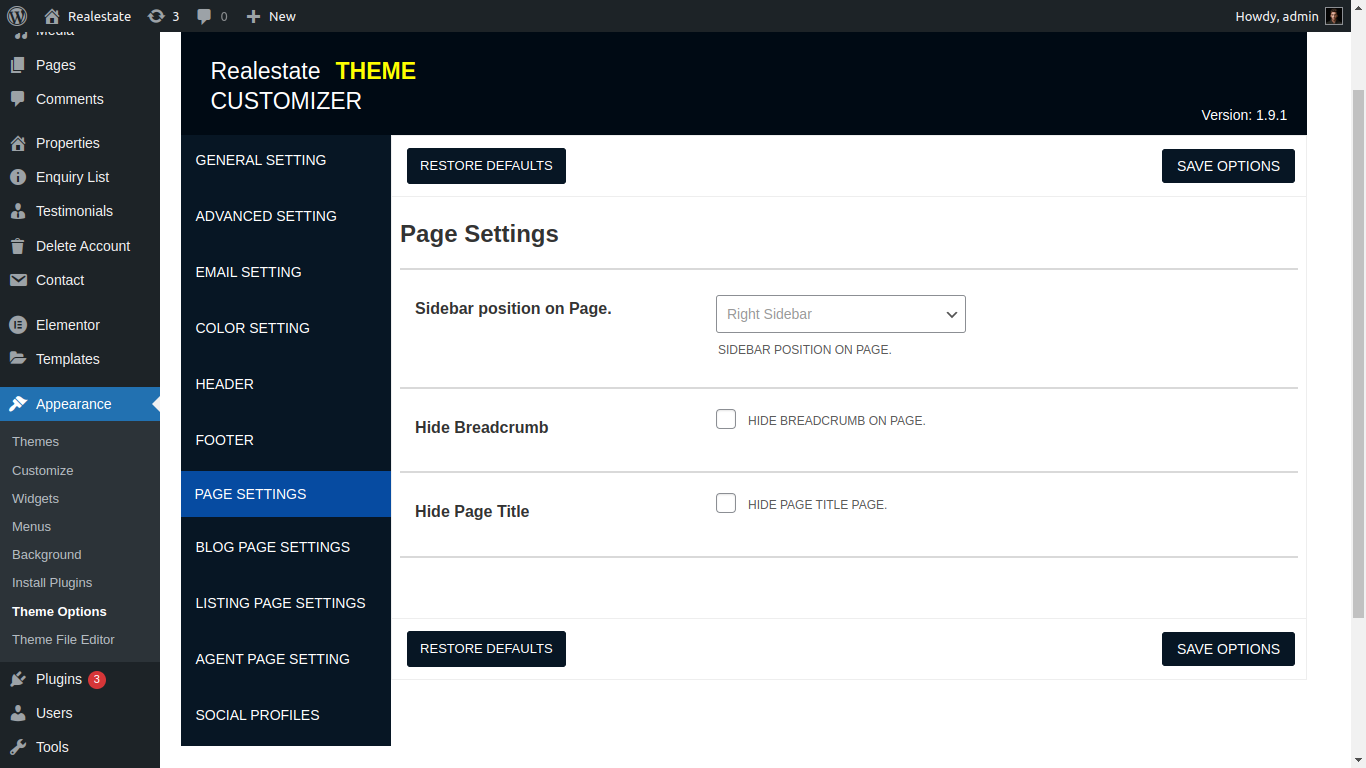
Page Seetings
Here you can manage page sidebar layout and brudscrum title etc
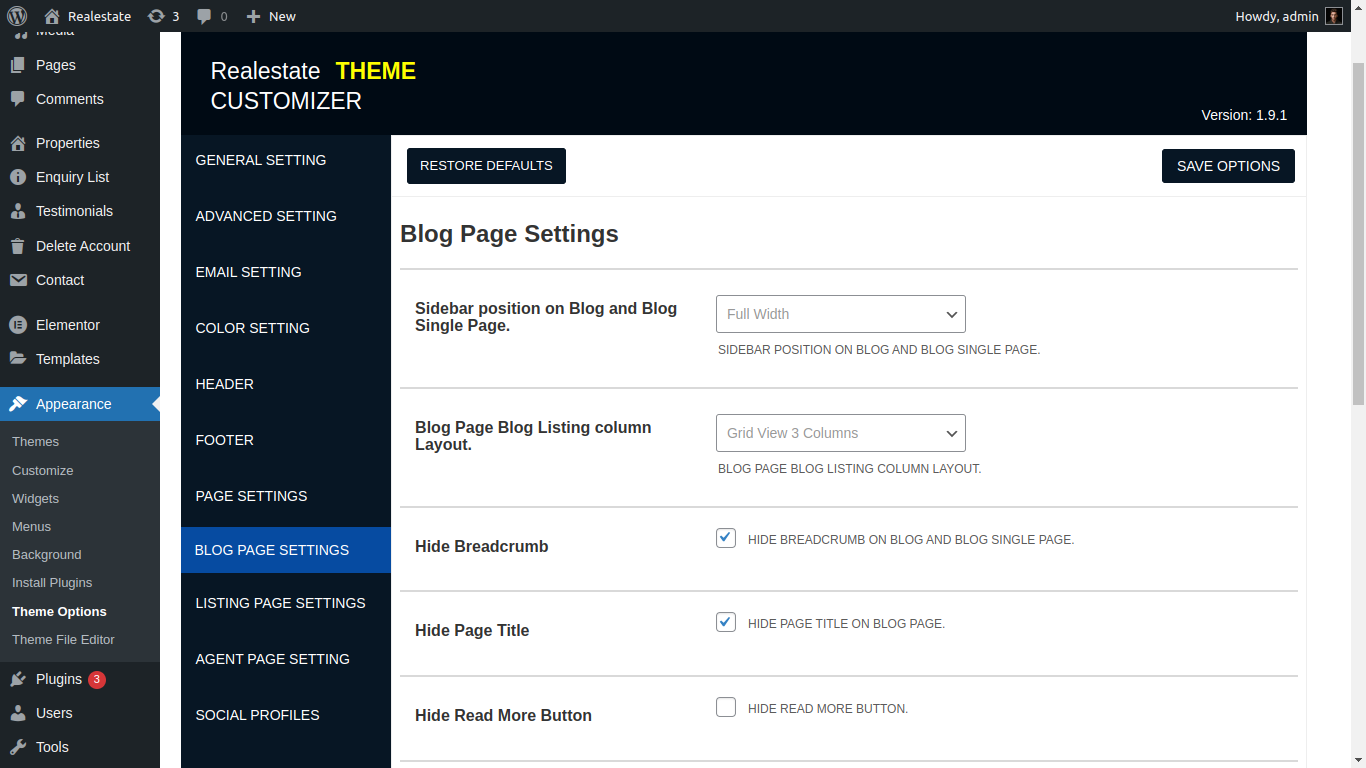
Blog Page Seetings
Here you can manage blog page sidebar layout, blog listing, blog page title, read more text etc..
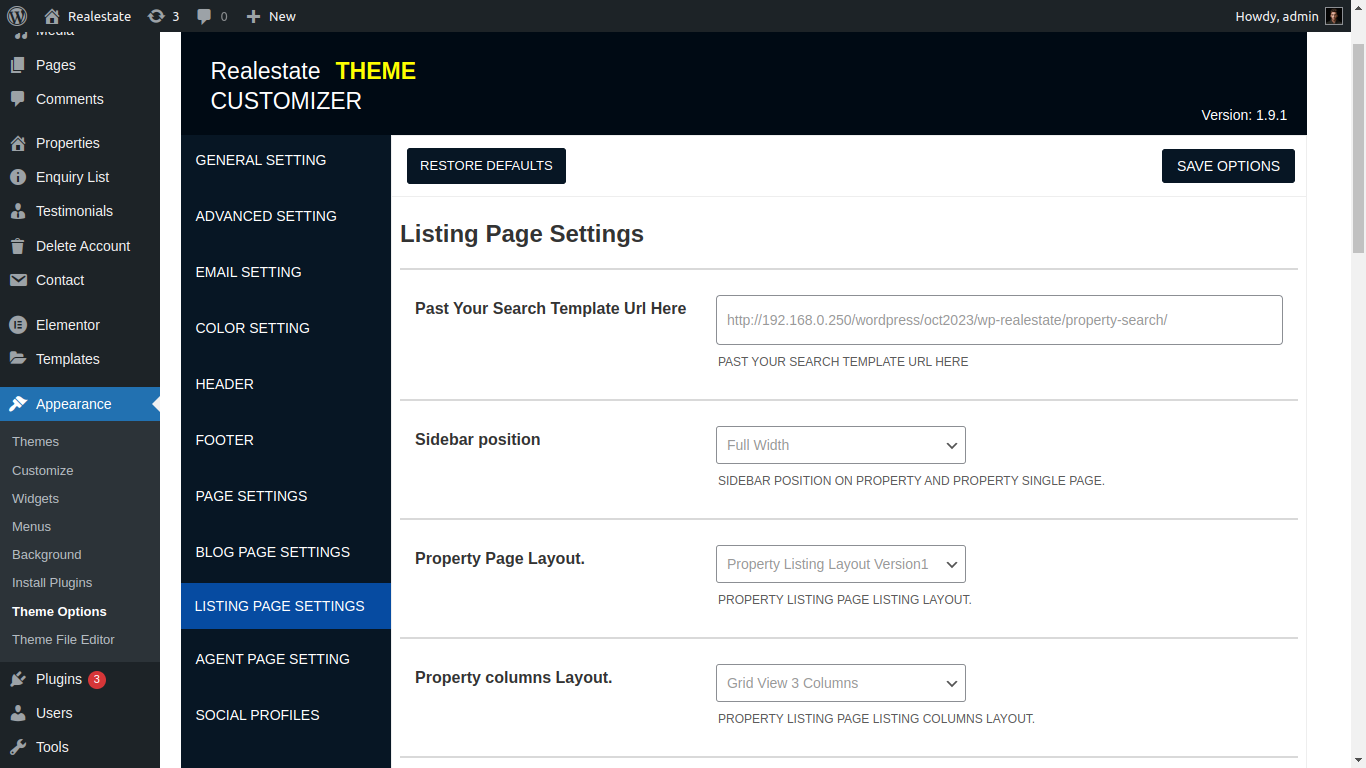
Listing Page Setting
Here you can manage property Listing layout, property search page, property element and related of realestate all property etc....
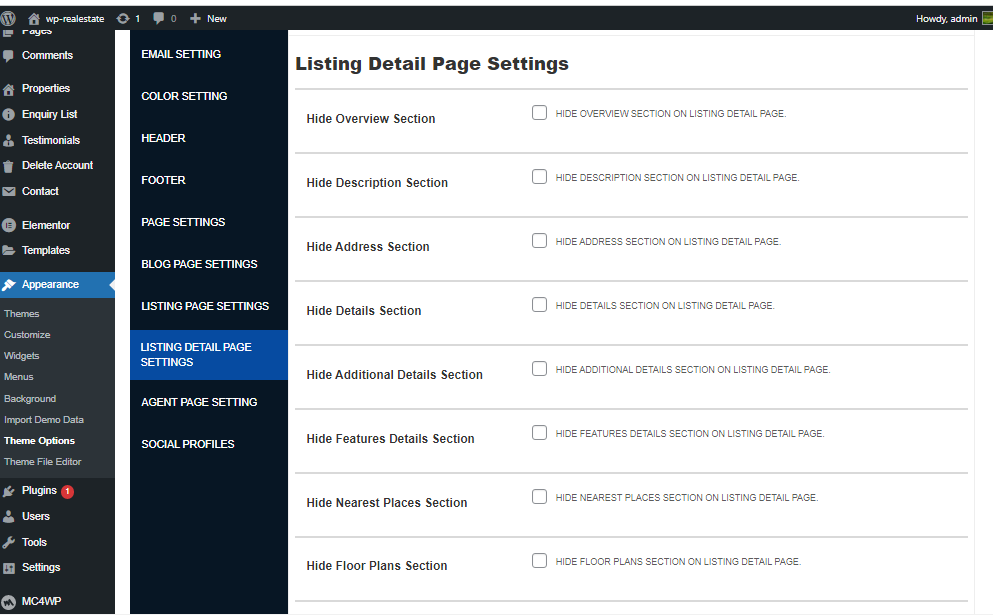
Listing Details Page Setting
Here you can manage property Listing Details page section hide and show LiKE Property descripton, video, calcultor etc.
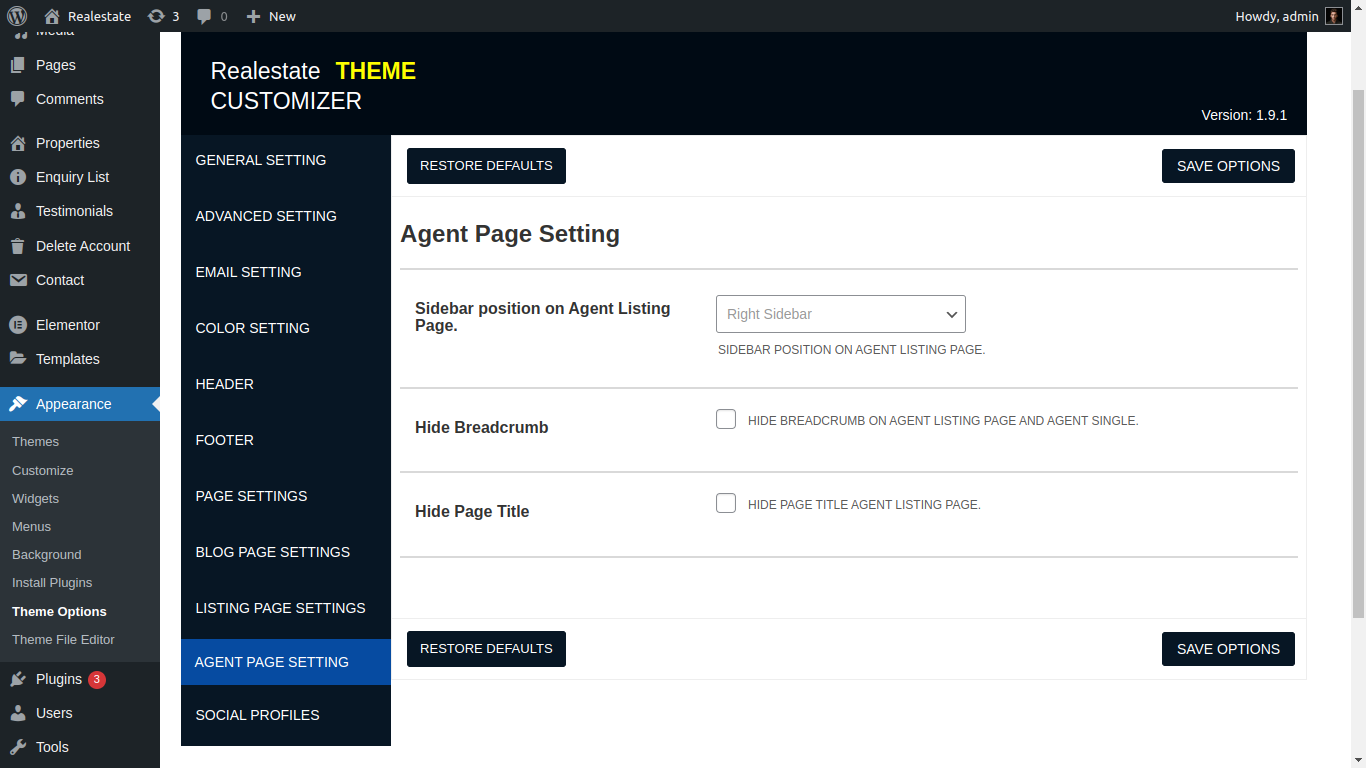
Agent Page Setting
Agent page manage by admin here you can manage sidebar title and brudscrum.
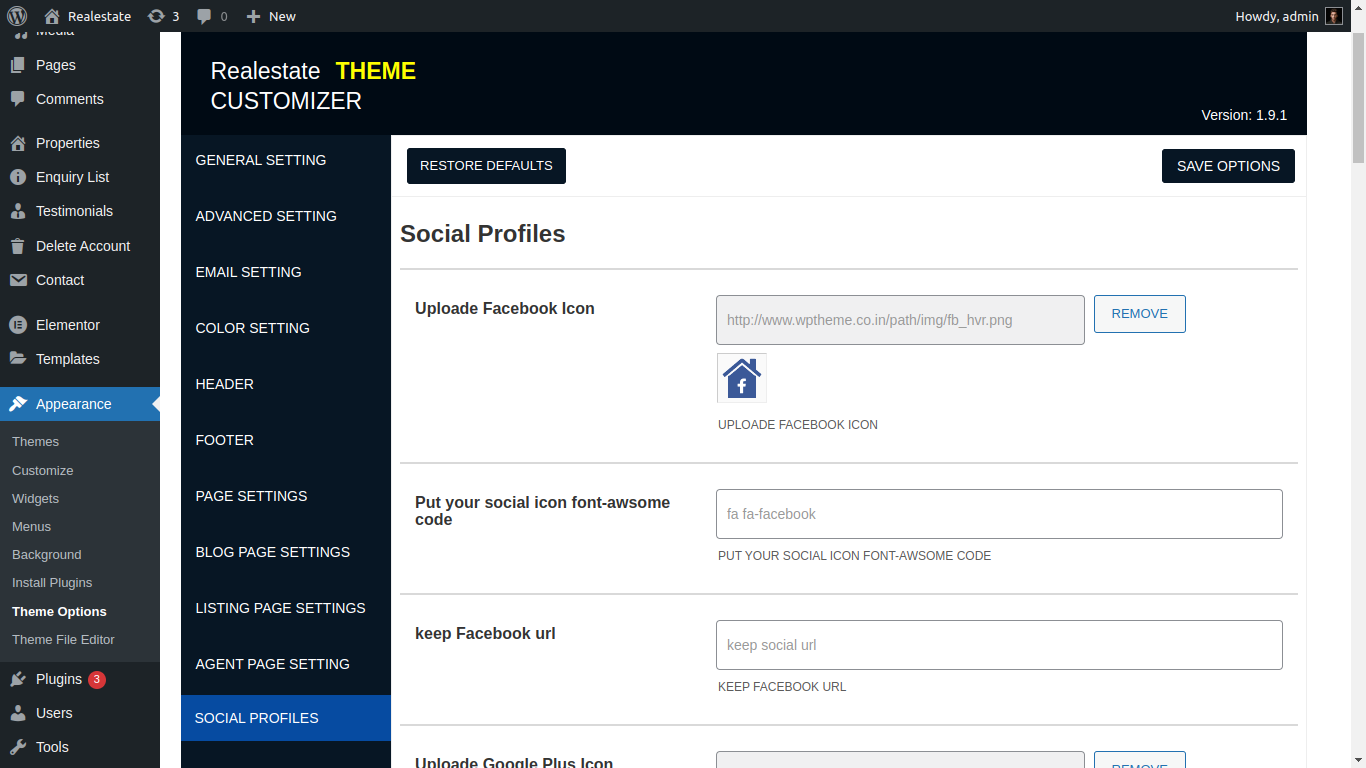
Social Profile
social media link you can explore your website throught Social Profiles you can keep your social url which is display according to header layout
Front Pages
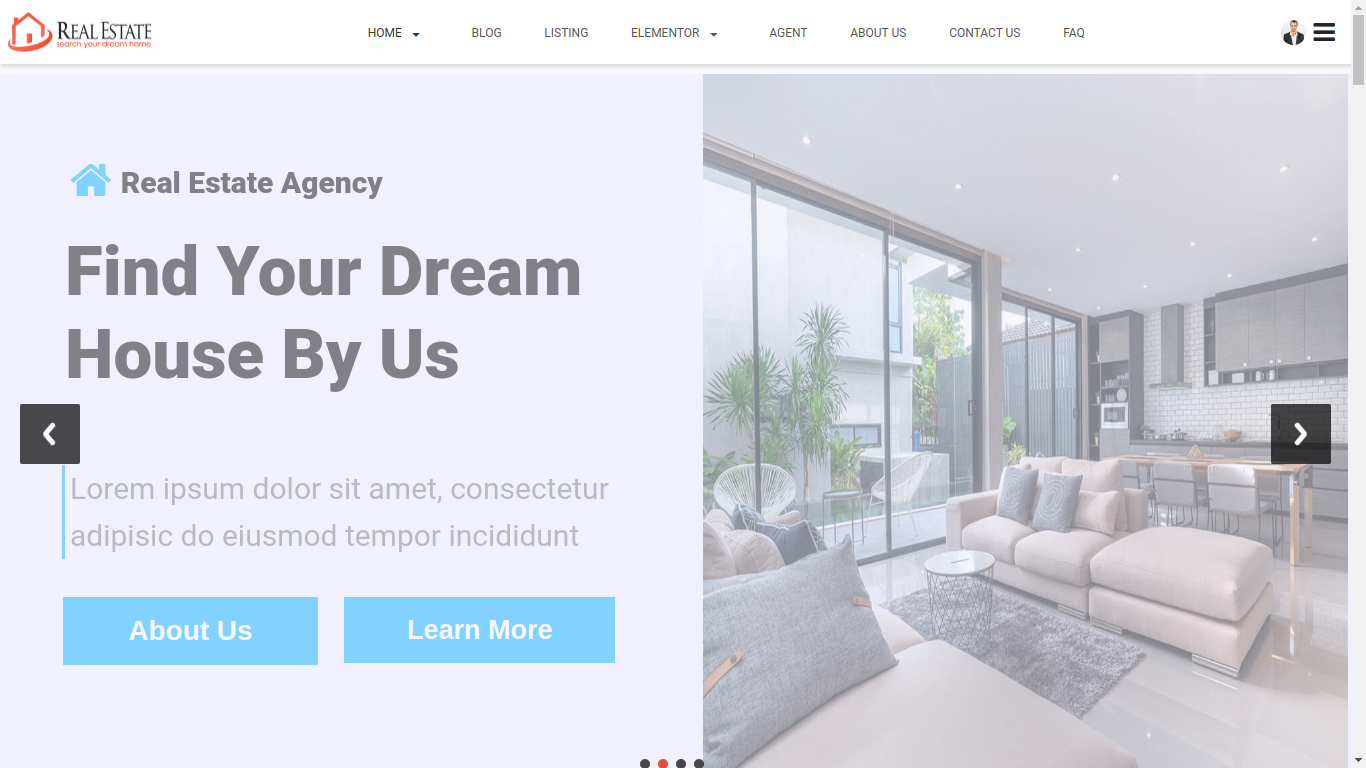
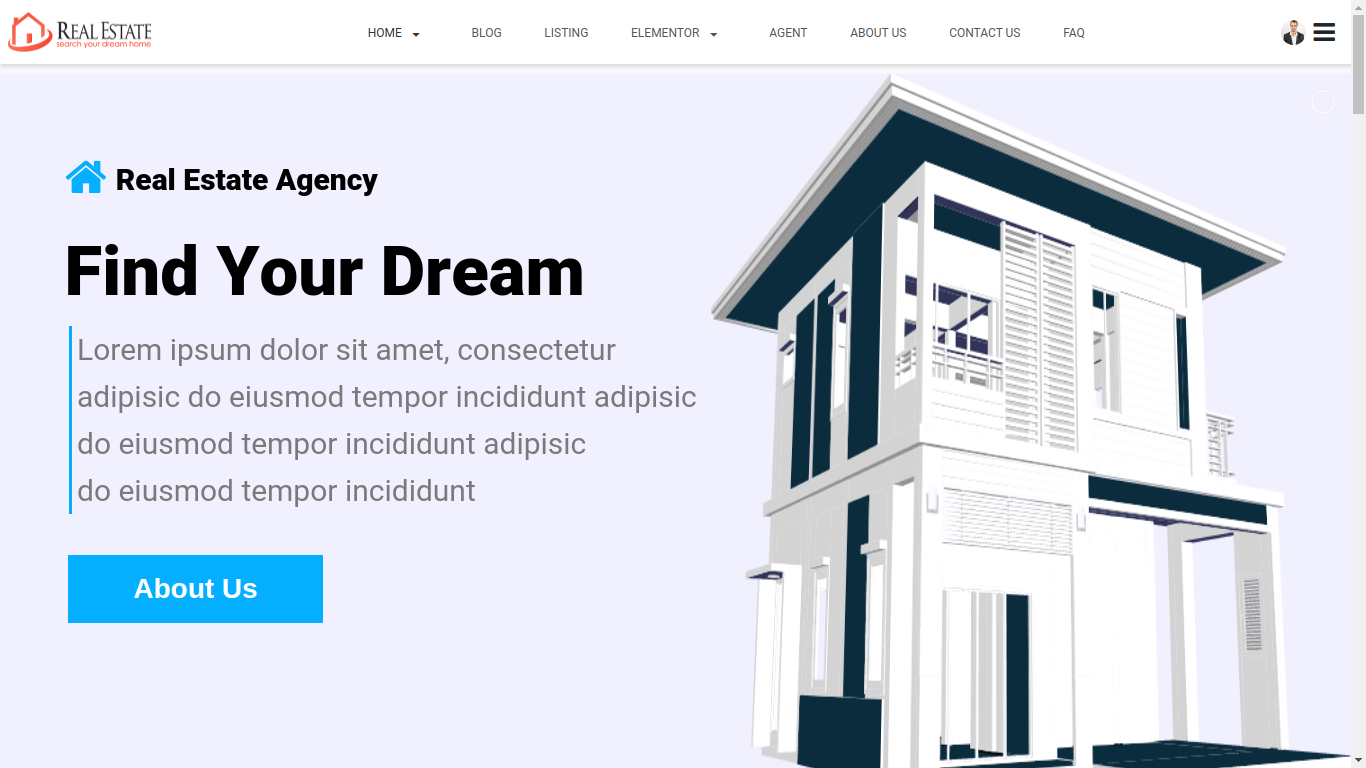
Home
v1

v2
v3
v4

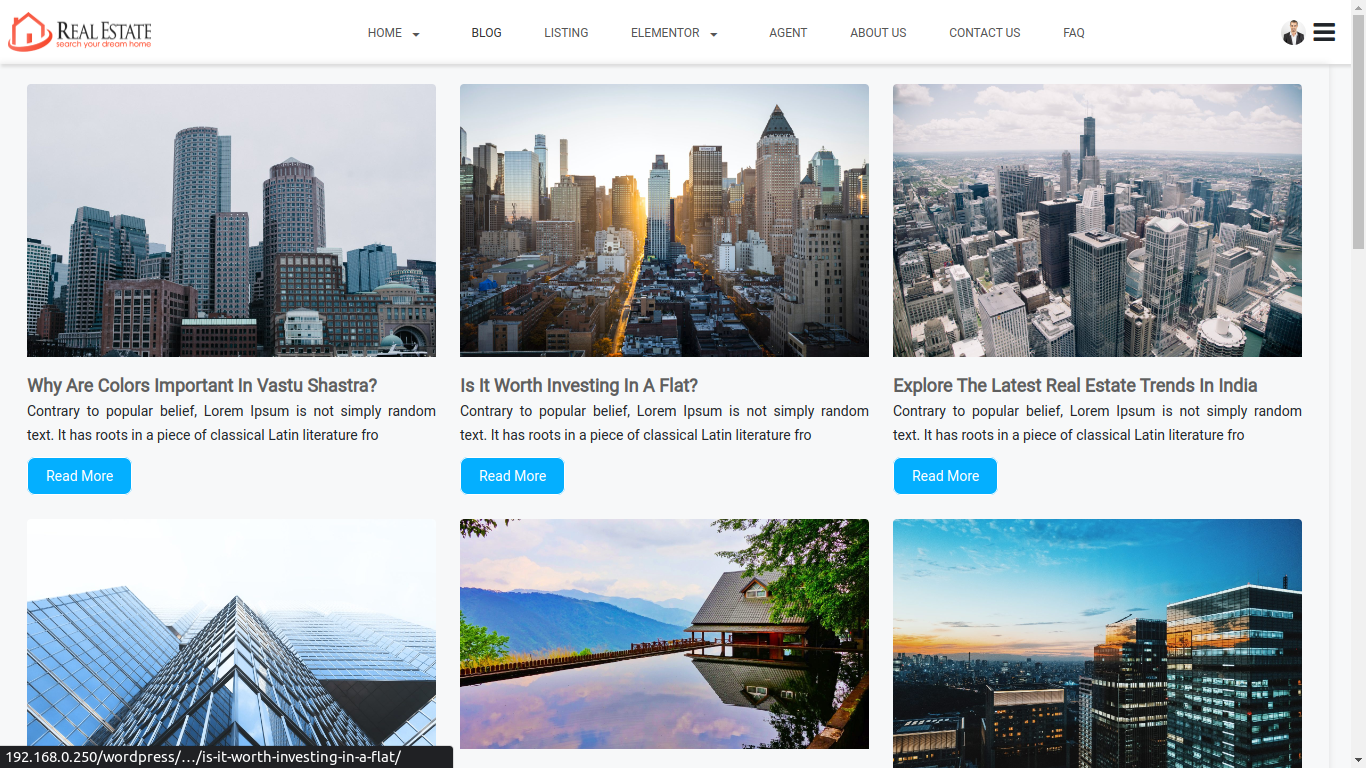
Blog
Blog
Blog Single
Property Listing
Property Listing

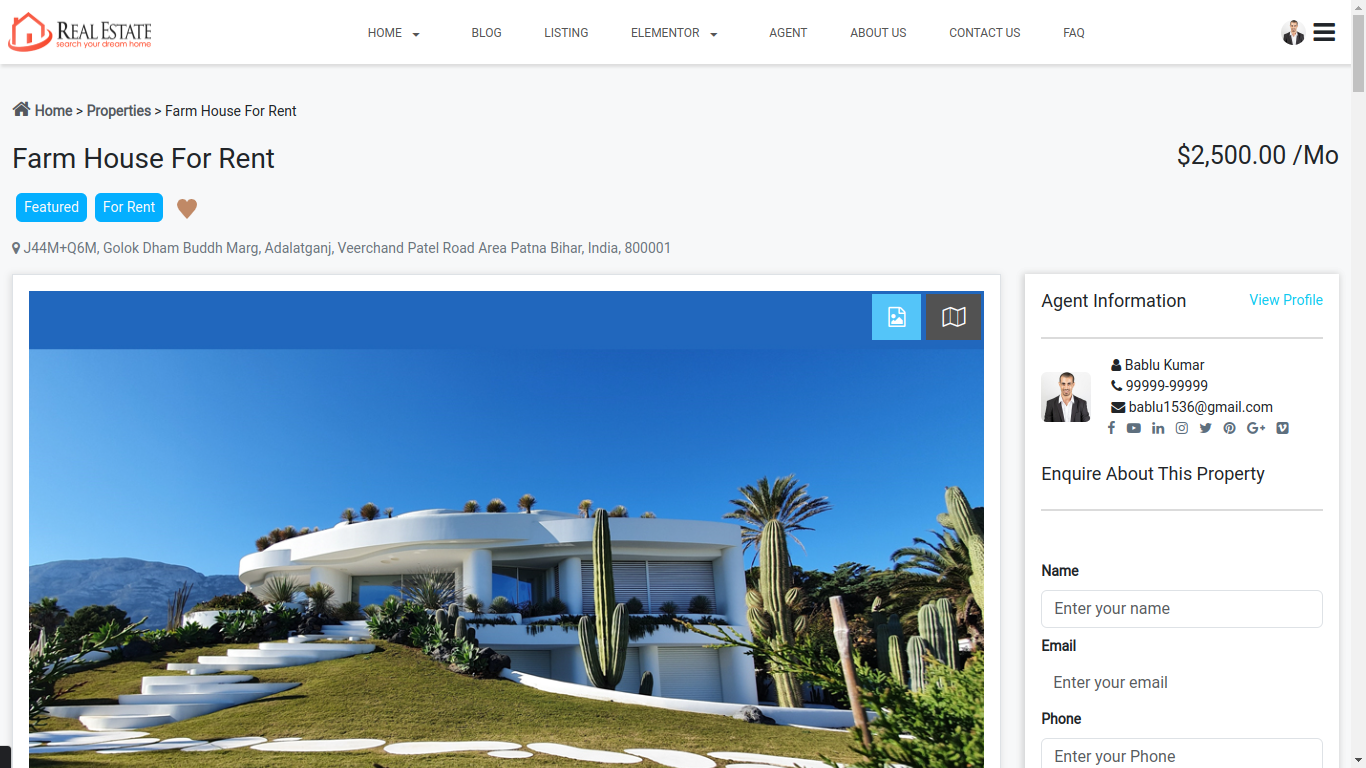
Property Single
Agent Listing
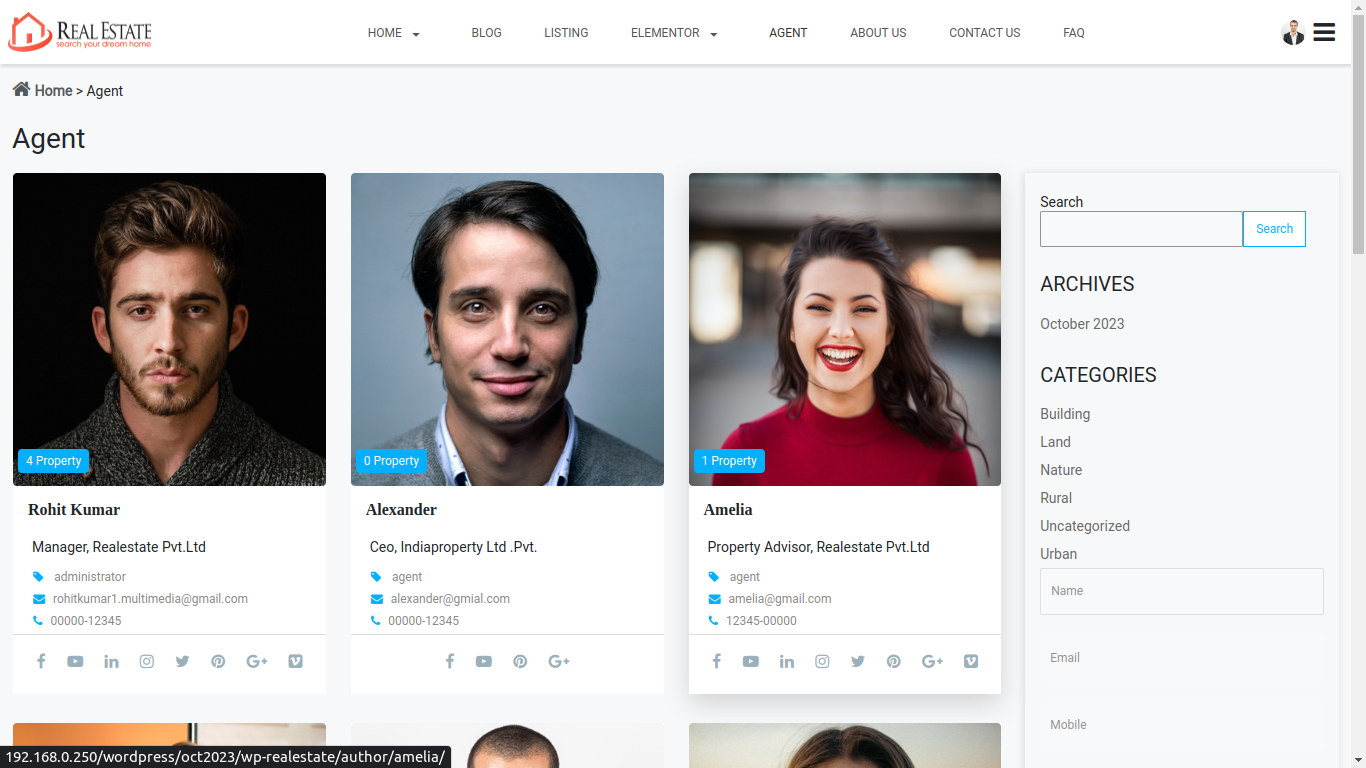
Agent Listing
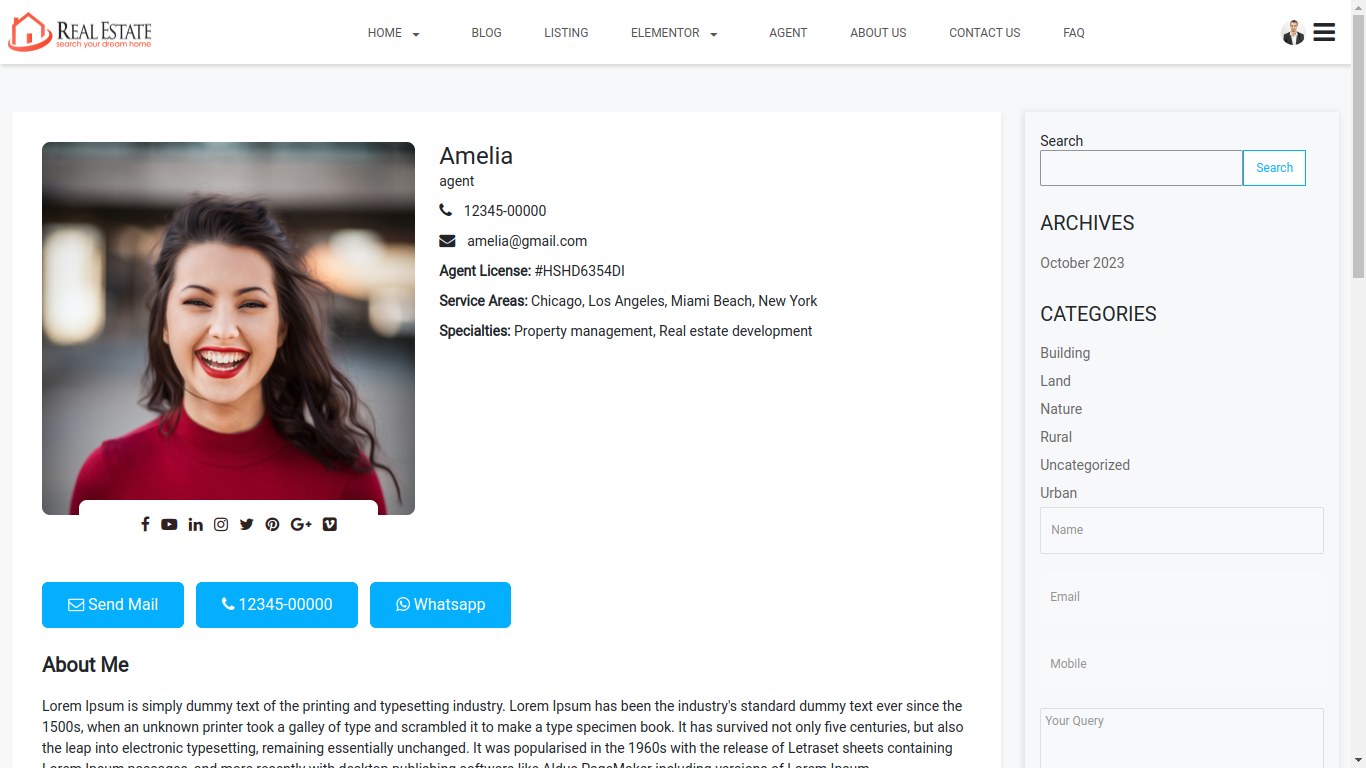
Agent Single
About Us
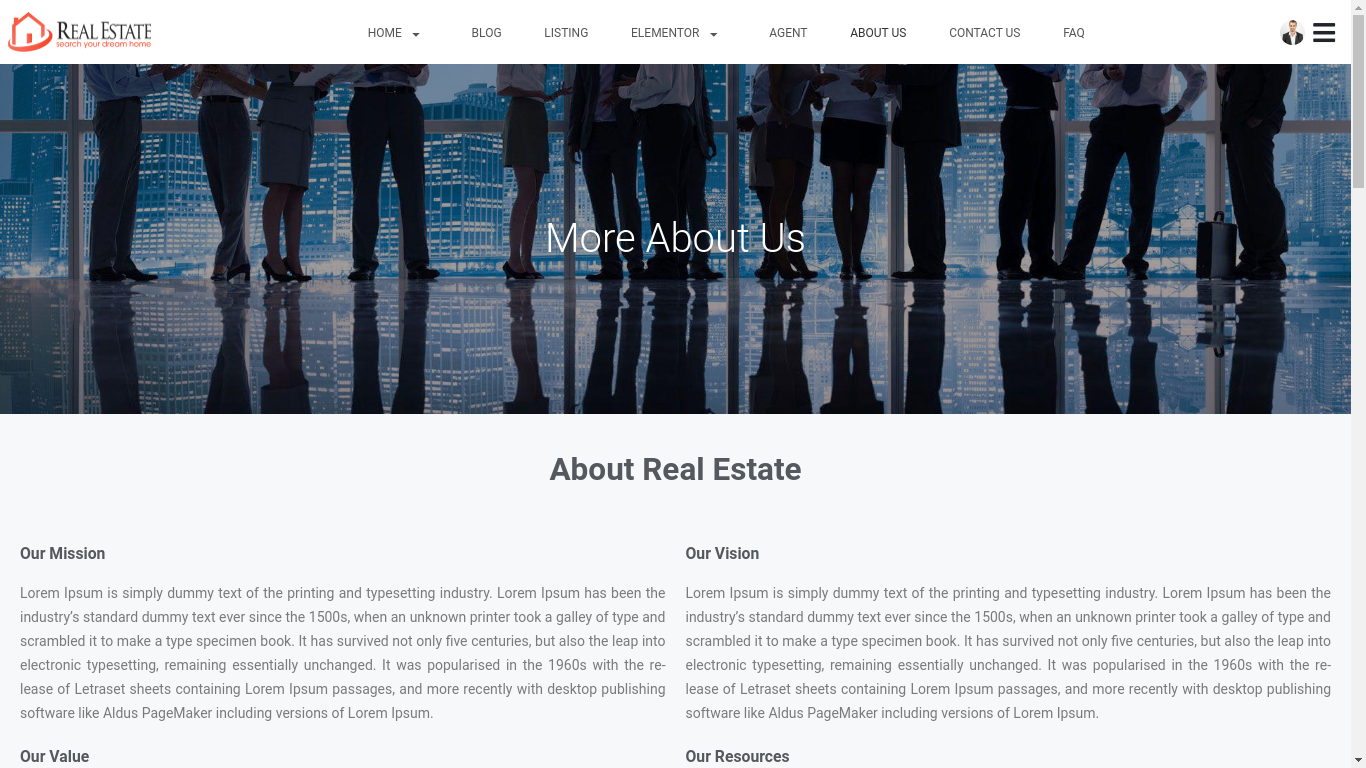
Contact Us

Faq
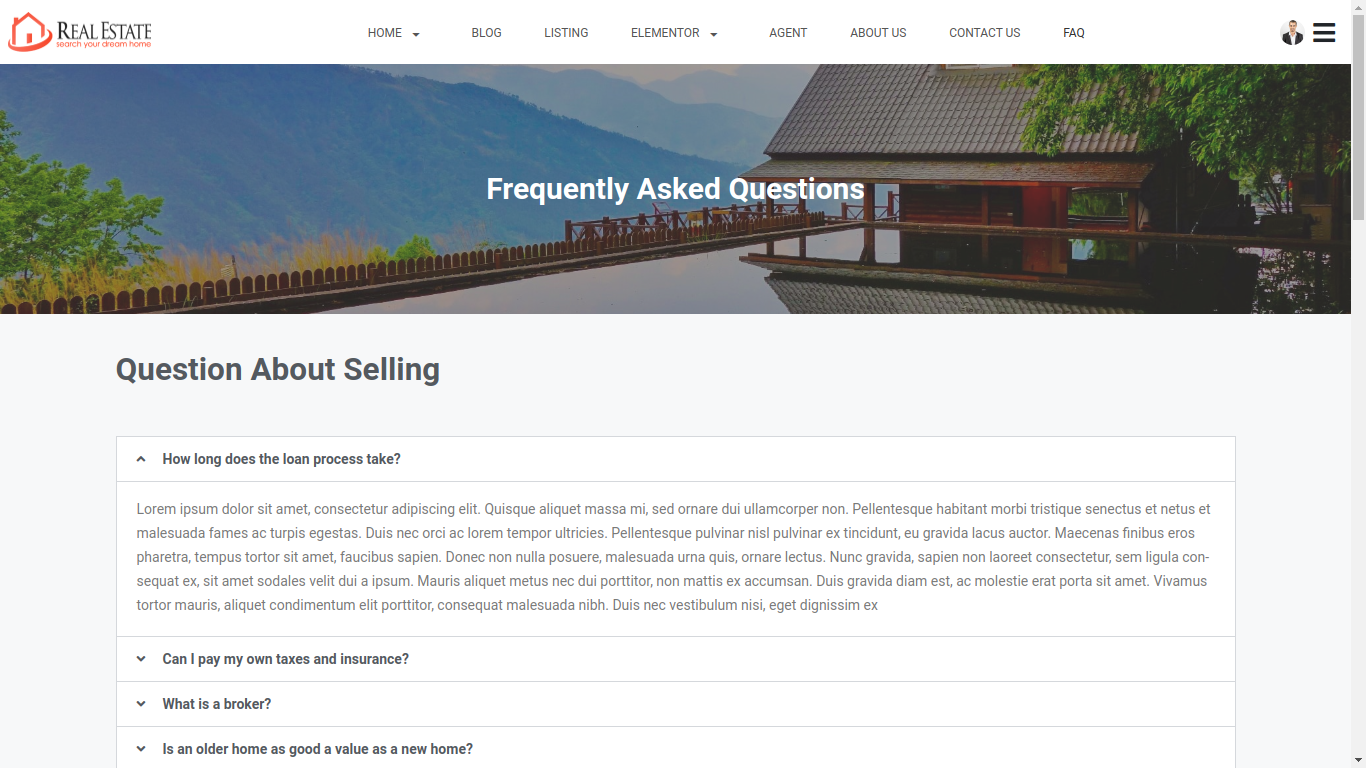
Add property and property attributes
Add property is base part of this website here you can add your listing data from admin .
Note: Before add property its better you can add property attribute like.
- Property Category
- Property Status
- Property Feature
- Property Type
- Property Amenities
- Property Label
Property -> Property Category
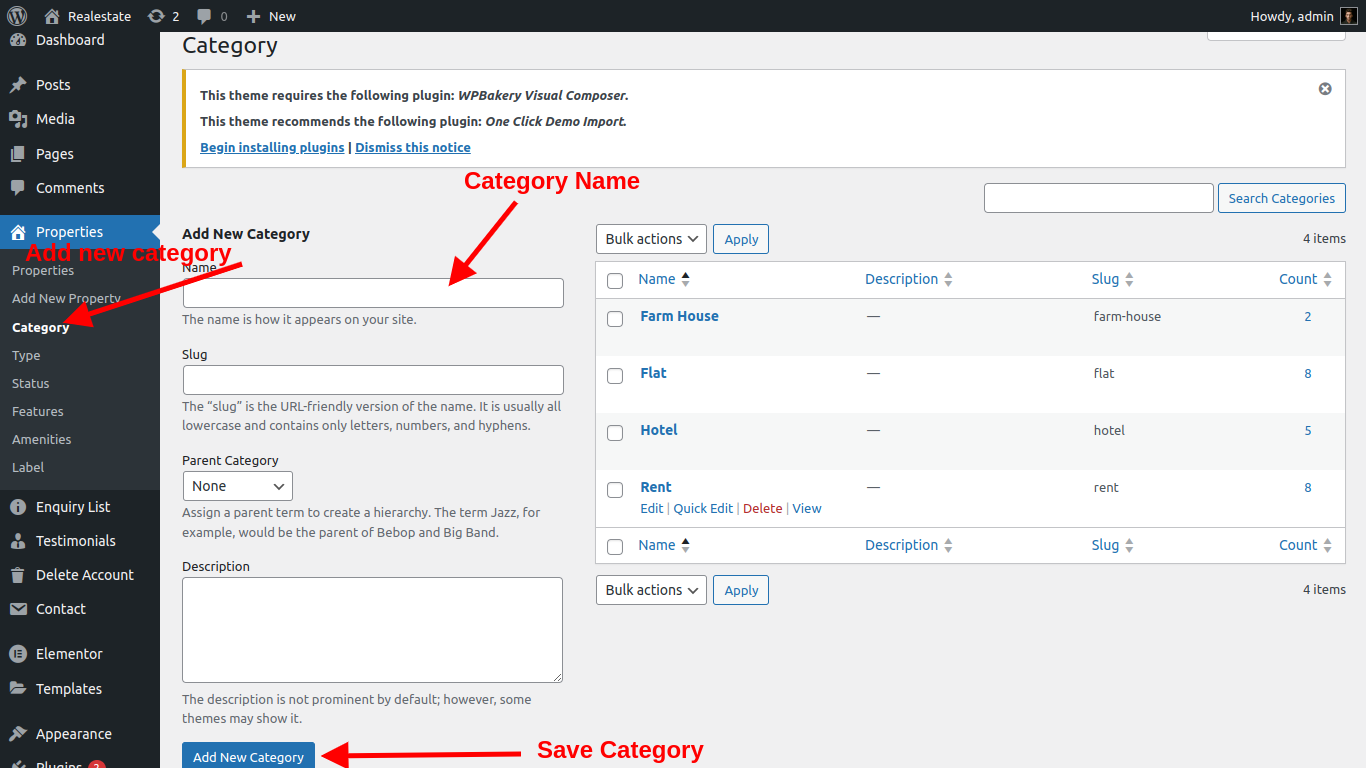
Property Category is devided listing data in diffrent category and category wise easy to manange because listing website have lots of listing data.
Realestate script make category in easy way for user and admin also admin can add category from admin panel see screenshort below:.
Add category instructions
Property->Property Type/Status
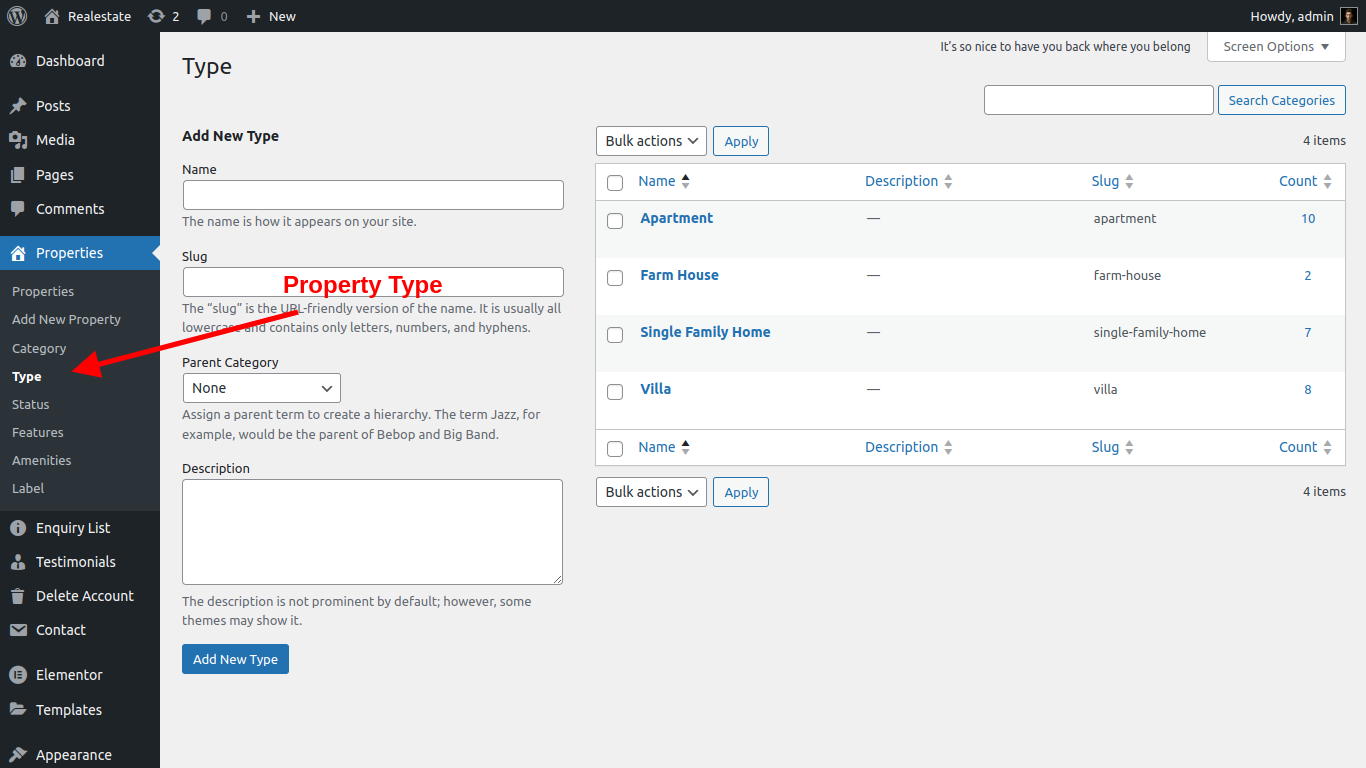
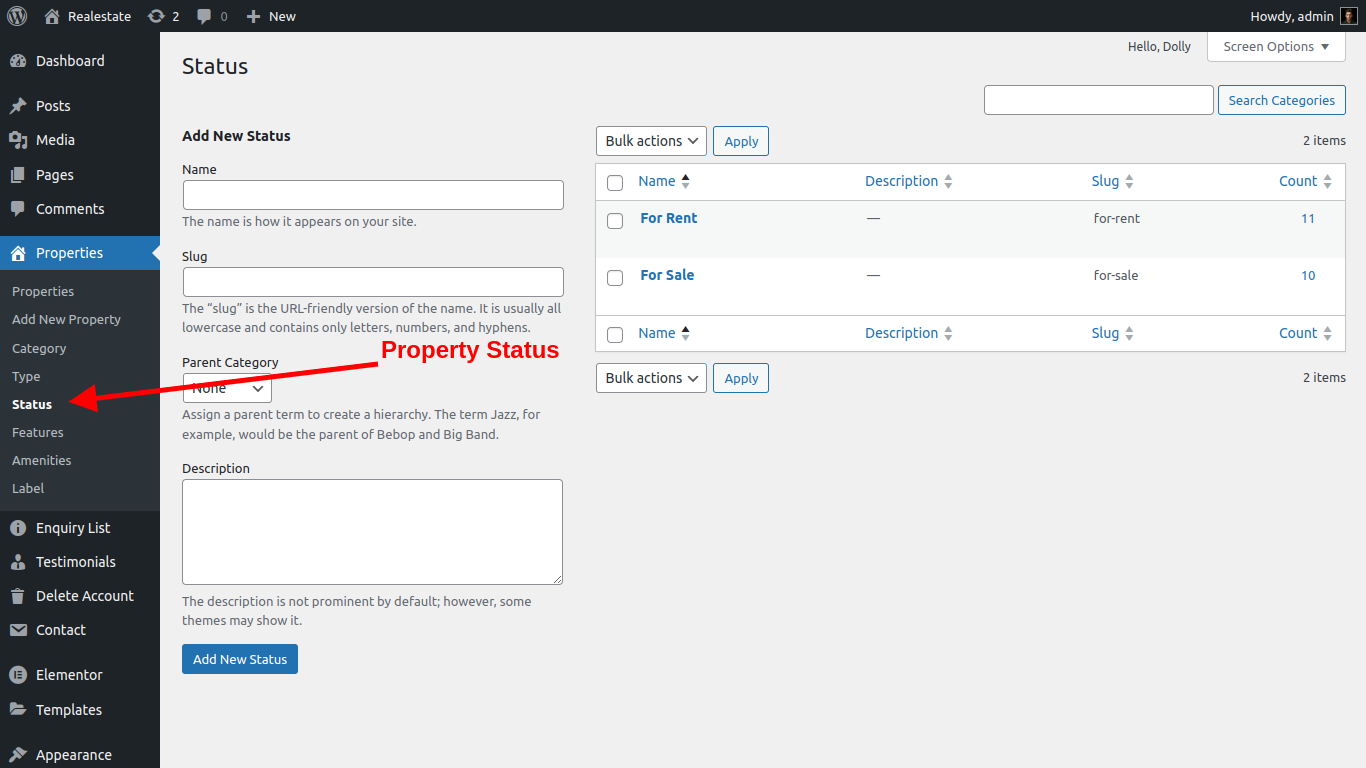
Property Status/type its dispay your listing in types like Rent / sale / lease etc. user can also filter data in front-end by types and status, admin can easily add property status/type from admin panel.please see screenshort below:
Property->Property Feature
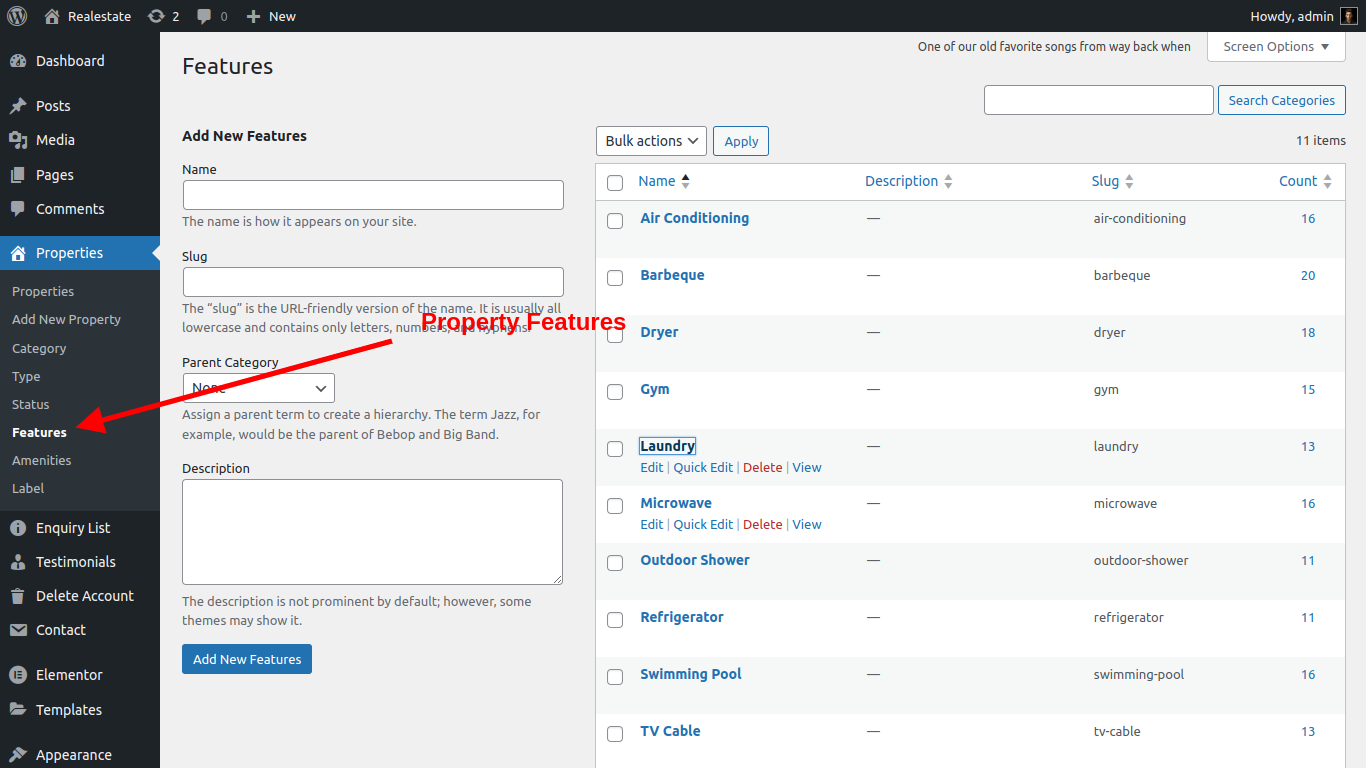
Property Feature a feature list of property here admin can add lots features related to property like: Air Condition , Balcony , Garage etc... admin can easliy add and manage features from admin panel. See screenshort below.
Property->Property Amenities
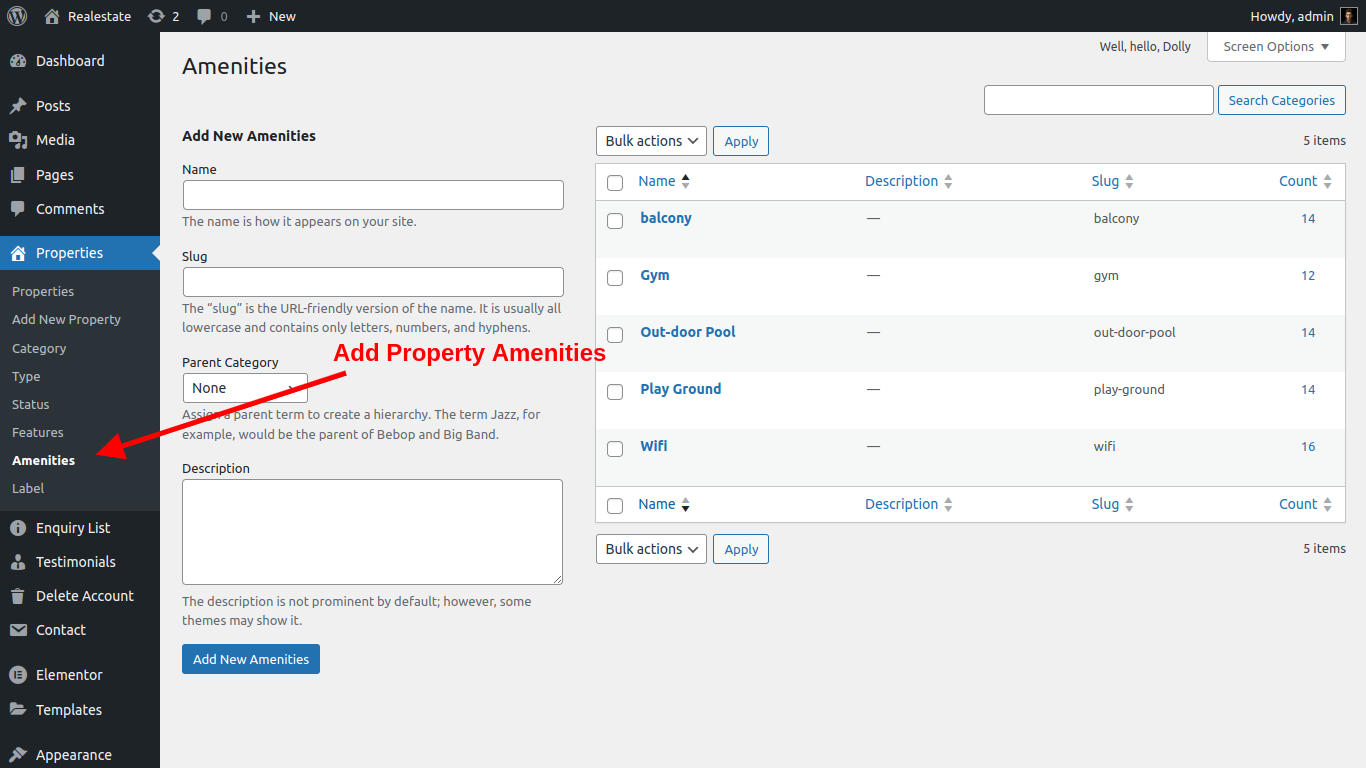
Property Amenities is also as like a features here admin can add another lots features related to property like: Wifi , internet , gym, etc... admin can easliy add and manage amenites from admin panel. See screenshort below.
Property->Property Labels
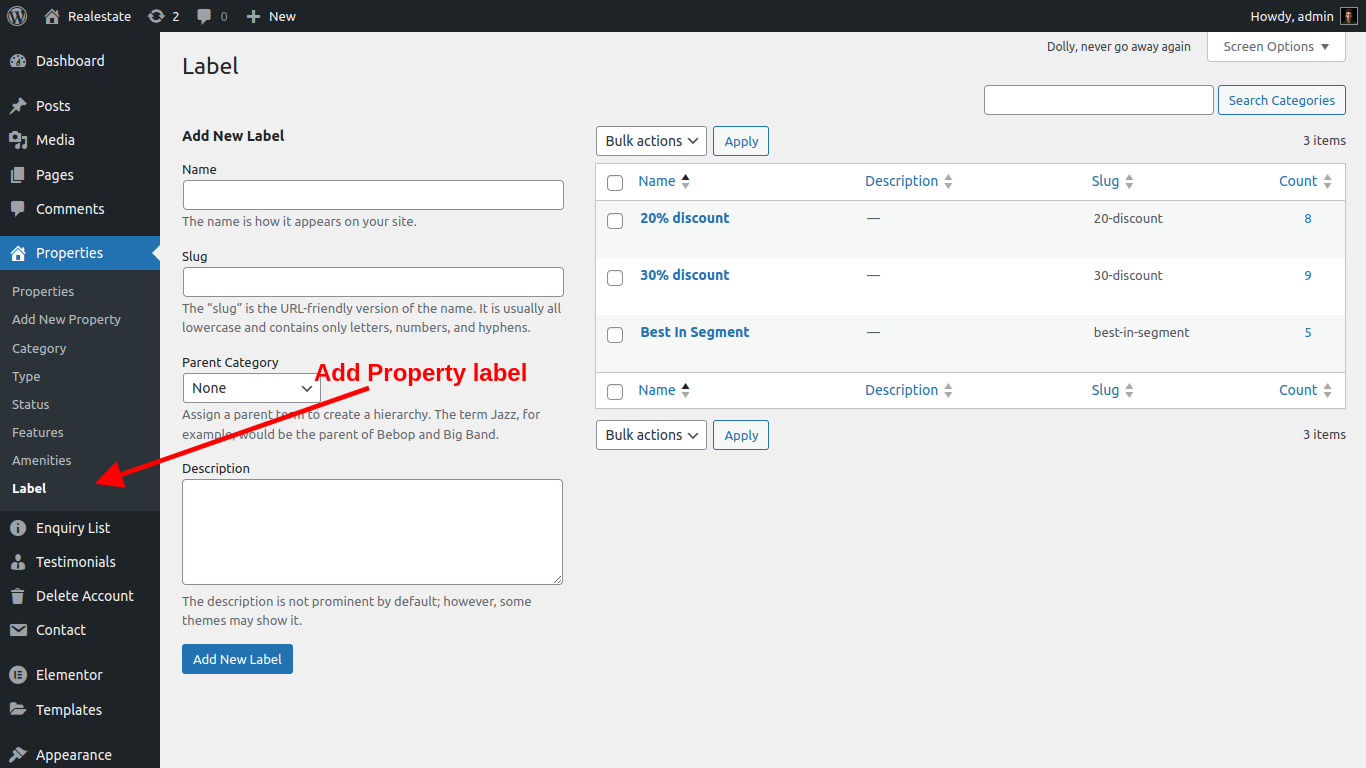
Property label is a attribute of the property. admin can create diffrent offers using this label. like: 20% OFF , Best In Segment, Summer Sale etc... admin can easliy add and manage labels from admin panel. See screenshort below.
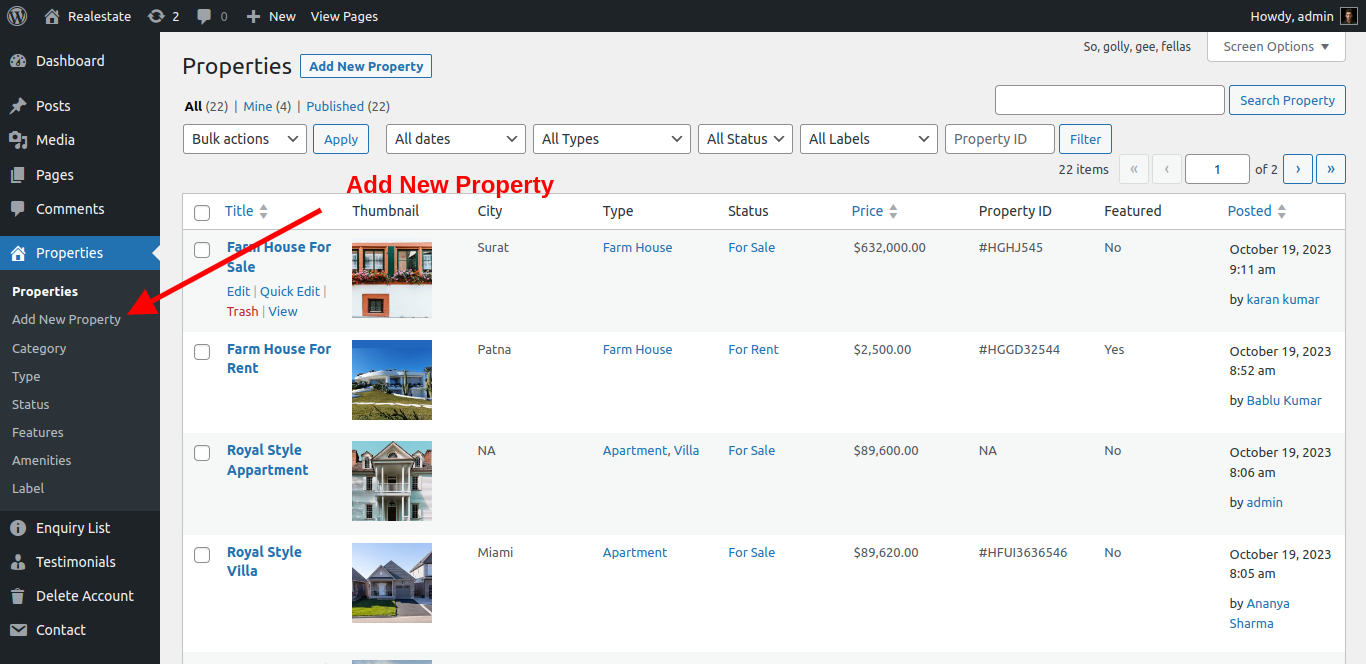
Property->Add New Property
Click on add new property menu to add new property.
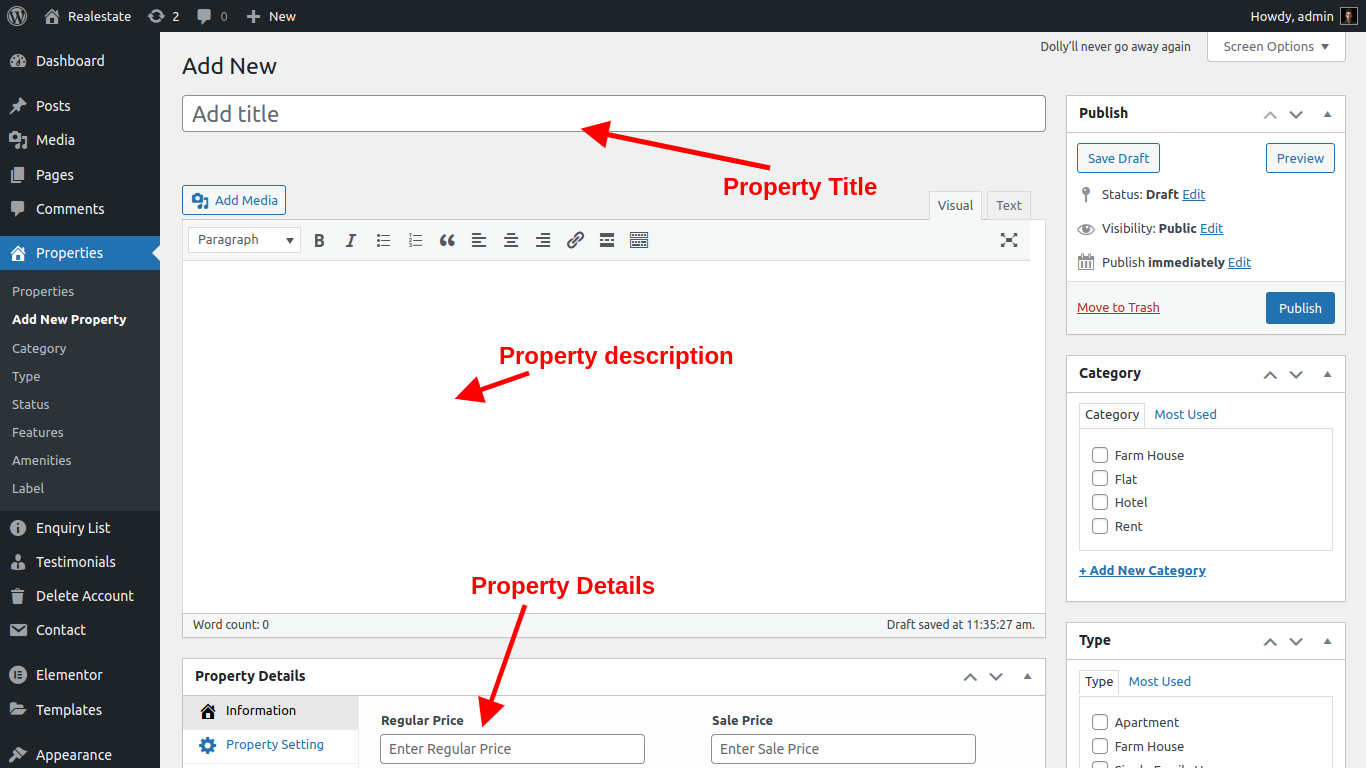
After that add property form will be open
Fill All the required data and click on update button to create Property
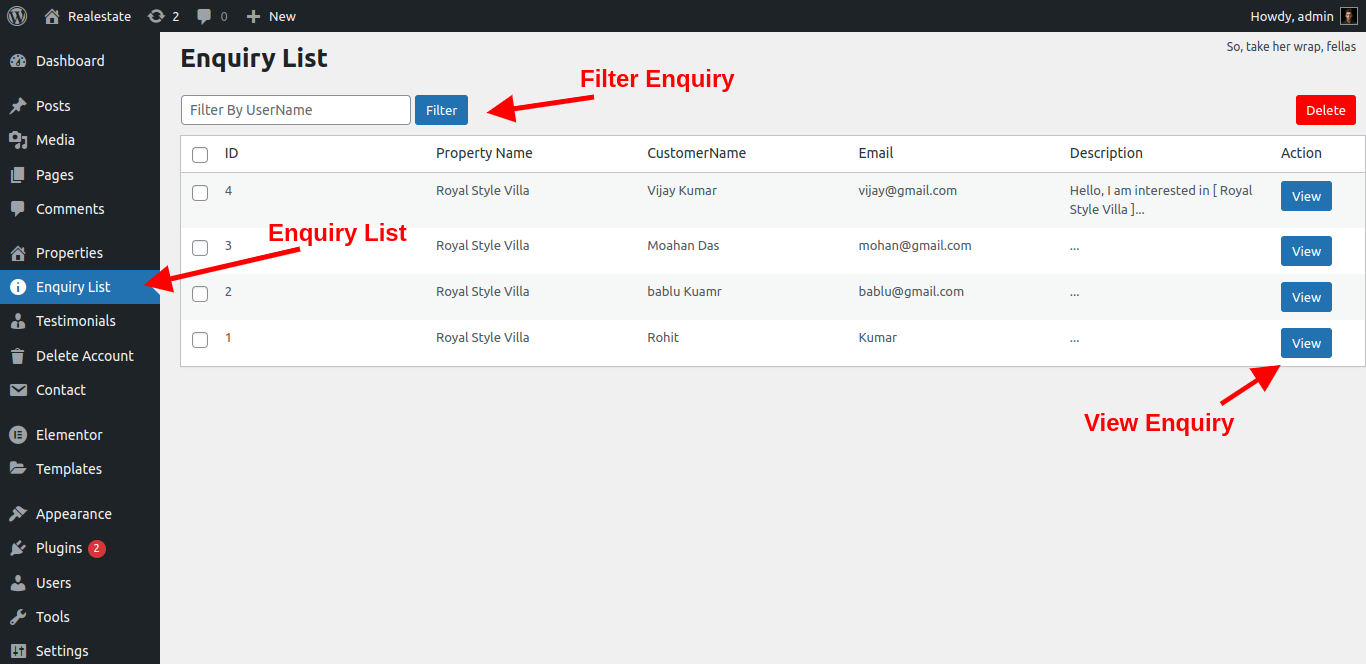
Property->Enquiry
Enquiry list is display all enquiry of your property listing which is coming from customer and agents also view the enquiry notification on agent dashboard. admin can manage all enquiry listing from admin panel
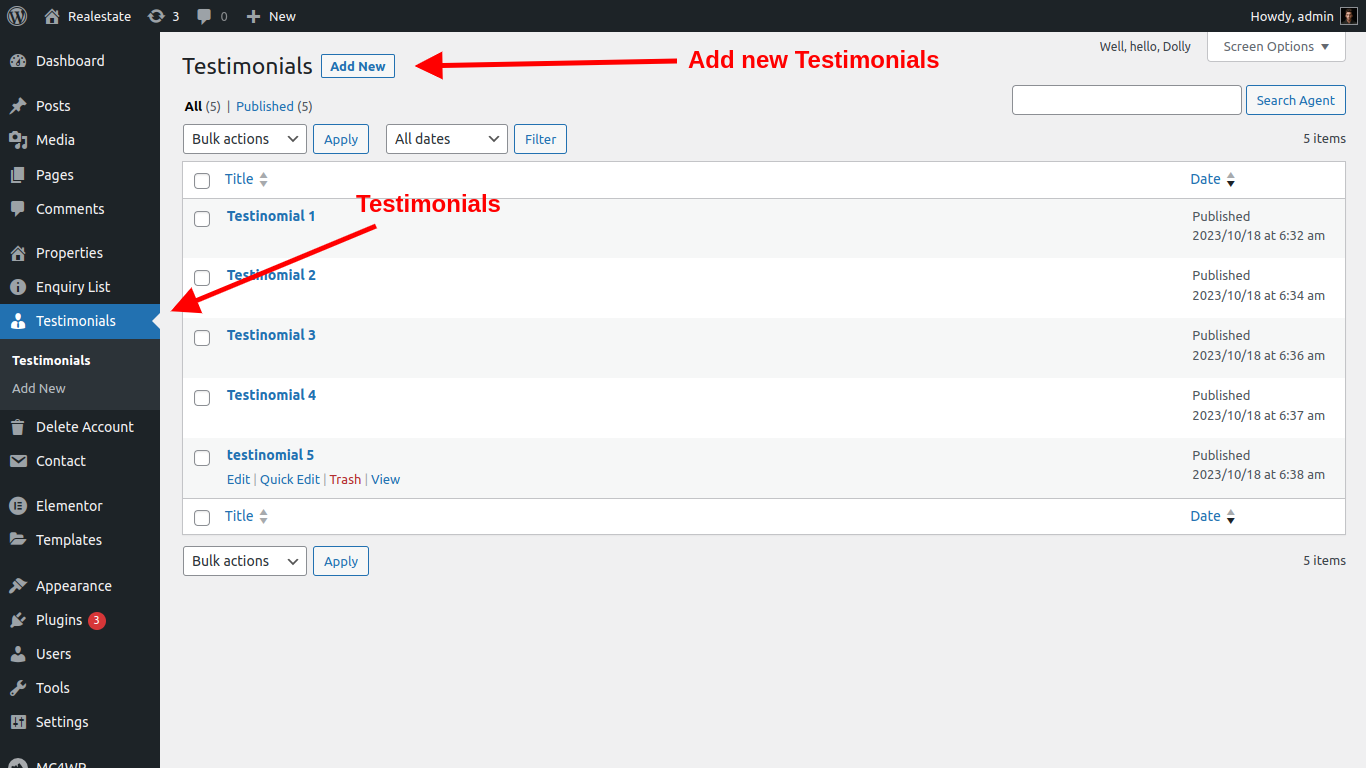
Testimonial
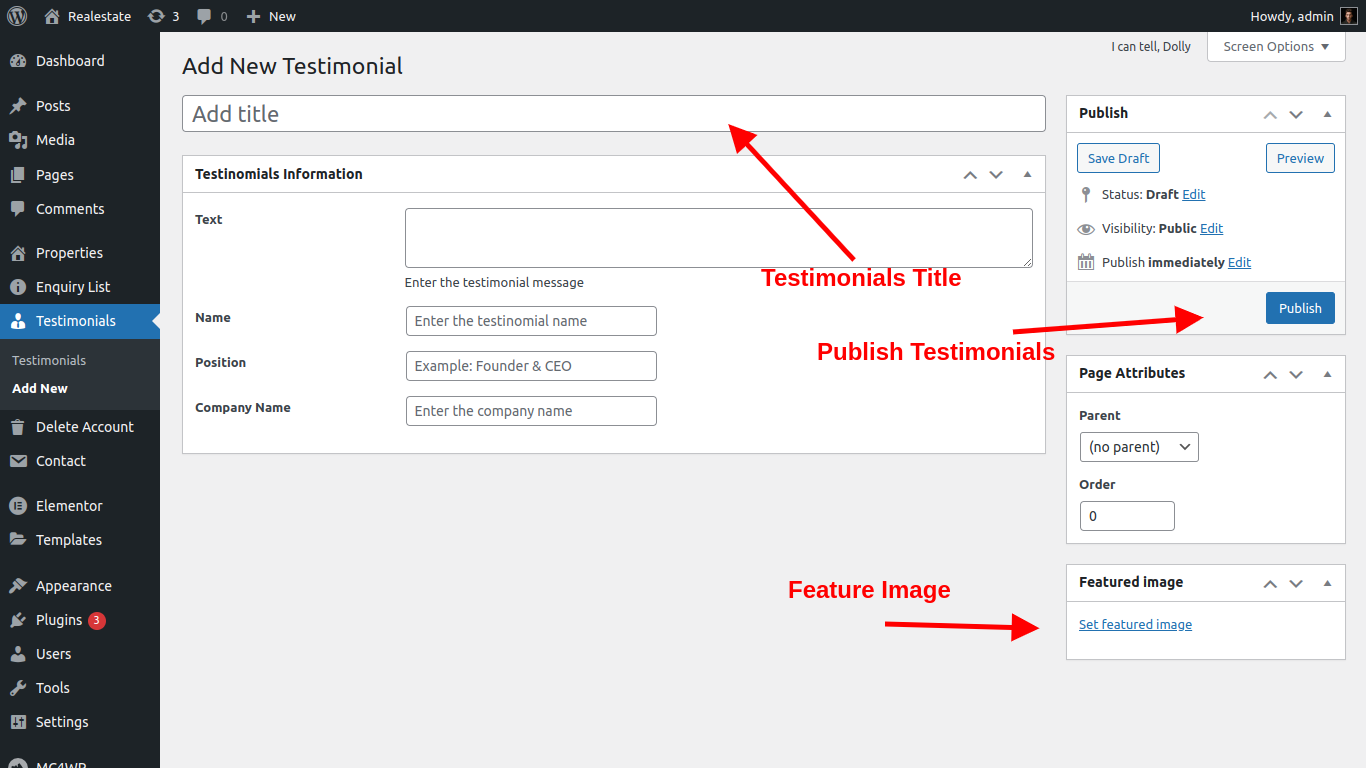
Testimonial is a feature on real-estate theme which is showcases the quality and success of a site’s products or services. Testimonials often come directly from customers and serve as a successful marketing method. admin can add testimonial and display on home page and separate page also.
Delete Account
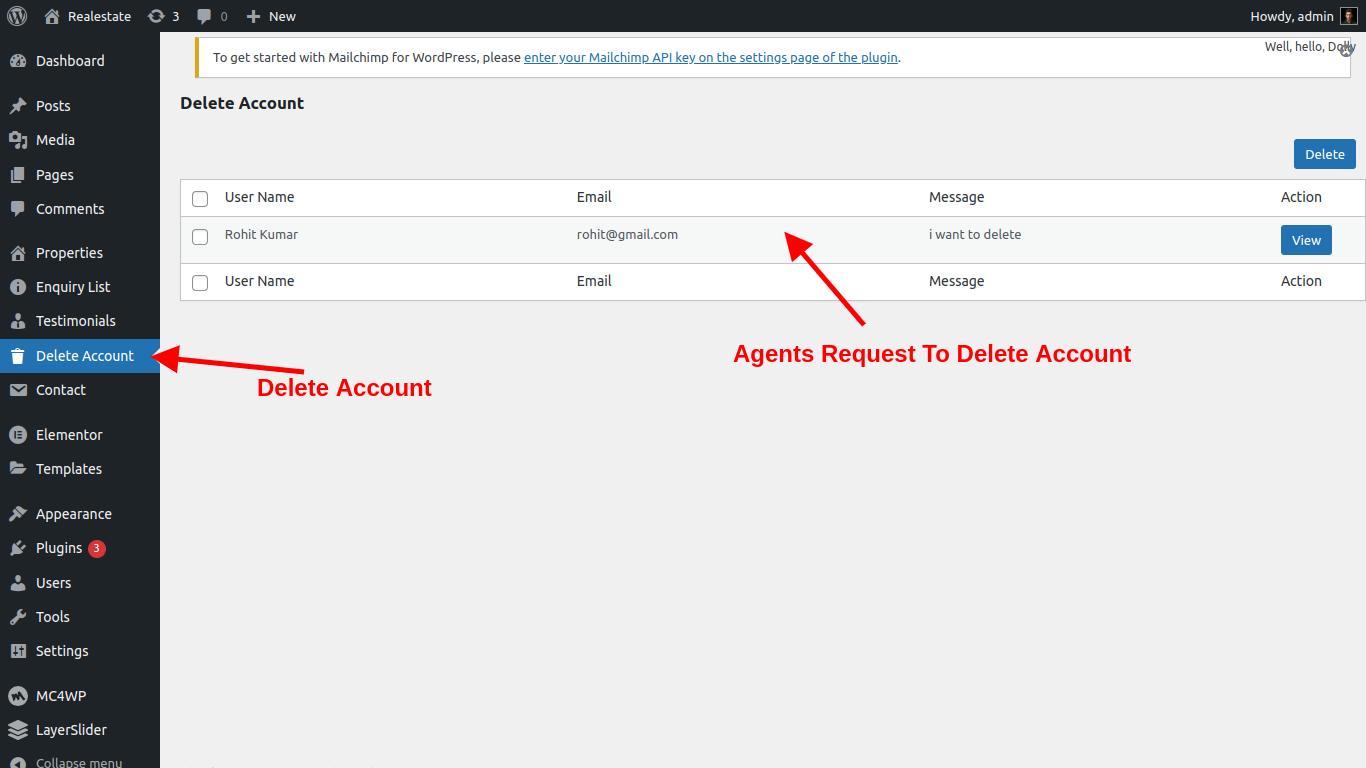
Delete Account menu is a fetaure that admin can manage delete account request from the agent. admint can approve or cancel the delete request
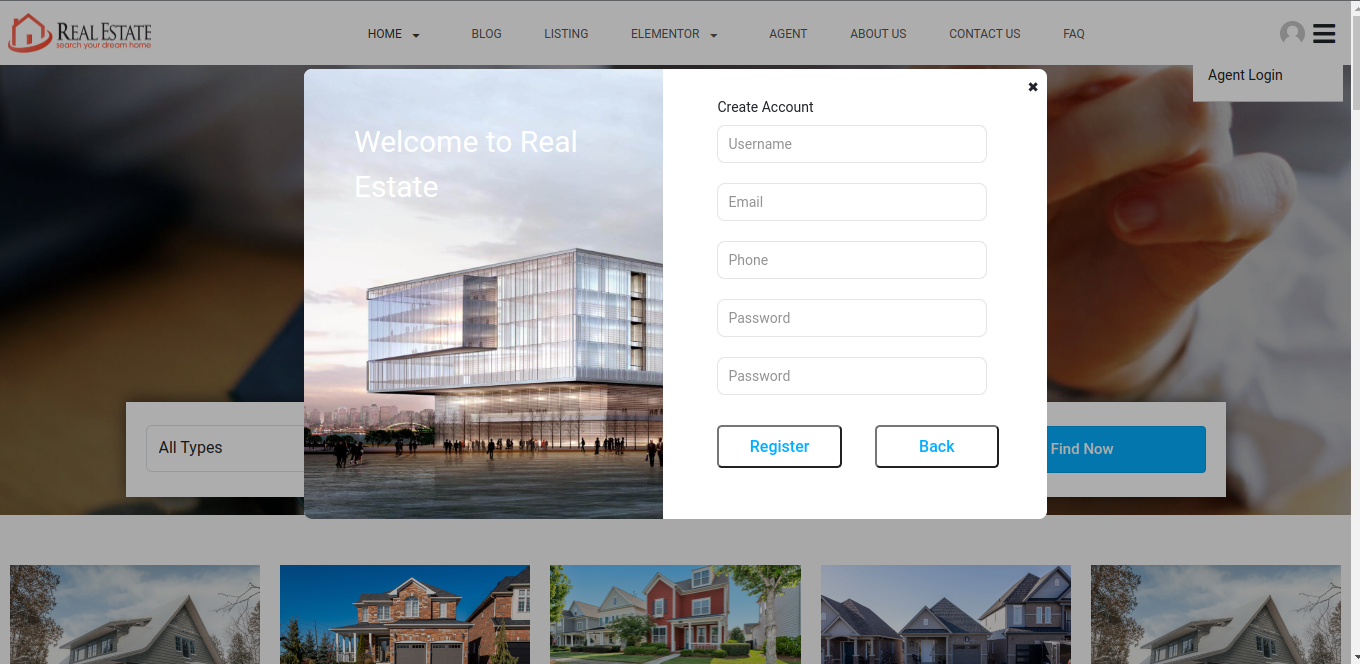
Agent Register/Login

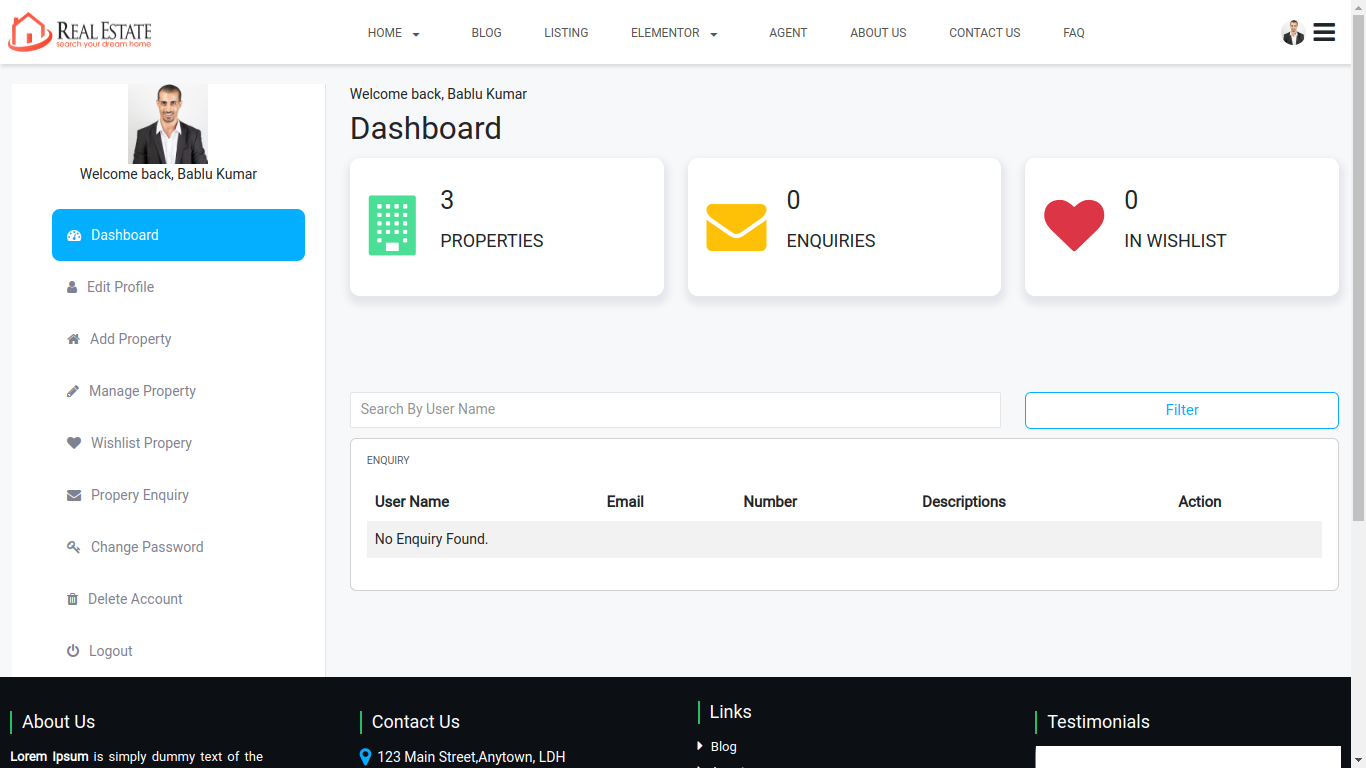
Agent Profile
Agent Dashboard
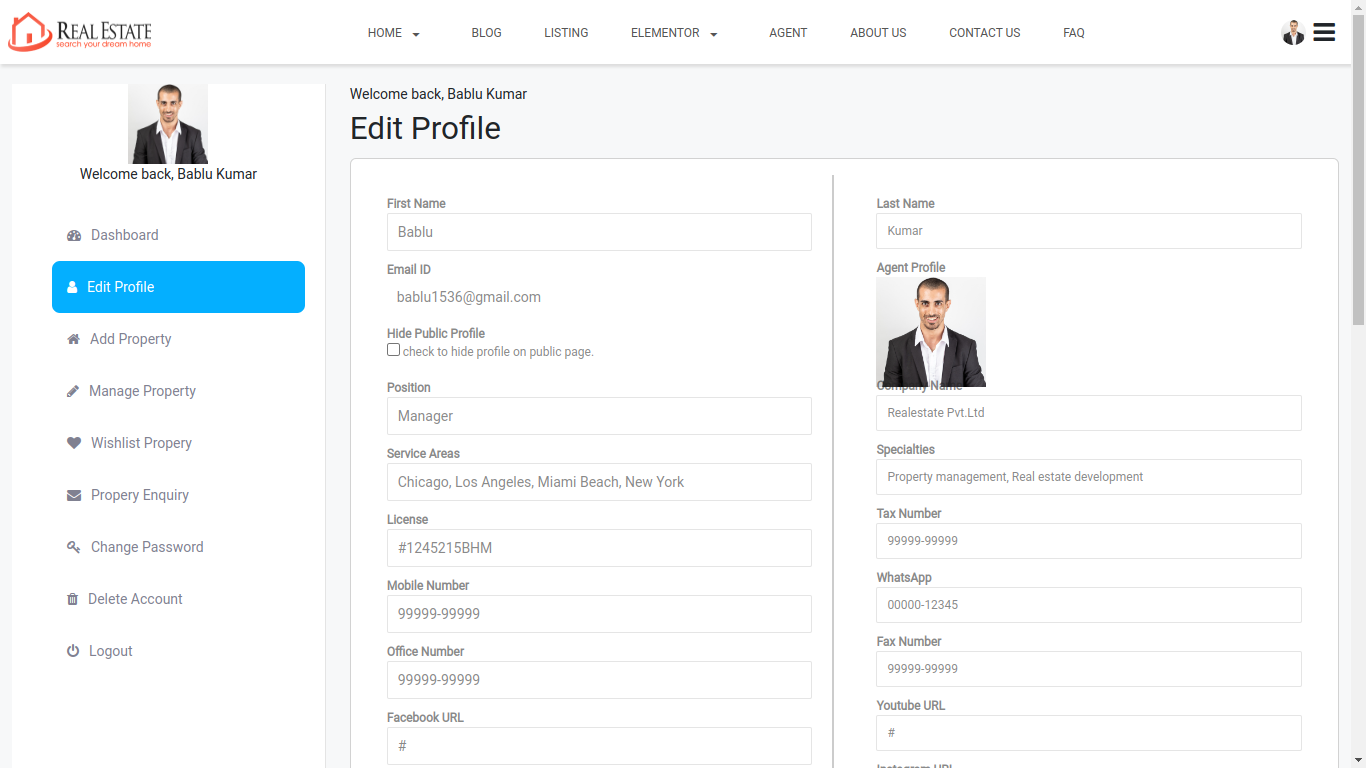
Agent Edit Profile
Agent Add Property

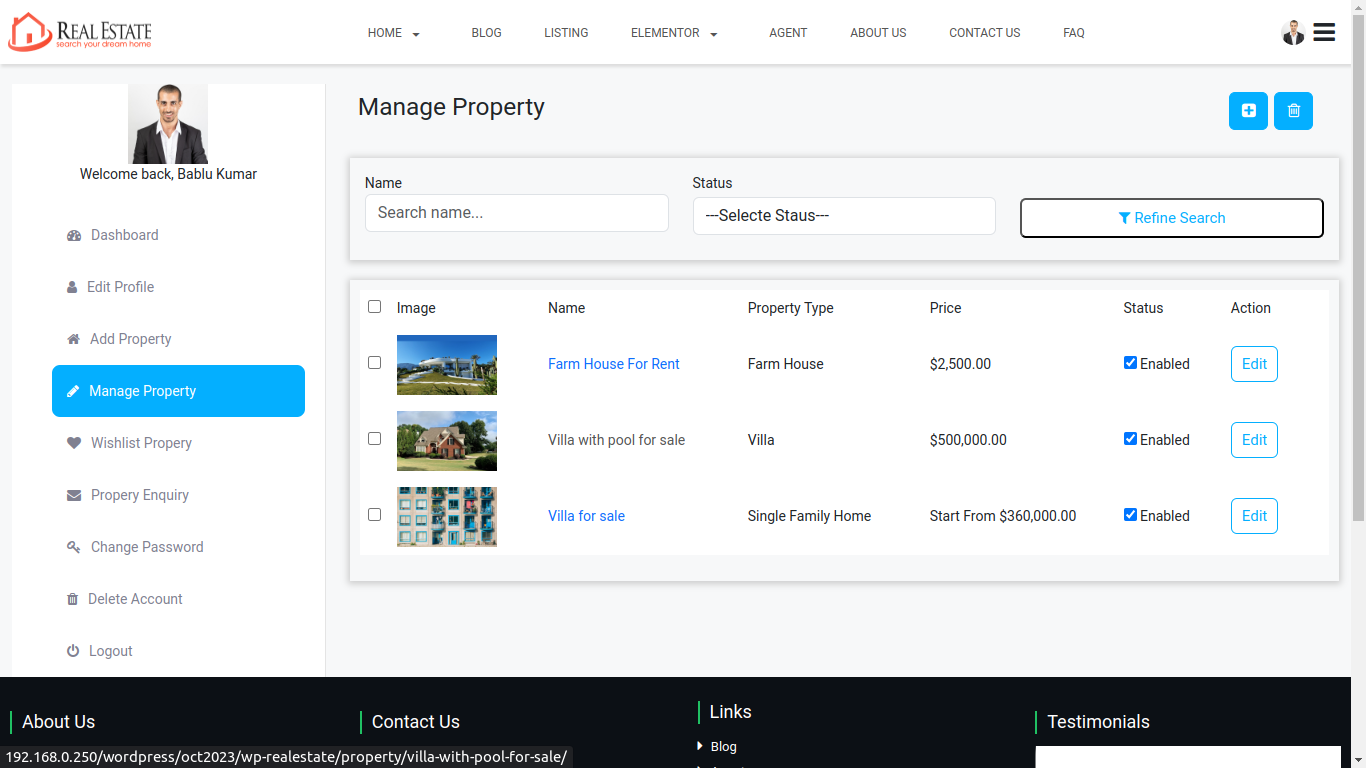
Agent Manage Property
Agent Wishlist Property

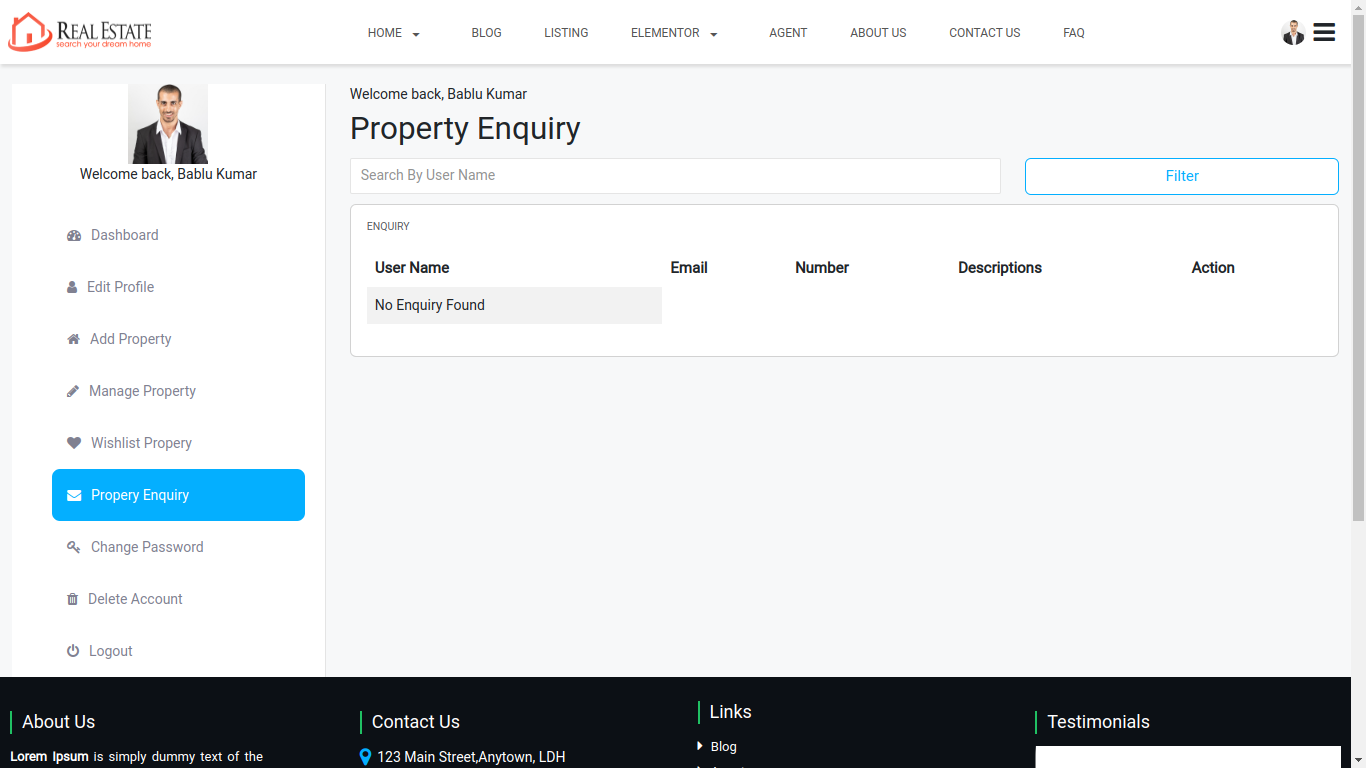
Agent Property Enquiry
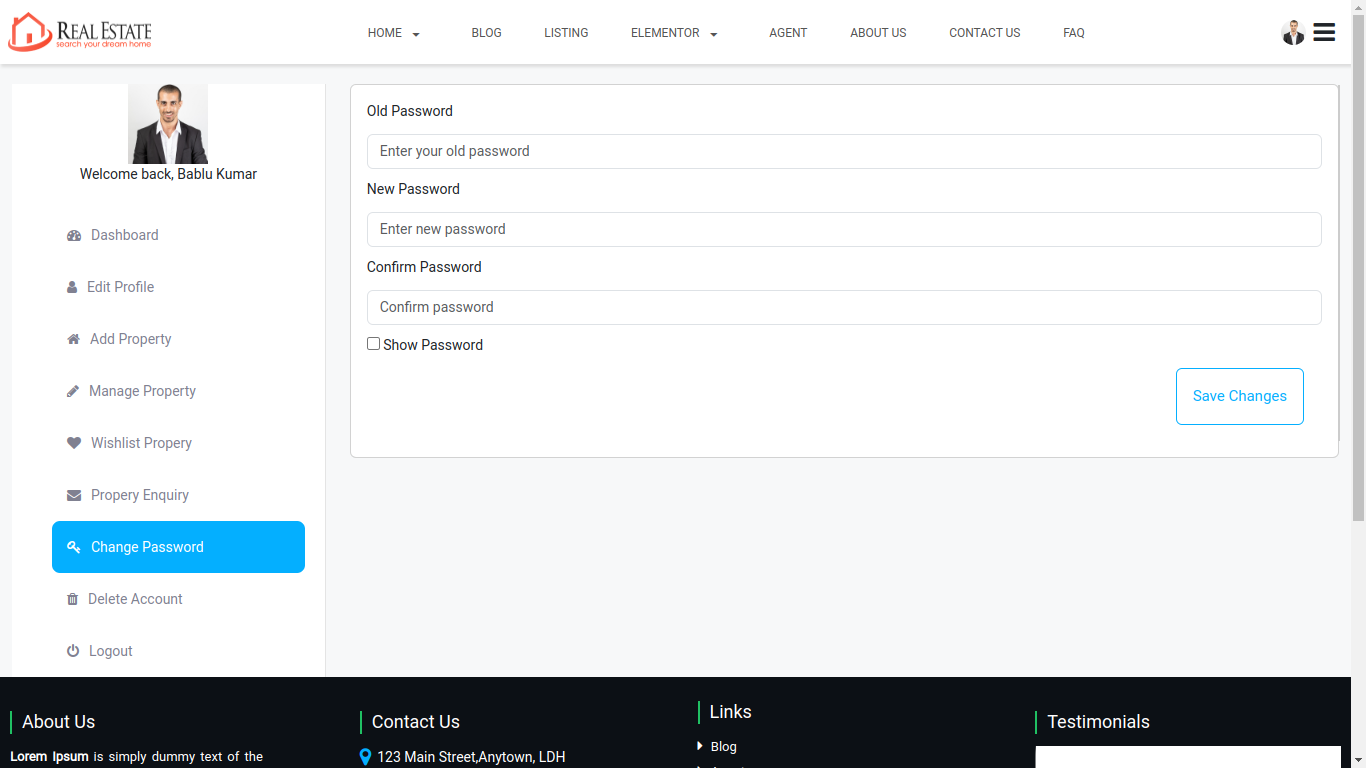
Agent Change Password
Agent Delete Account

Agent Logout
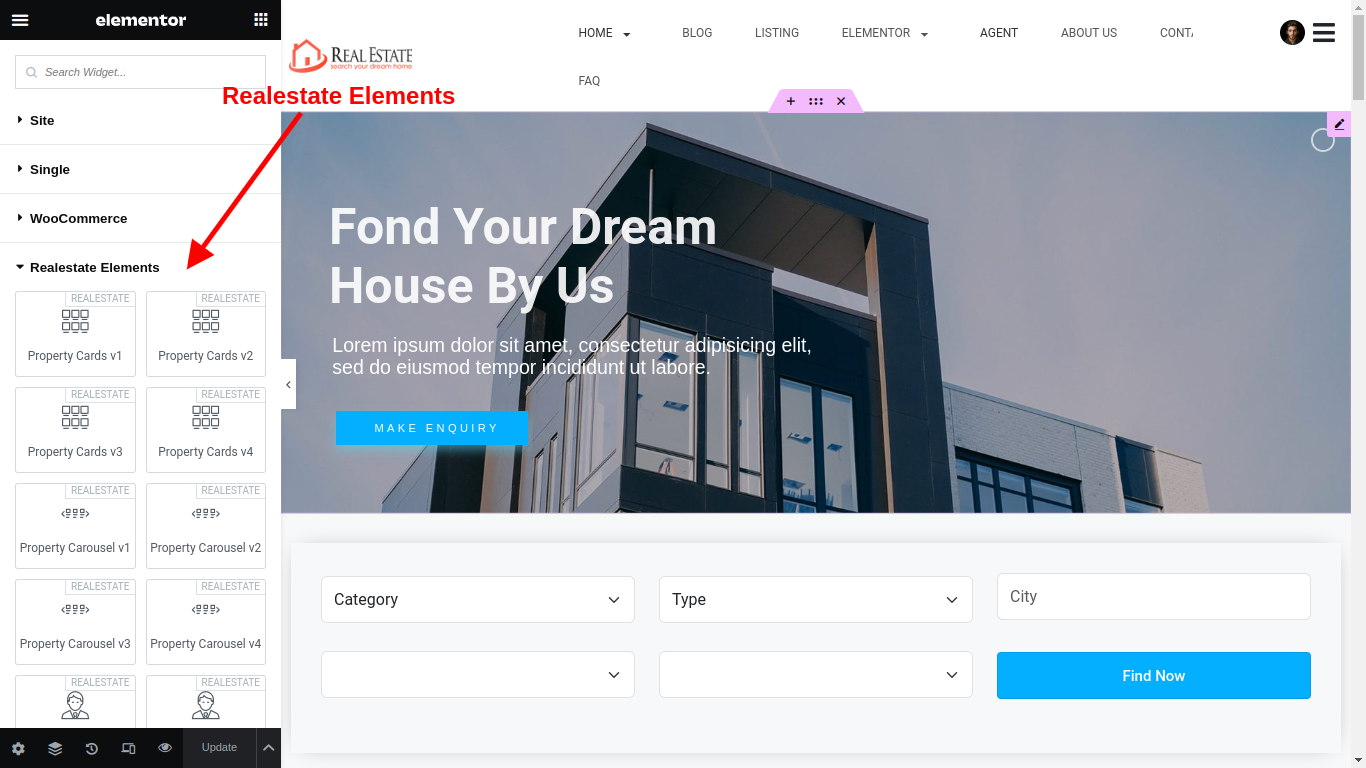
Elementor Support
LayerSlider
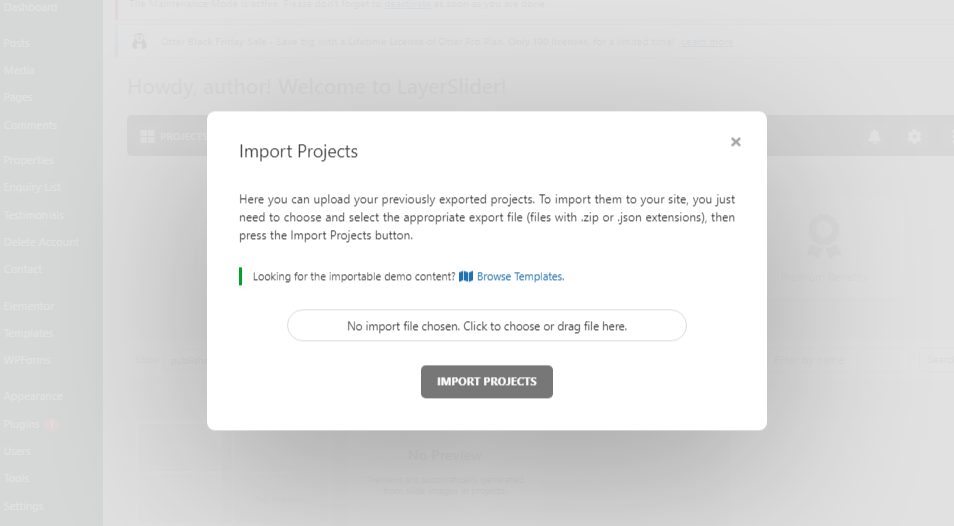
After demo import you can also import the layer slider demo data from realestate package folder are demoxml
Demo layer slider import link is present in yourwebsite/wp-admin/admin.php?page=layerslider