Please use the left navigation bar to browse through this support. Let s go !
Installation
Before install, please make sure you have the components bellow enable on your server
			PHP 5.2 or greater
               MySQL (4.1+) MySQL (4.1+), MySQLi,
Installation WooCommerce Point of Sale
Automatic installation
- 1. Download the WooCommerce POS plugin from our websites .
- 2. If downloaded as a zip archive, Than keep zip file to your desktop.
- 3. Go to Plugins screen in site admin panel and select Add New.
- 4. Click on upload plugin and Browse plugin zip File from desktop.
- 5. Install the plugin
- 6. Click Activate Plugin to activate it.
- 7. after activate plugin go to pos setting tab and fill requirement according to instruction below.
Manual installation
To install a WooCommerce Point of Sale Plugin manually:- 1. Download the WooCommerce POS plugin from our websites .
- 2. If downloaded as a zip archive, extract the Plugin folder to your desktop.
- 3. With your FTP program, upload the Plugin folder to the wp-content/plugins folder in your WordPress directory online.
- 4. Go to Plugins screen and find the newly uploaded Plugin in the list.
- 5. Click Activate Plugin to activate it.
The Pos Introductions
POS Means point of sale or point of purchase where a transaction is carried out once the customer picks the products for buying. If you are a retailer or wholesaler, you cannot run a demanding business without having a proper POS setup.
The complete setup of POS system includes computer, credit card reader, receipt printer, barcode scanner, cash drawer and POS software. Following are the main features of POS system.
The tmd pos is running with WooCommerce plugin its provide you all feature of pos advance system
Why use our Pos
The main advantage of our pos system is Easy to use and free Technical support, coupon, voucher, invoice, hold, Barcode etc. its help to improve your business, our support member give you quick and fast support no need to another plugin and extension to run the pos system. Main feature list see below
The Featured List :
- Clean and responsive Design work on PC/Tablet
- Compatible Tax setting
- Multipal Layouts
- Front POS User Login
- Dashboard
- Quick add and edit orders
- Quick add and search customers
- Fast search and ajax loading
- Product Stock and other info
- Direct add to cart with options Stock alert
- Fixed/Percent Discount Calculate Change
- POS users automatically get redirected to POS login and interface
- Guest and Registered Customer
- Coupon and voucher
- Warehouse
- Stockin
- Barcode Customization
- Order Comment
- Sale Report
- Multi User
- Advance Setting
Login To POS
To access the pos system must be Login, admin can create multiple user with different role for access the pos. like admin can create particular user for pos.
POS User Login
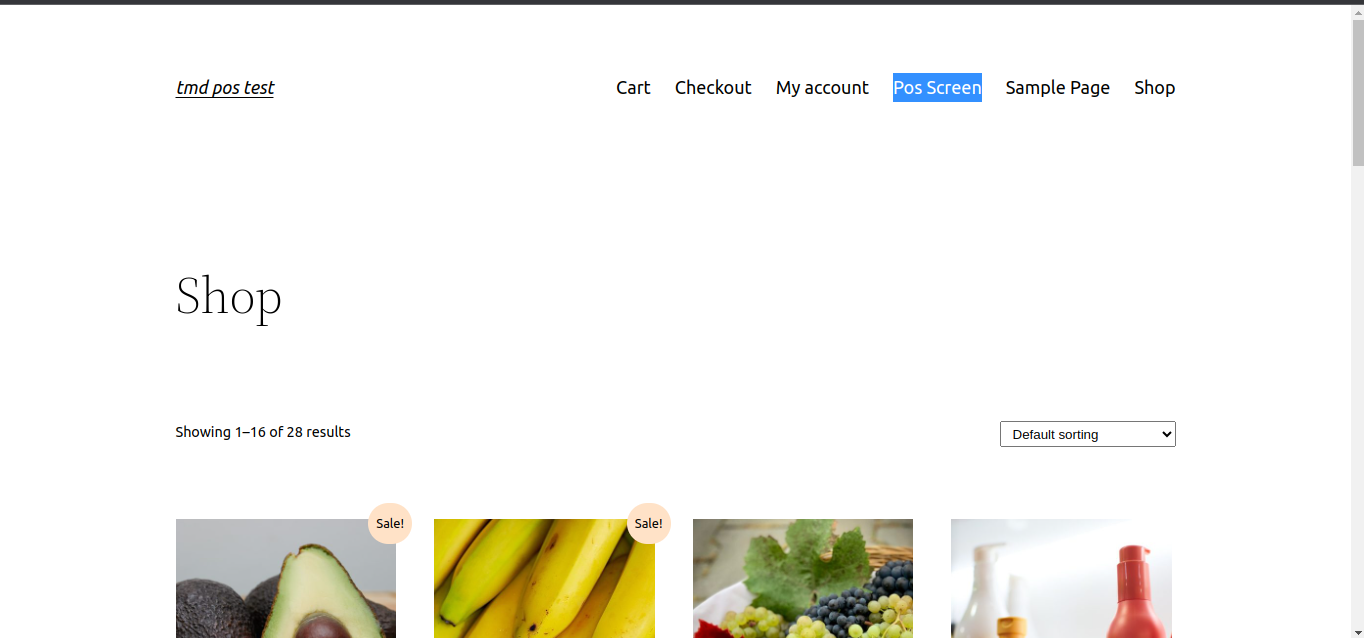
Pos user can access the pos system from the pront side. Click on pos screen menu to login to the Pos
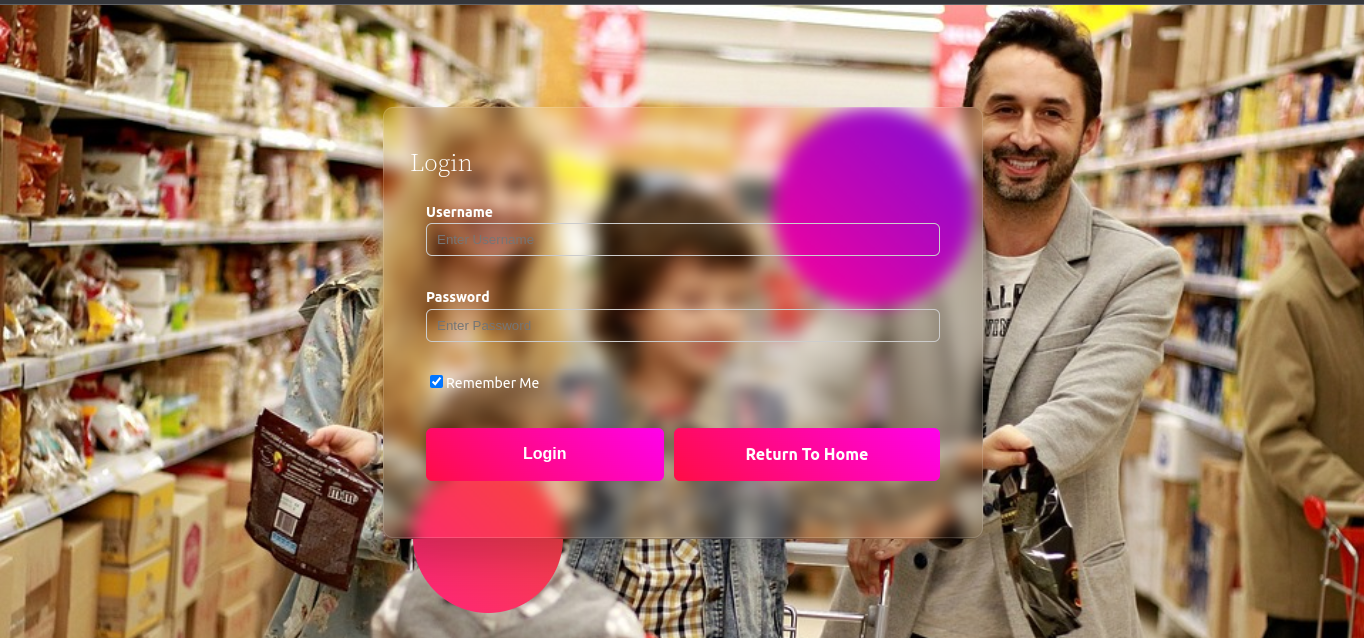
Fill user detail to login to the Pos
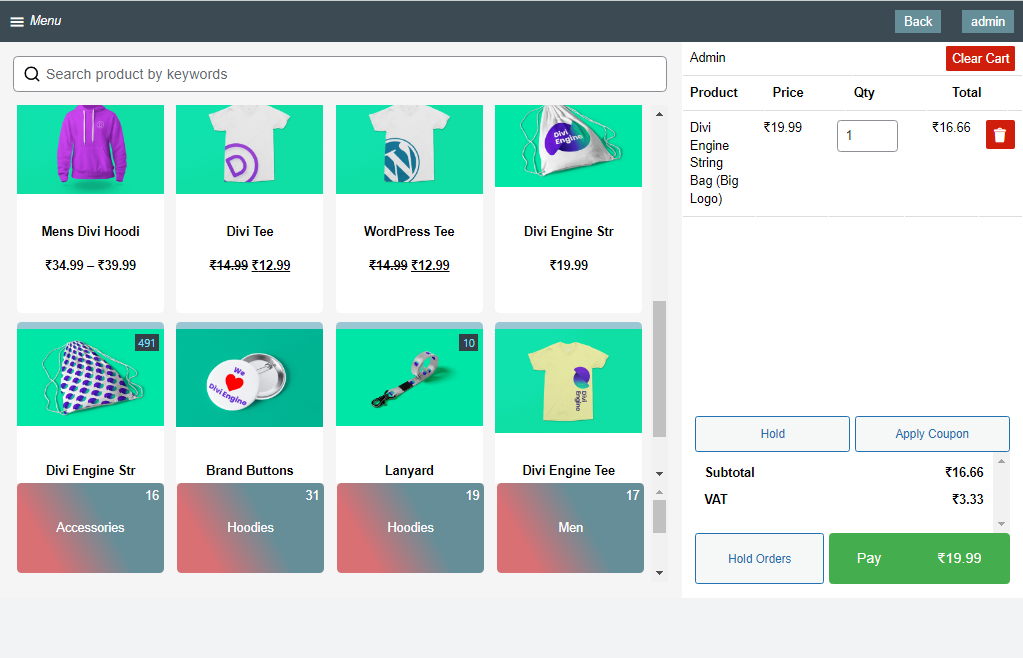
Pos Screen
Pos Screen easy to use and all part are managed from pos setting. we are continues to make its more easy to operate
Scan To Cart
Quick add to cart, scan product barcode to add product to cart.

Add product in pos screen
If Product is available in stock than you can add to cart and continue orders
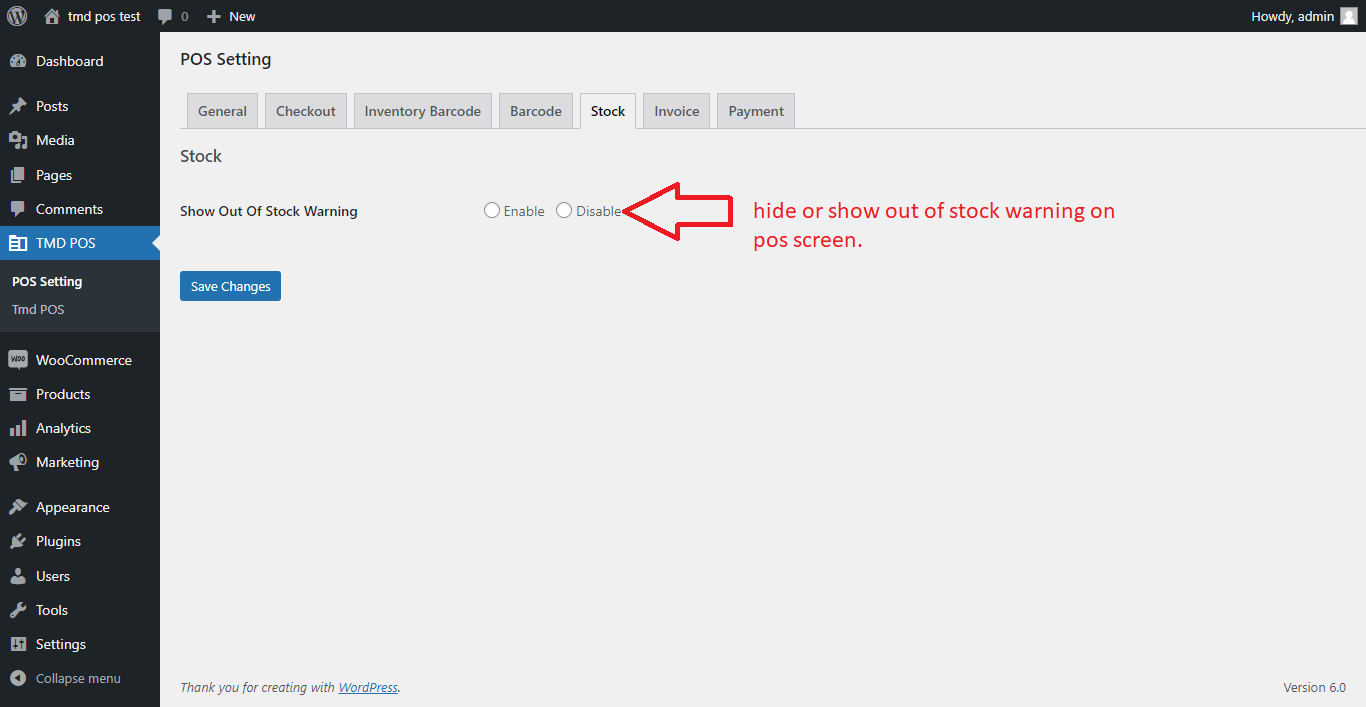
If the stock quantity is not available, the key performance indicator screen is set to red color on the front end. This alert indicates to store owners that stock is out of order. So as a store owner decision-making becomes easy for you whether you would like to add to the cart. Or correct the negative stock quantity for managing your store in order.
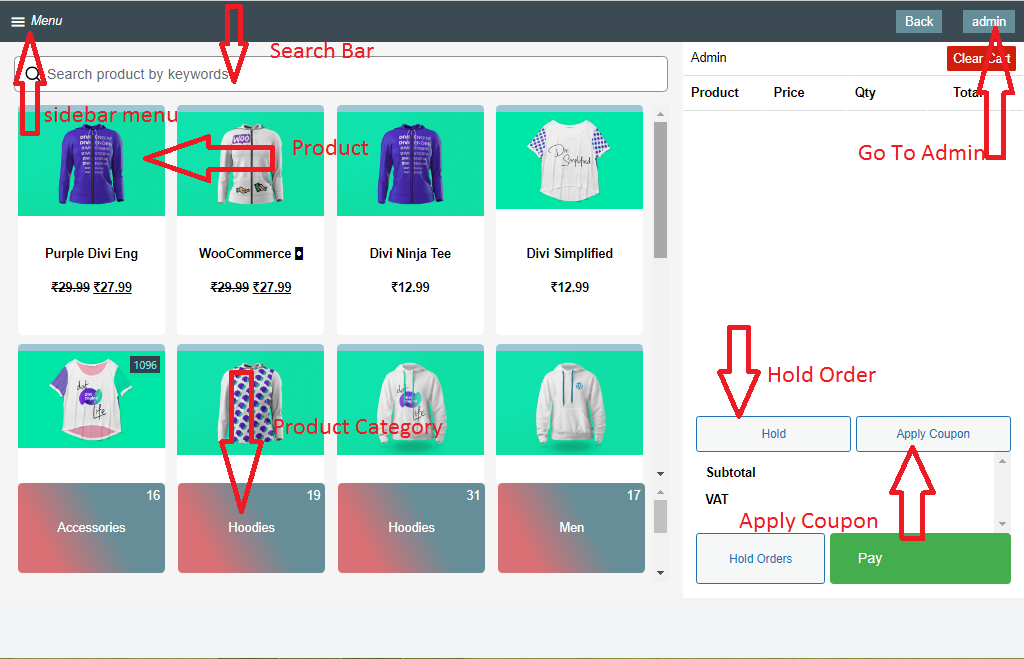
Coupons And Discounts
Reward your customers with fixed or percentage-based discounts, including coupons. Additionally, cashiers can charge a fixed or percentage based fees.
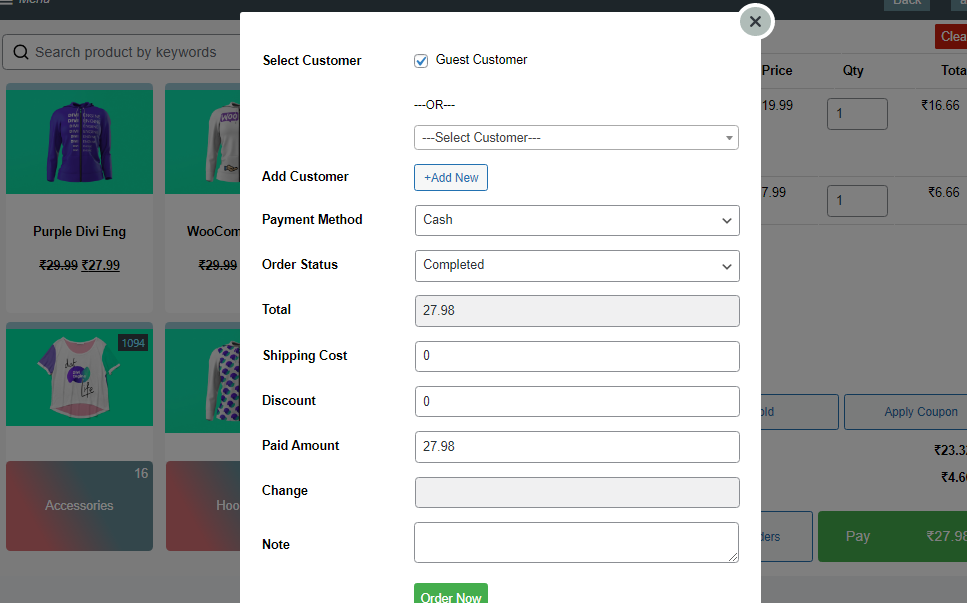
Place order in pos
Attach notes to important orders that require special attention. Choose between notes that are sent to the customer and administrative notes for internal record keeping.
After add to cart store keeper add customer and create invoice
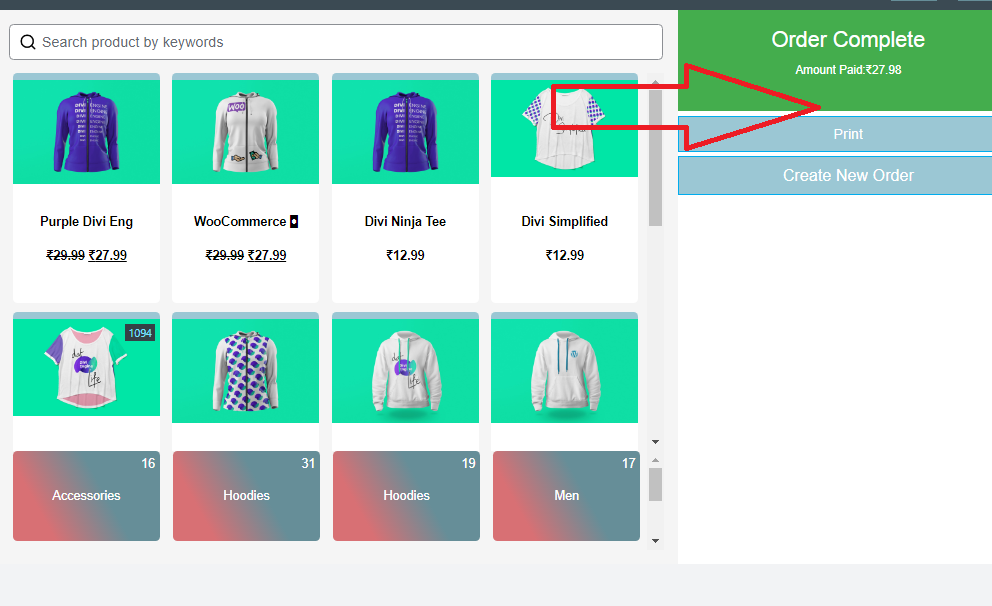
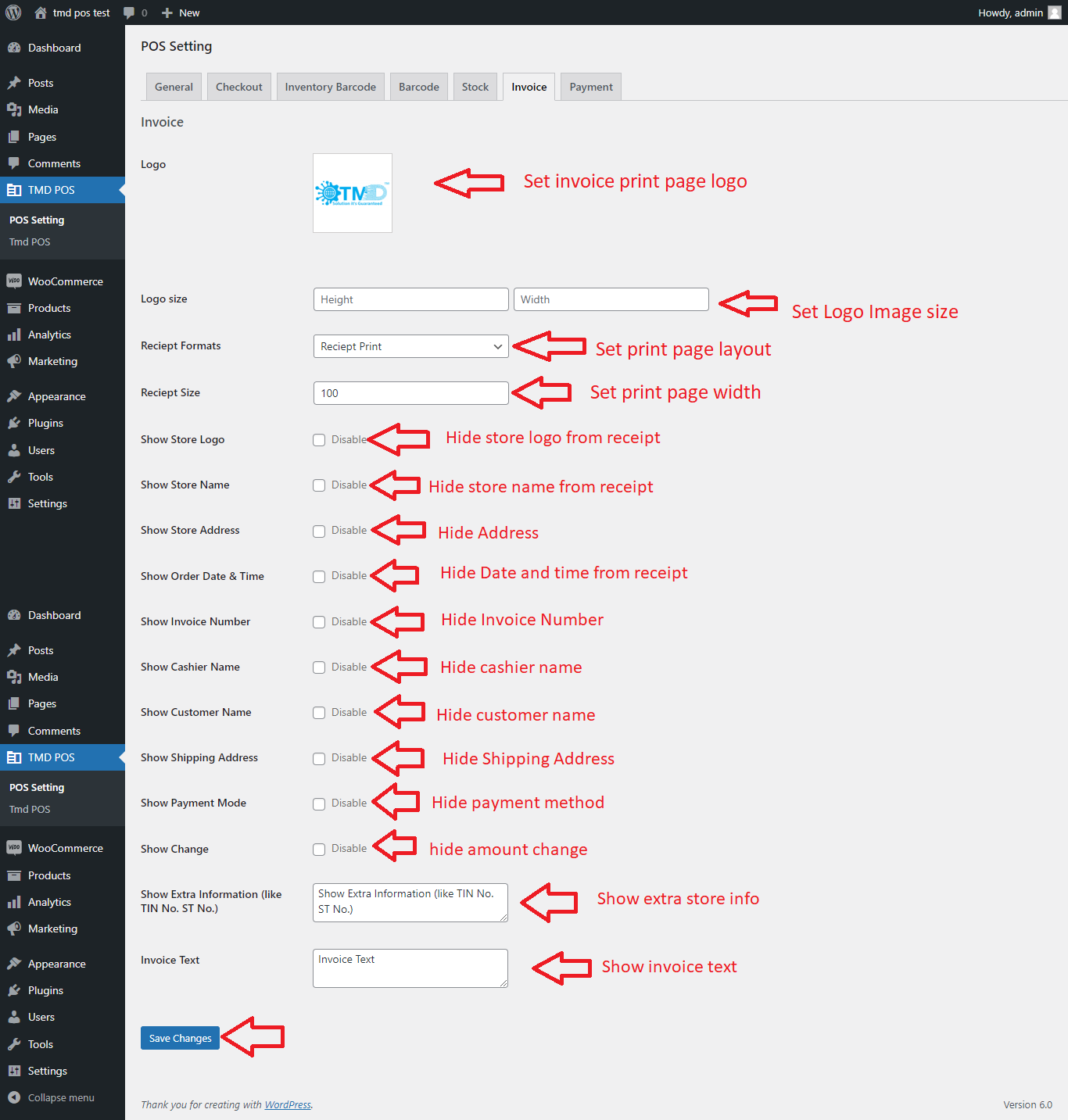
Print invoice pos
If Order status is not complete than invoice not generate
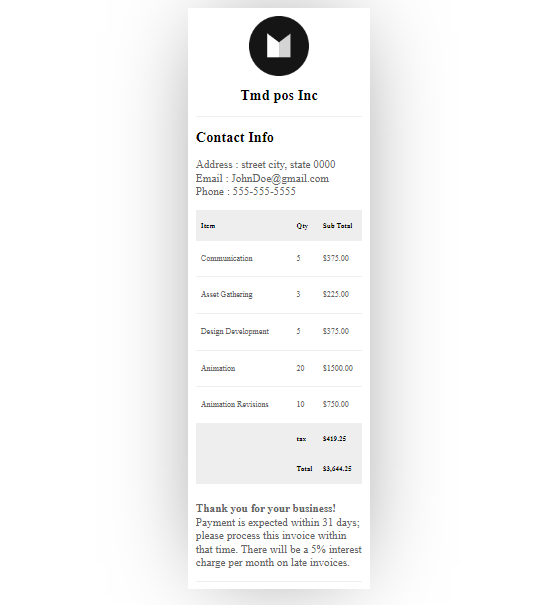
Invoice after print
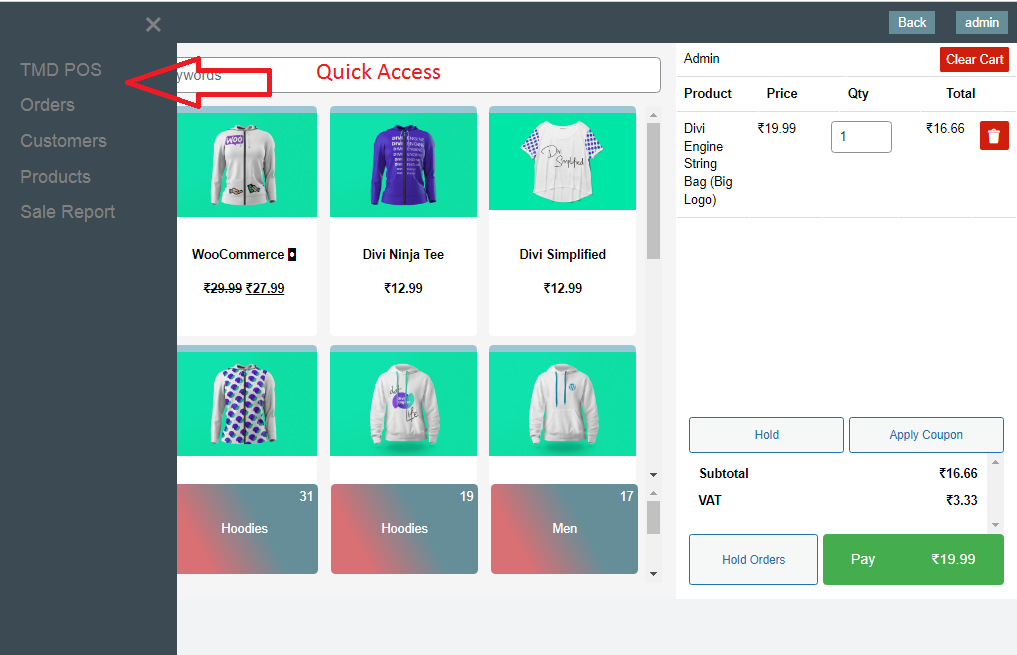
Quick access menu is shortcode to access the customer list order list and print invoice.
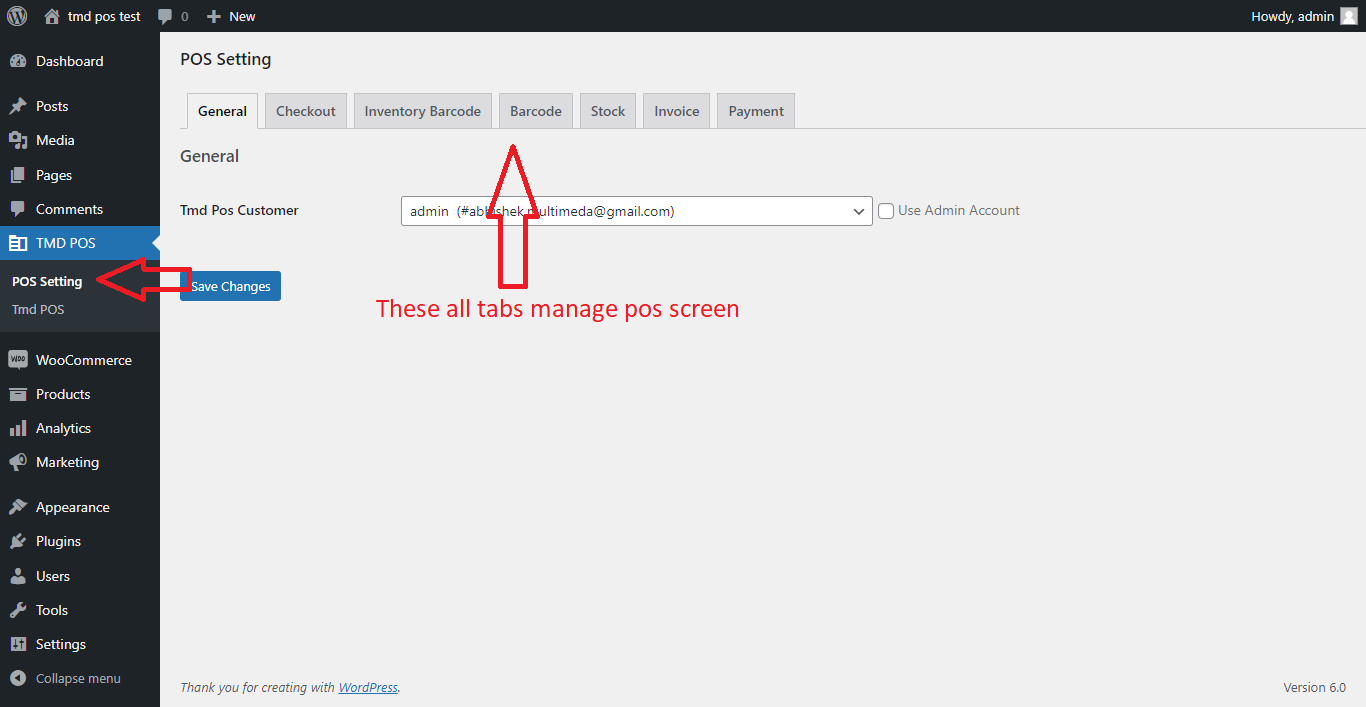
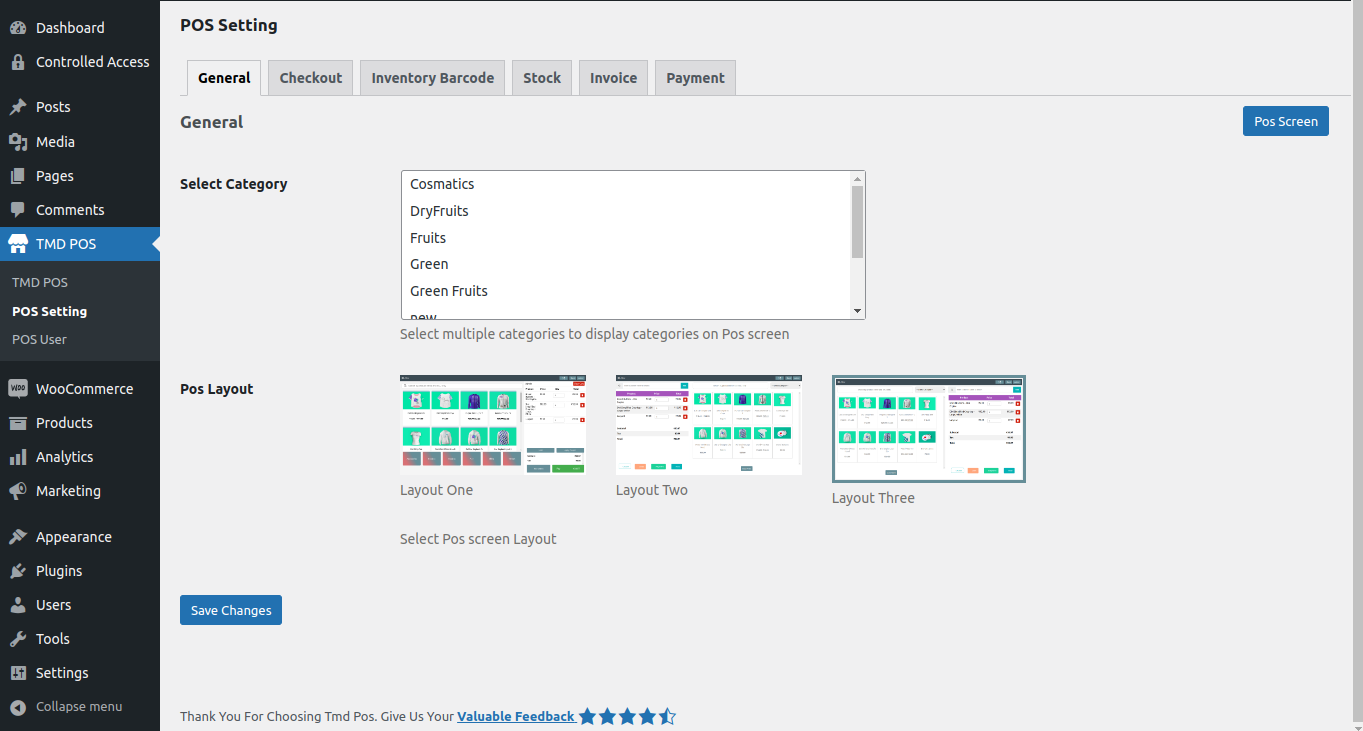
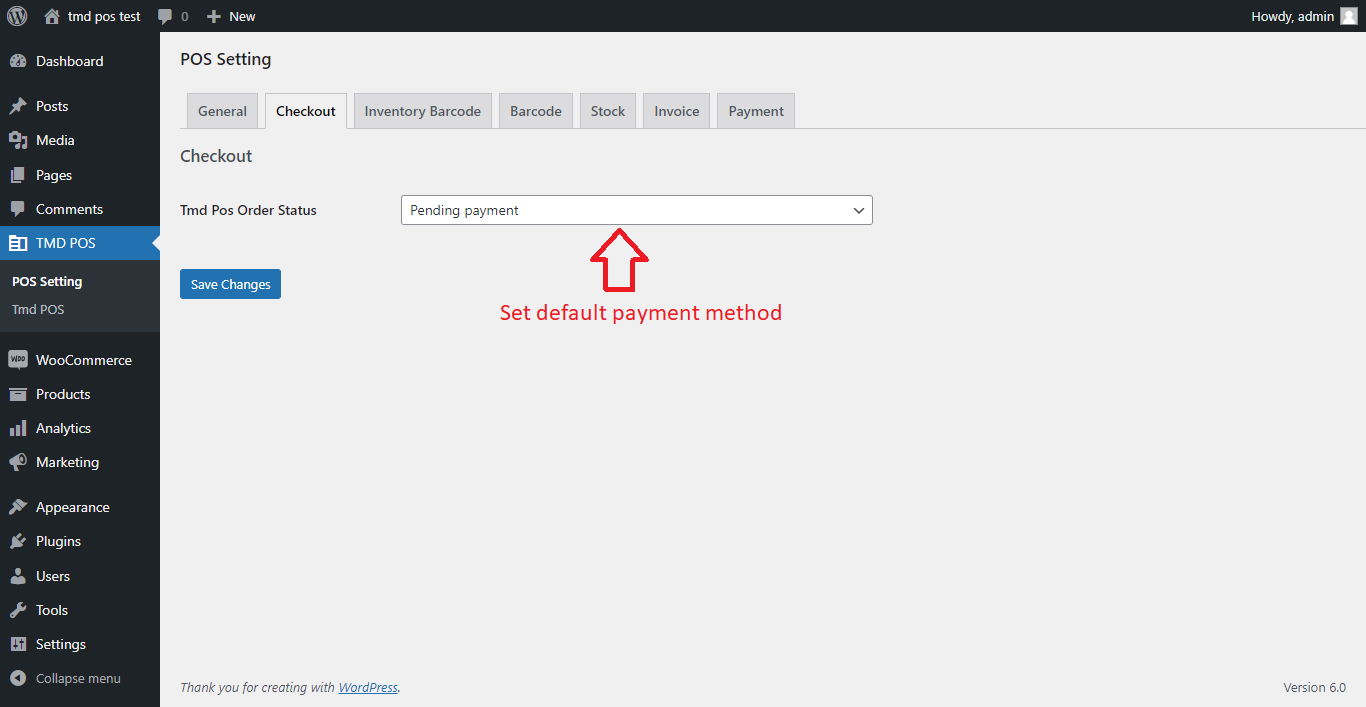
Pos Setting Here admin can mange all pos screen like General, Checkout, Payment, invoice, inventory barcode, stock etc...
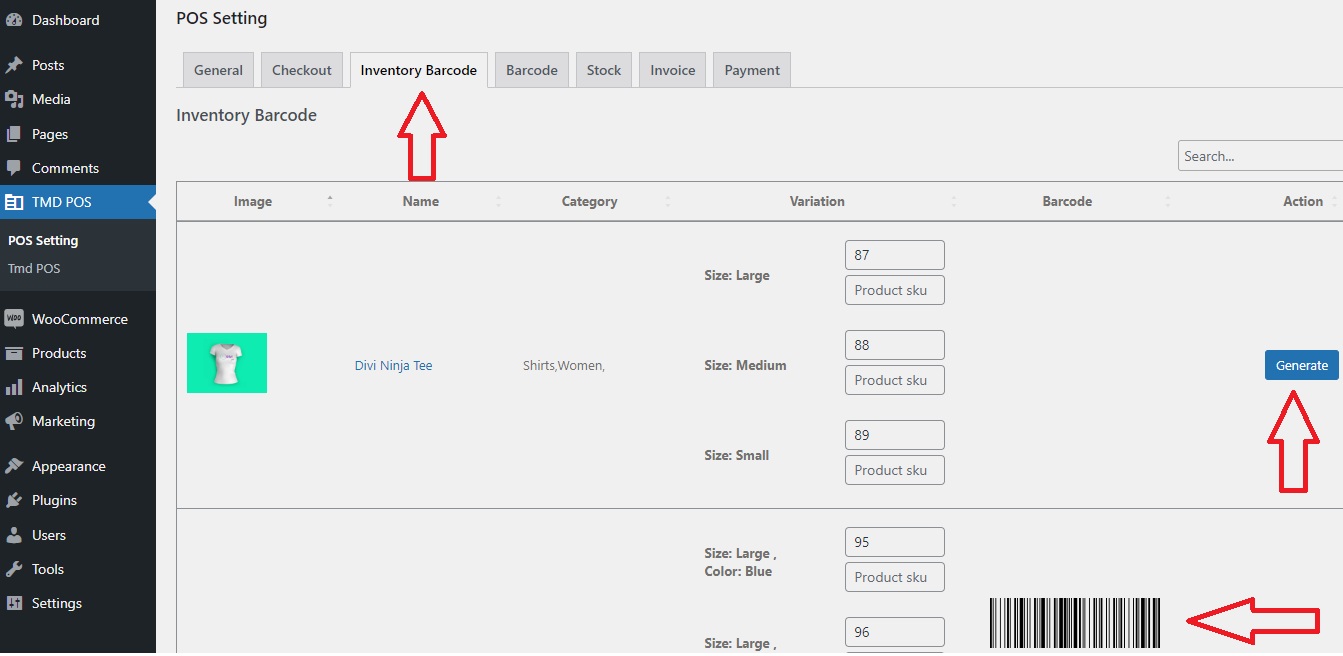
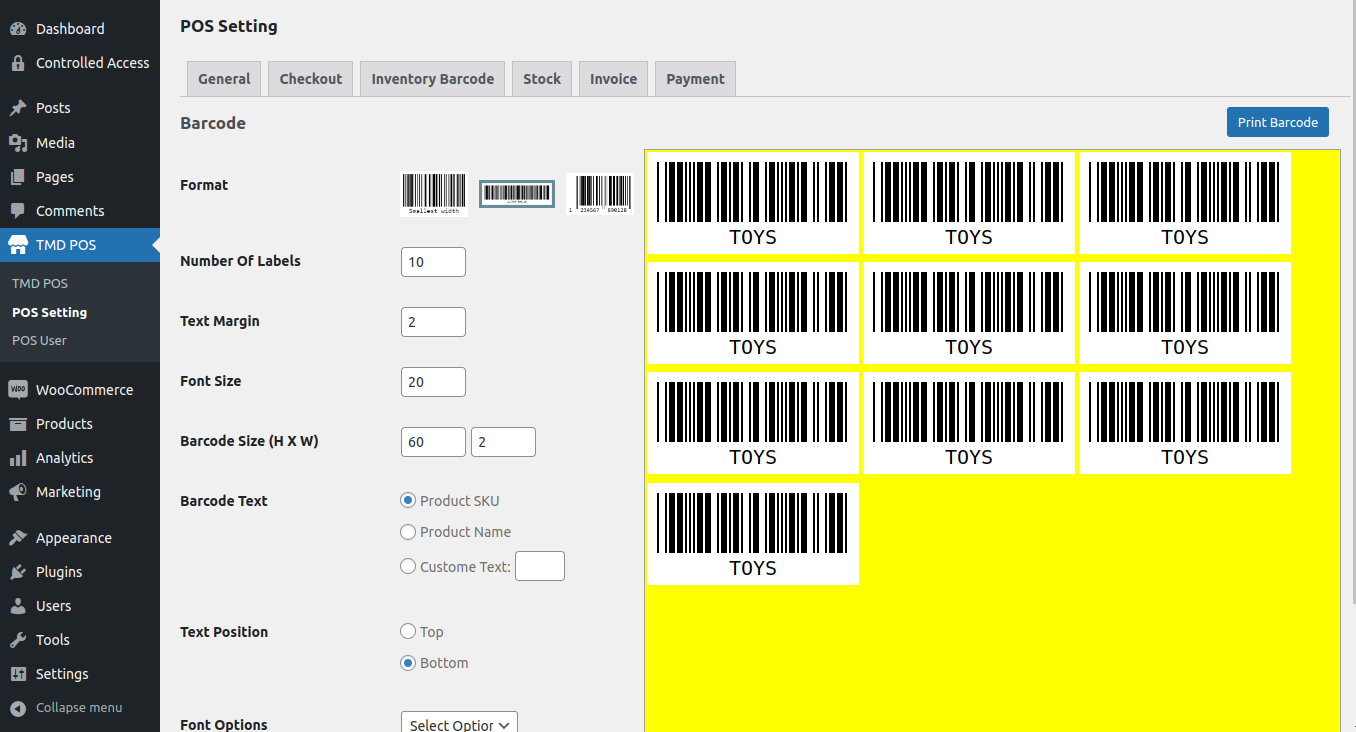
Product Barcode Here is a option to generate barcode store owner can generate every product Barcode through SKU.
Note:without SKU can't generate Barcode
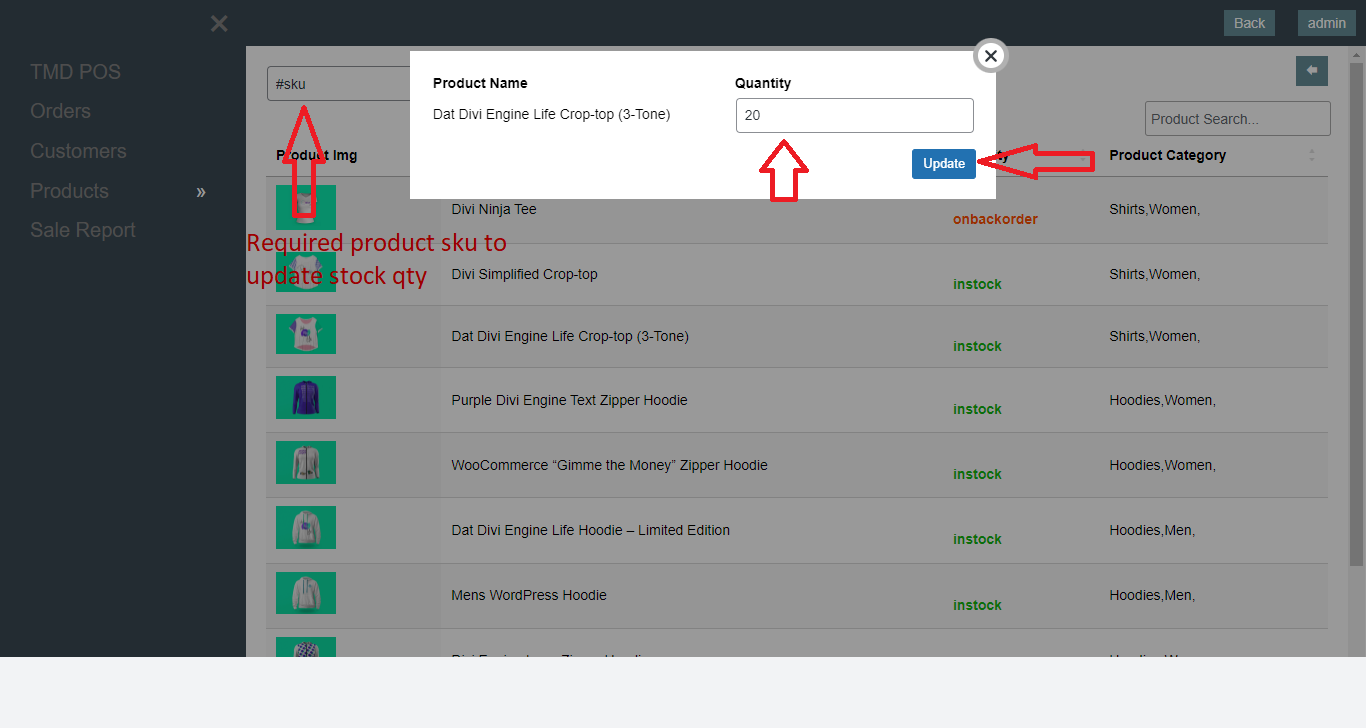
Stock in feature to add stocks, search Product by sku number and increase the stocks of product
Category
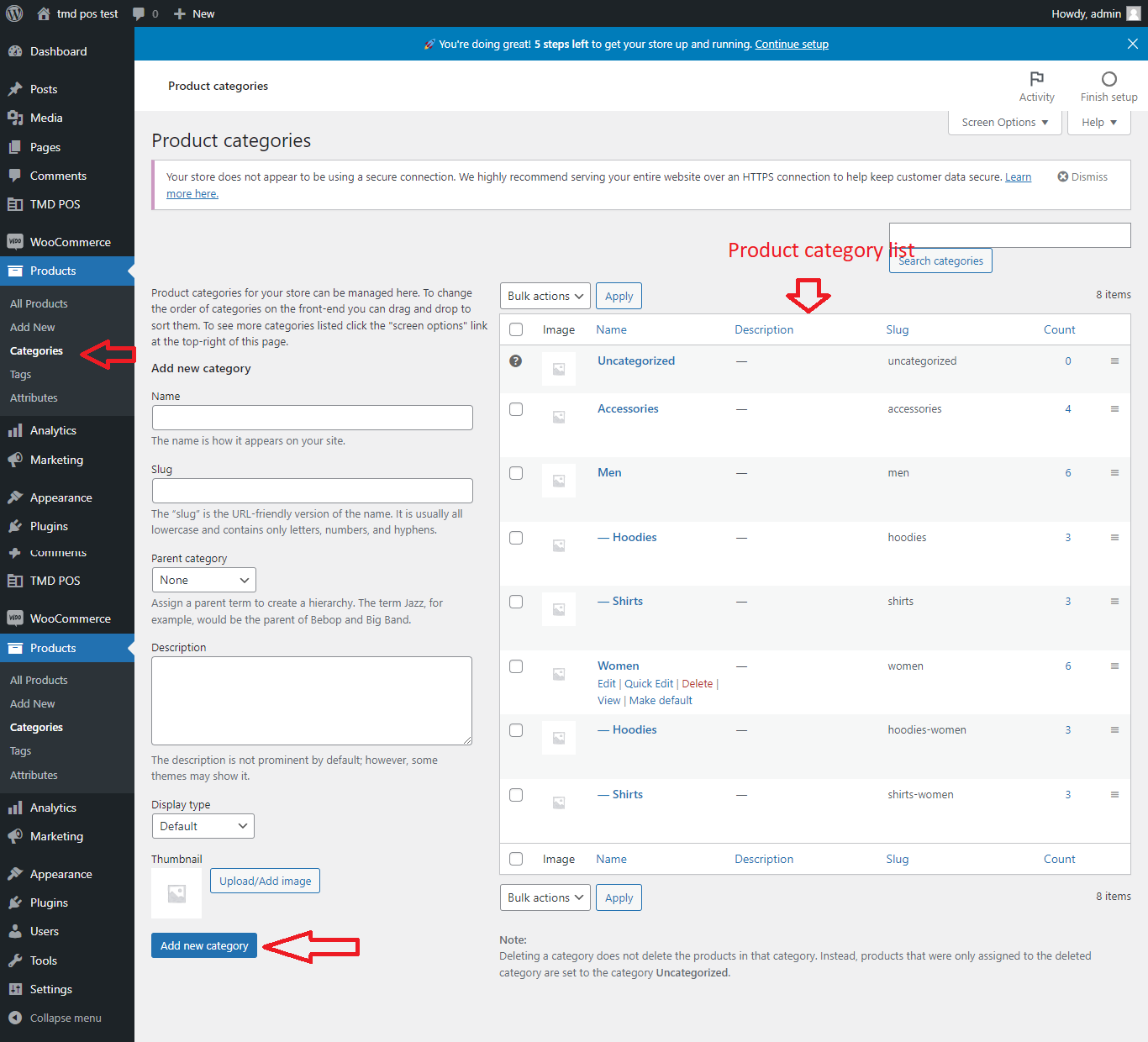
Category is a option to Divide product in related area name which is use in product like fashion, sports, footware etc. to category in pos system please follow the screenshot, This category feature provided by woocommerce.
Product
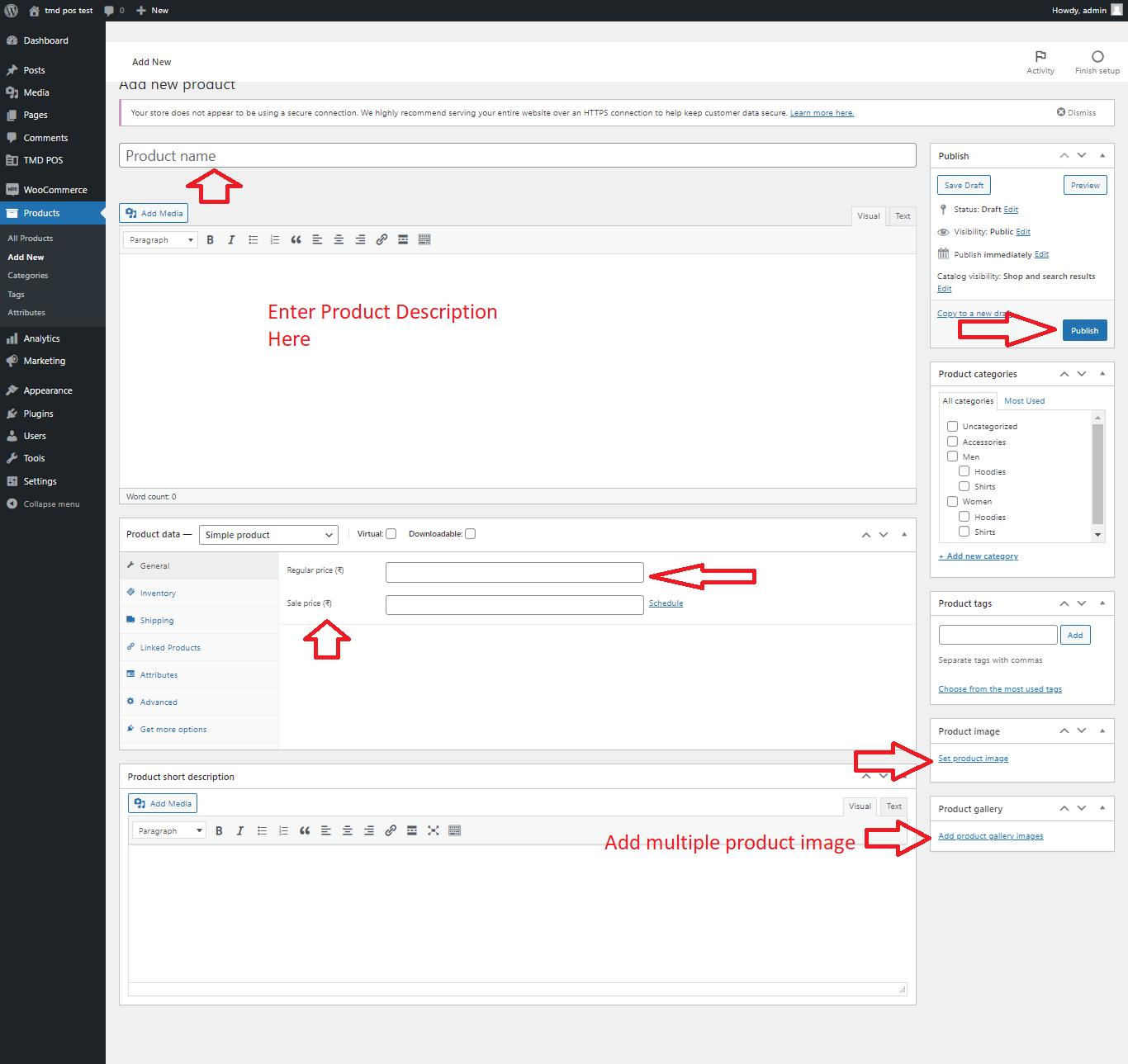
All Product is managed by the admin, admin can add, update, delete, product in an easy or organized way.
Order
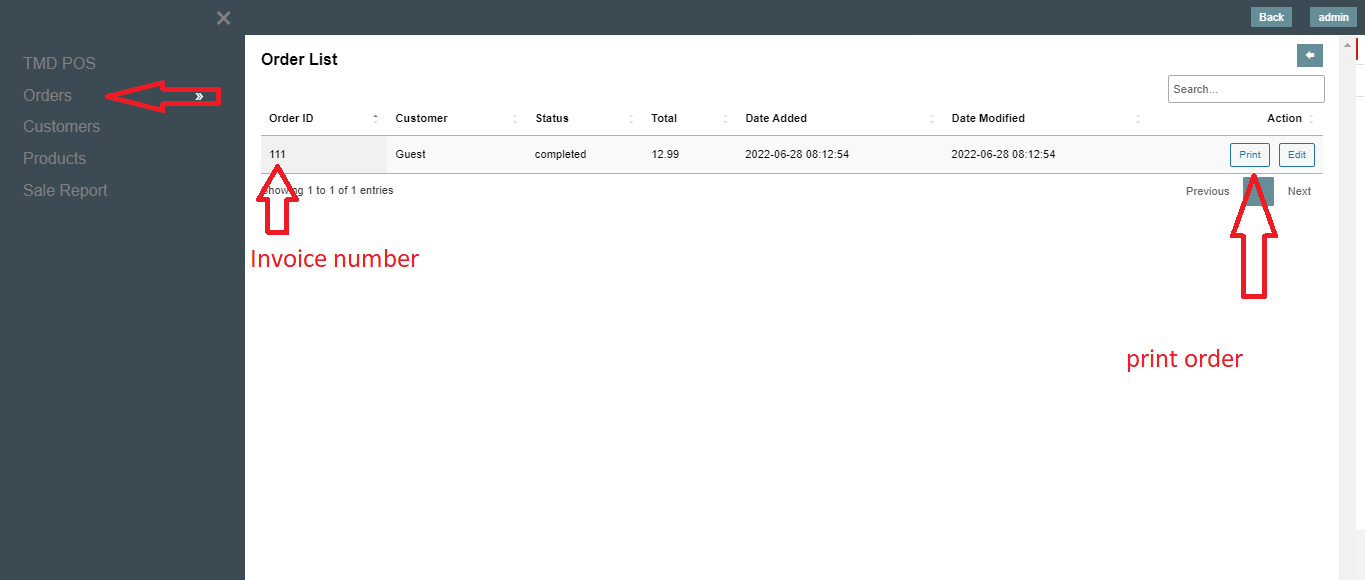
All Order is manged by admin admin can delete or print product order by order id.
Customer
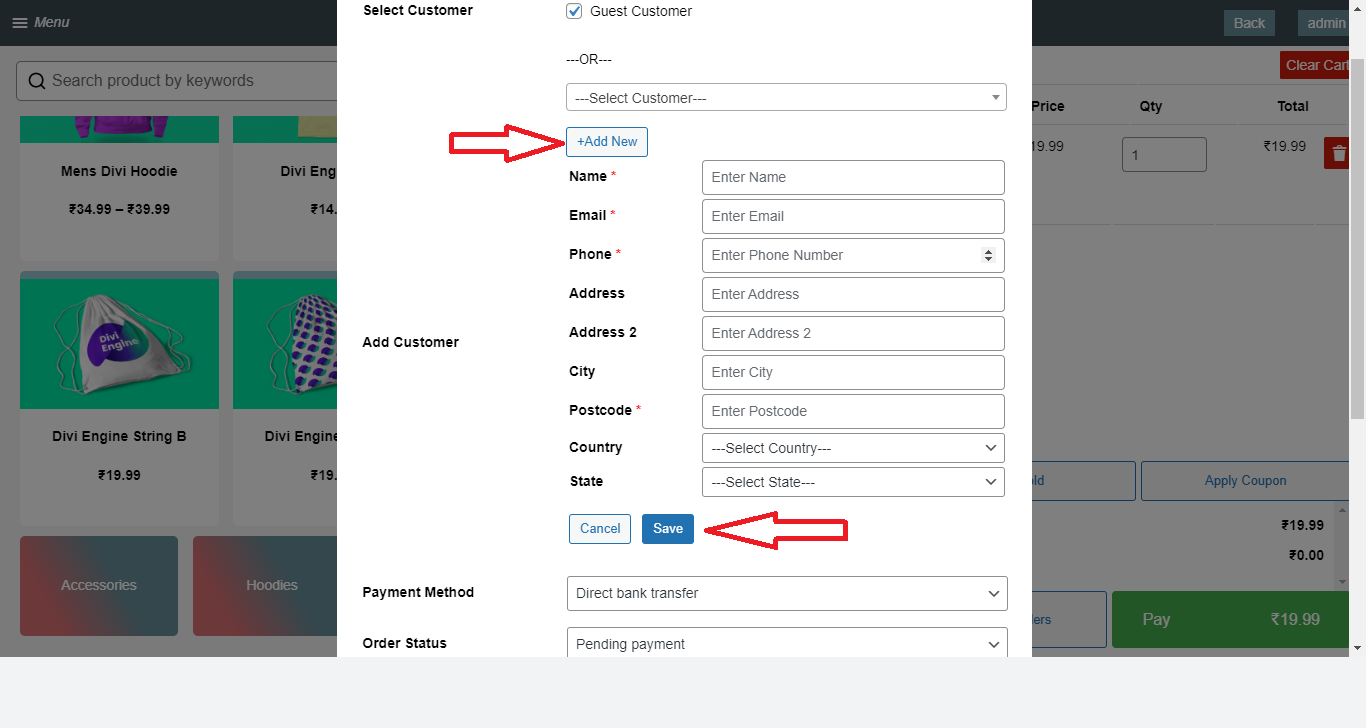
Quick Add Customer is very easy way, pos user can add customer
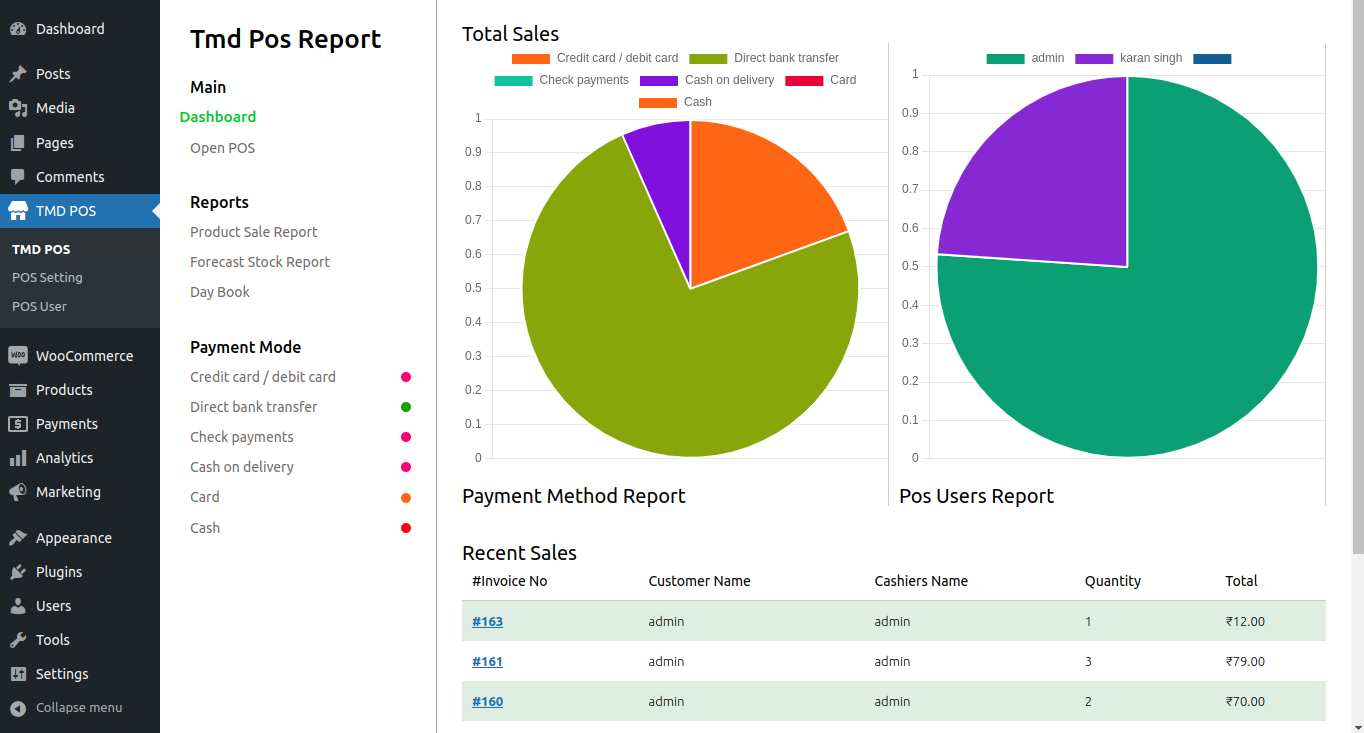
Dashboard
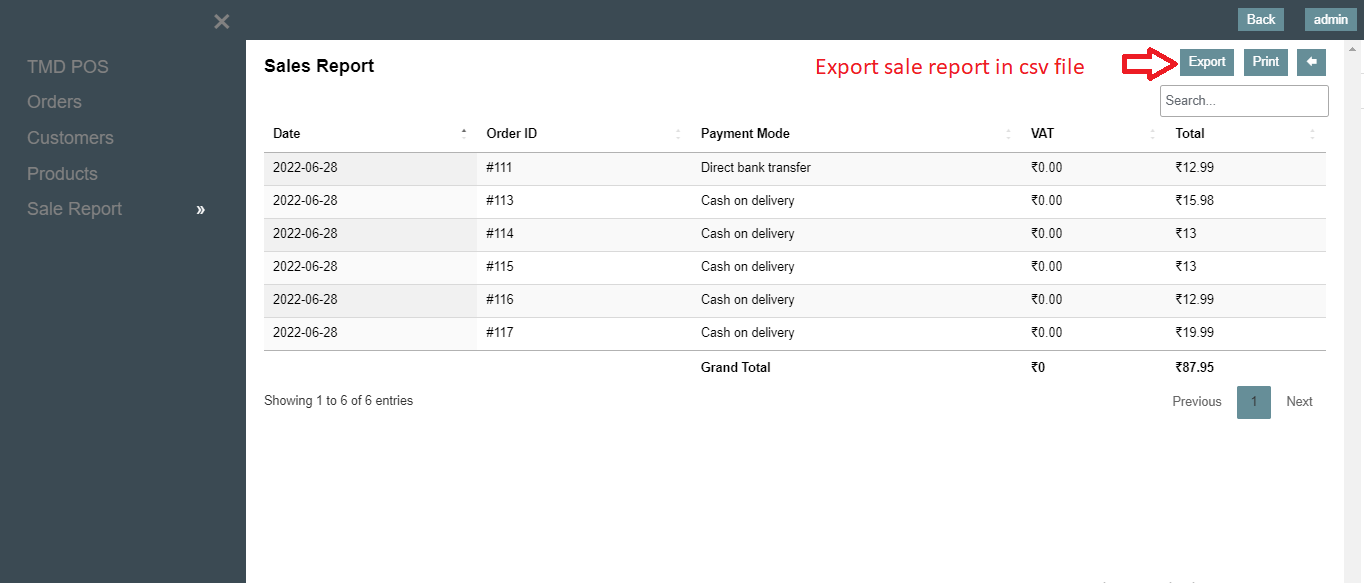
Pos provide you a clean and responsive dashboard. Here you can manage the sale reports.
System
System is a parent menu there all setting option is present in submenu
Pos General
Pos Checkout
Pos Inventory Barcode
Pos Barcode
Pos Stock
Pos Invoice
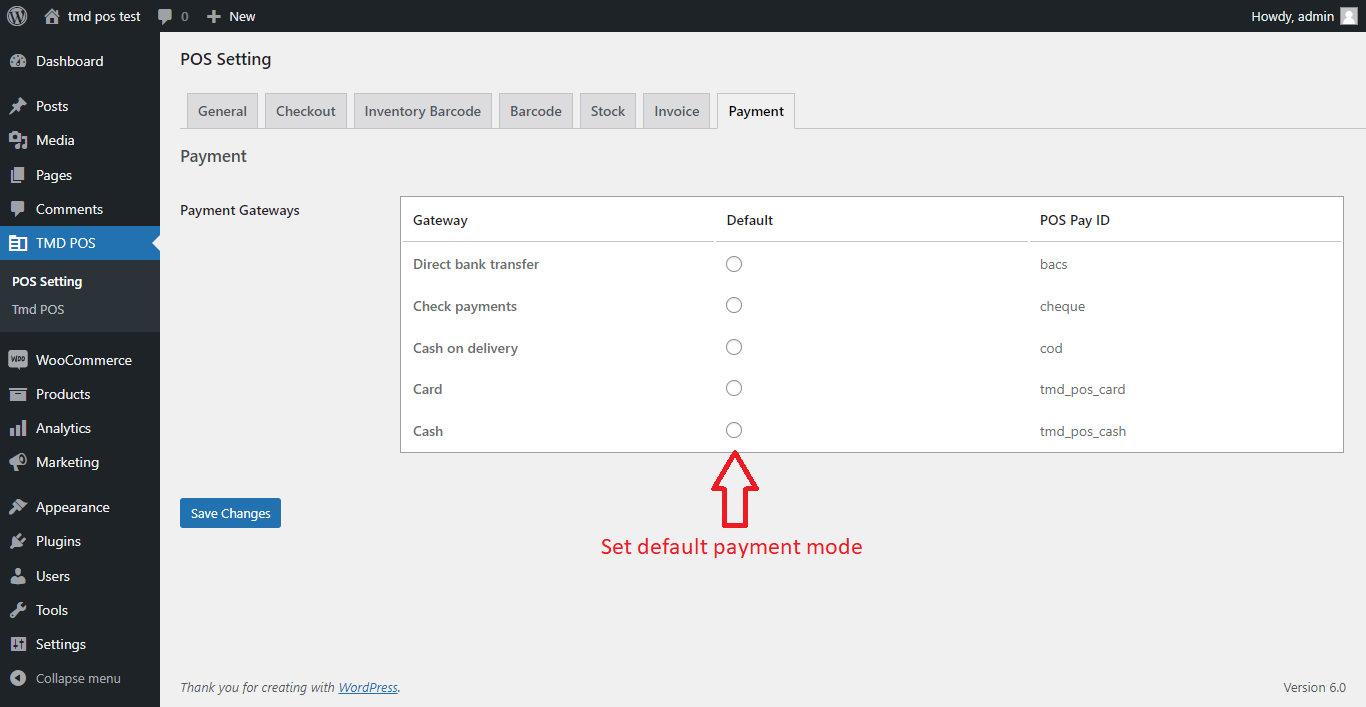
Pos Payment
Sale Report